


How to Prevent Incomplete Data from Derailing your AMM Model
Overview
The Problem
Training a model in Adobe Mix Modeler on incomplete data can lead to unreliable model results.
The Solution
- First run your model on the default training window
- Review the harmonized data to identify a valid training window – i.e., the last date when all Marketing and Conversion data has been ingested.
- After your model has run successfully, retrain it on the valid training window.
The Problem
In a perfect world all marketing and conversion data would flow directly into AEP in real time and all datasets would be up to date anytime you want to run a new model. In reality, that is rarely, if ever, the case. Data is typically being ingested at different intervals. Some datasets may take more time than others to become available. And sometimes, there are issues that delay data from being ingested.
Training a model on incomplete data can result in unreliable model results. By default, new models train on a period immediately preceding the most recent conversion. So if you have a 2-year training window and your most recent conversion was yesterday, then the model is going to train on ‘Yesterday minus 2 years’ through Yesterday. If all your marketing data is not at least as current as your conversion data, then you can run into problems.
The issue is illustrated in the visual below. There are 4 channels and a single conversion. They all have data through the current week, except for TV, which drops off the last few weeks of the date range. The model can see that and conclude that since TV dropped, but Conversions did not drop, TV has no impact on Conversions.
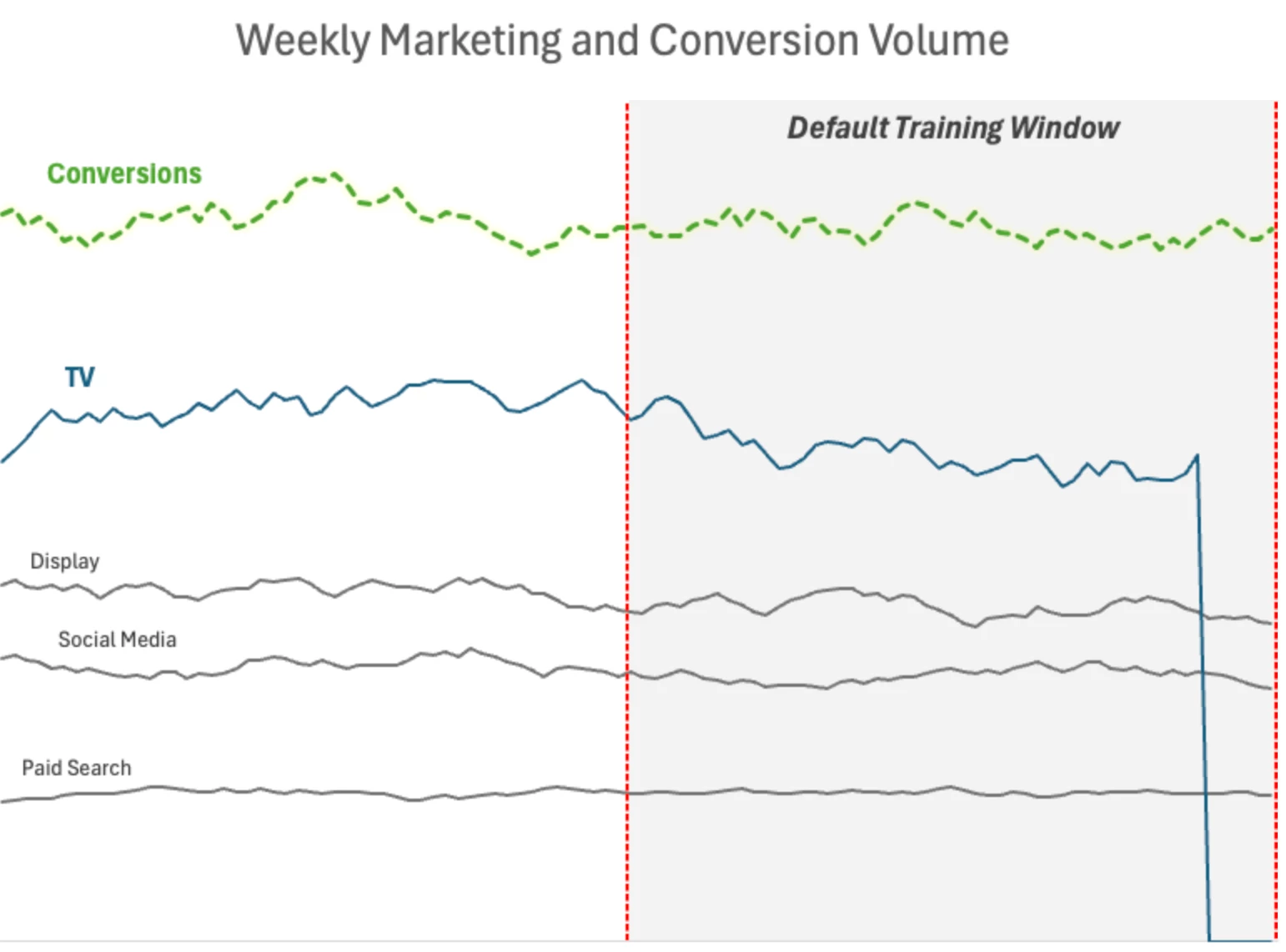
To solve for this, we need to first identify a valid training window, and then re-train the model on that date range. Below you can see that the training window has been shifted back to a date range where all channels have complete data.
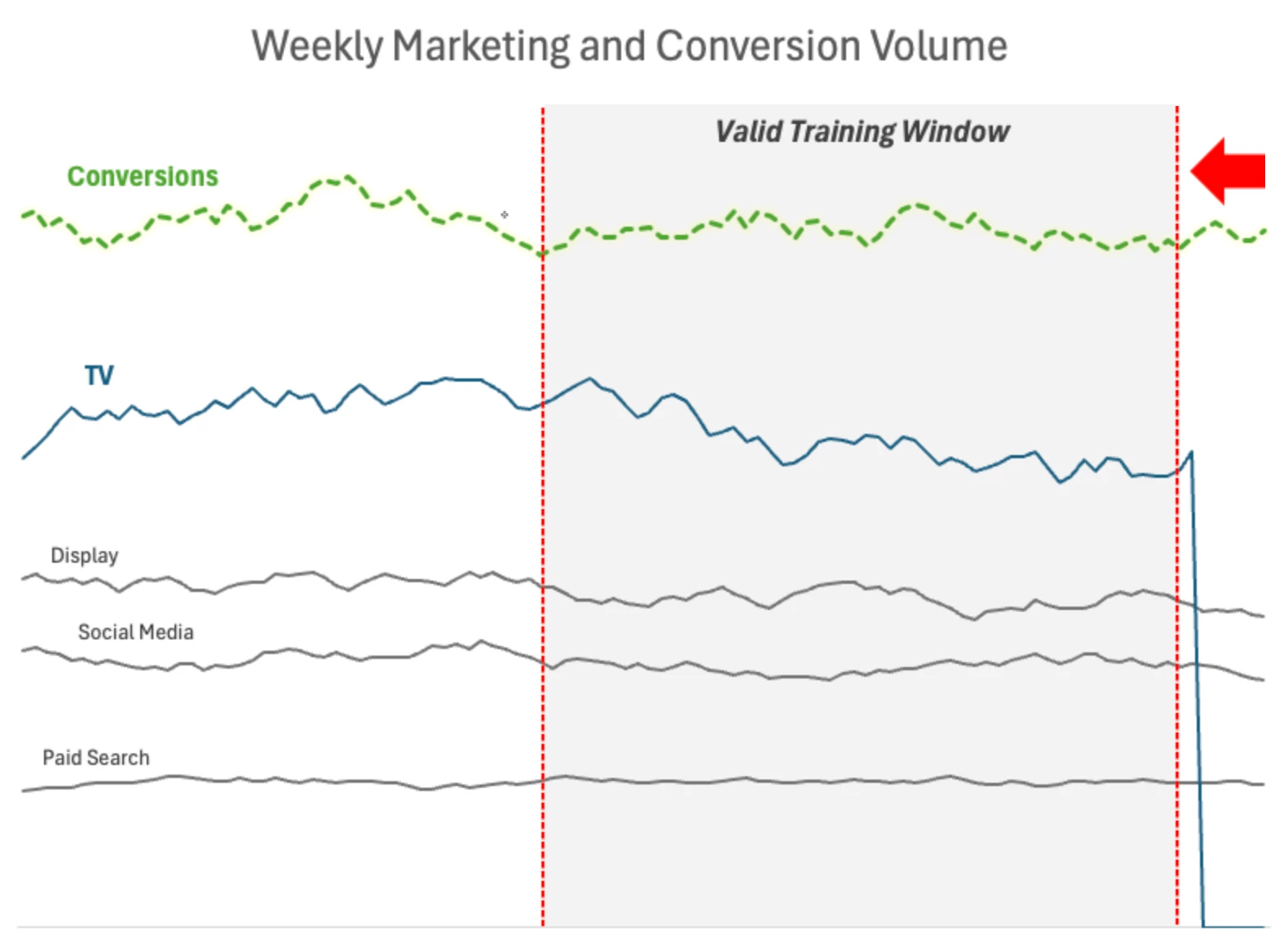
Identifying a valid training window
Option 1: AMM Interface review
Go to the Harmonized data tab in the AMM Overview window to confirm the most recent date where data has been ingested.
You should ideally validate harmonized data, not AEP datasets, since models run on harmonized data.
Use Stacked Area Charts to confirm both your marketing channel and conversion data. If you can’t find what you need, you can adjust the settings of an existing visualization by clicking the pencil icon in the top right corner.
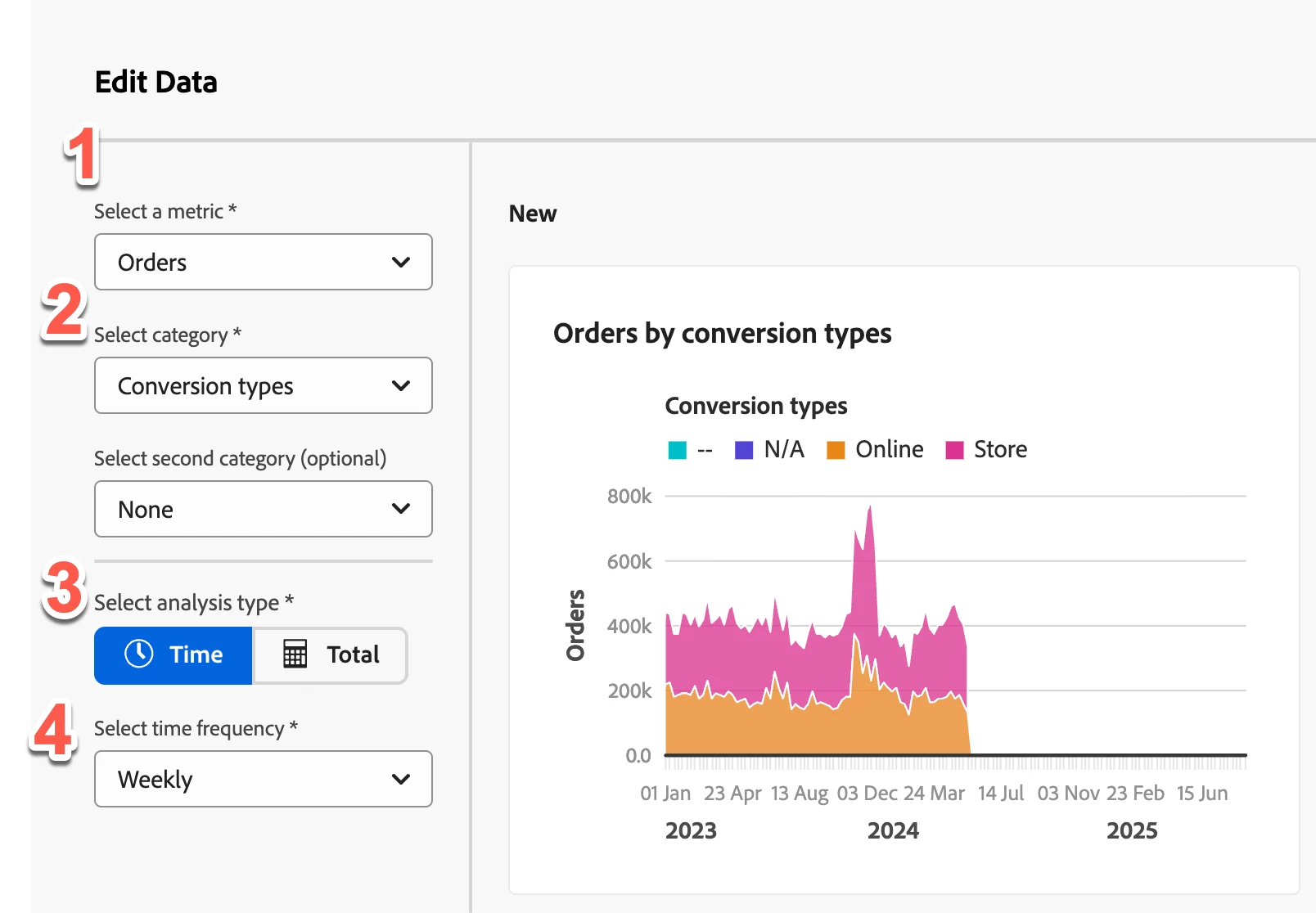
- Select your metric – either your marketing volume or conversion metric.
- Select a category breakdown – by selecting Conversion types, I can see if Orders are being populated from each source. For marketing data you’d select your channel field.
- Analysis type – Select Time to get a time series chart instead of a bar chart.
- Frequency – Select your model granularity – typically this will be Weekly.
You can do the same thing for your marketing data – keeping in mind that you may need to do this a couple times if you have multiple marketing volume metrics (e.g., Impressions, Clicks, etc.).
Review the visualizations to confirm your data recency. Use the filters on the left panel to help clean up the visualization if it is too busy.
Option 2: Export Data from the Harmonized Data tab
You can also export data and analyze it in Excel. Navigate to the Harmonized data tab in the Harmonized datasets window. From there, adjust the columns you want to include by clicking the gear icon. For your marketing data validation, include ‘Date,’ your channel field, and your channel volume metrics.
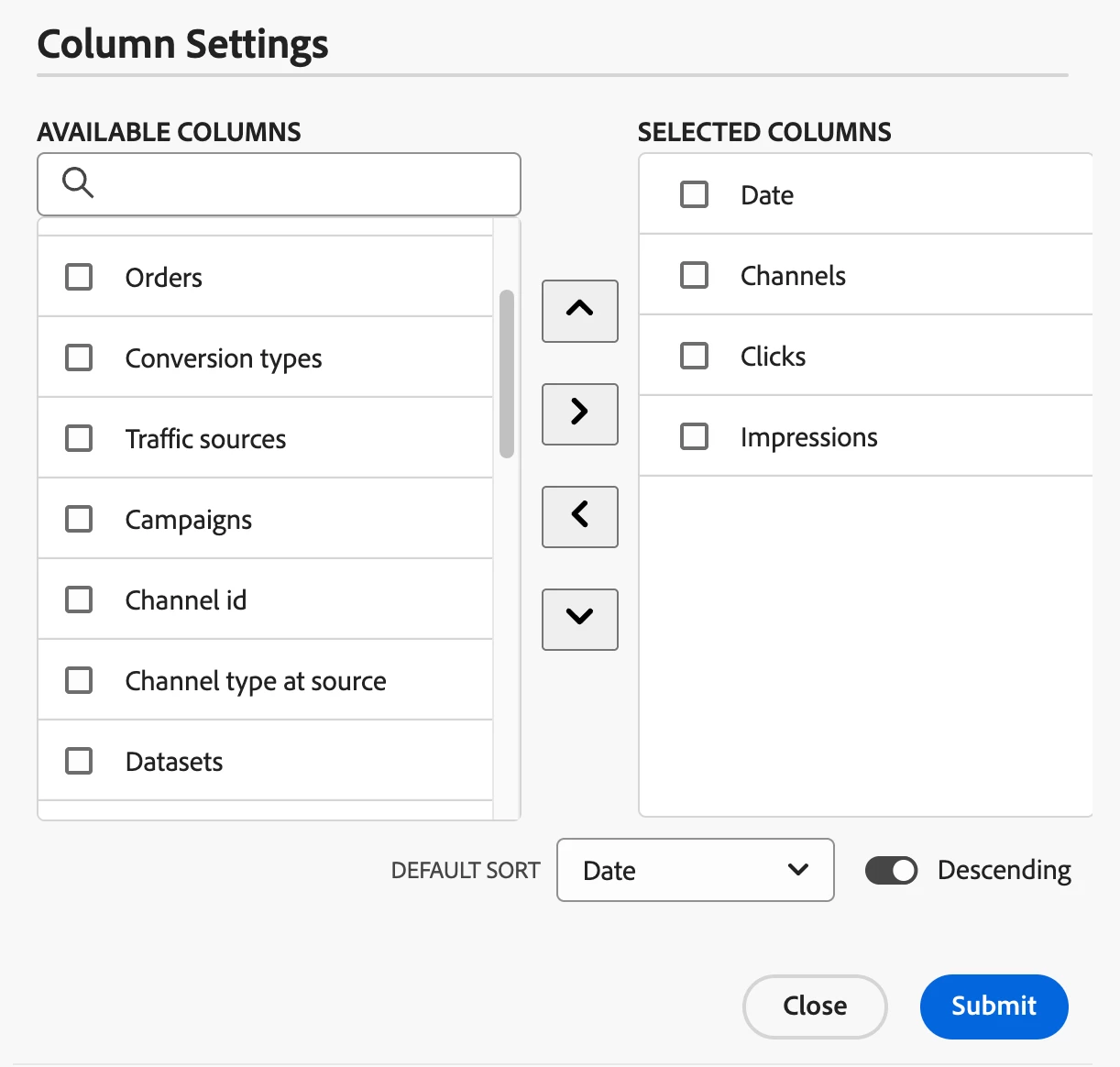
Submit those settings, then download the report.
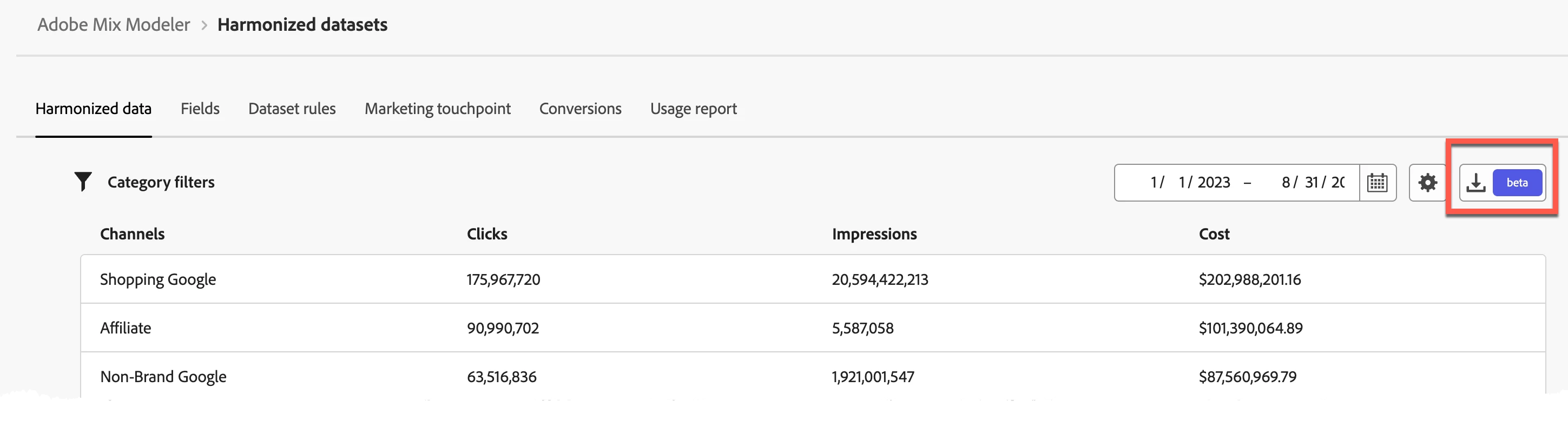
Once you’ve got the data in Excel you can validate using your preferred validation method – charts, pivot tables, etc.
Selecting a training window
When you kick off a new model in AMM you can define a training window as a lookback from the most recent conversion. At this point we’re not able to use the valid training window identified in the previous step.
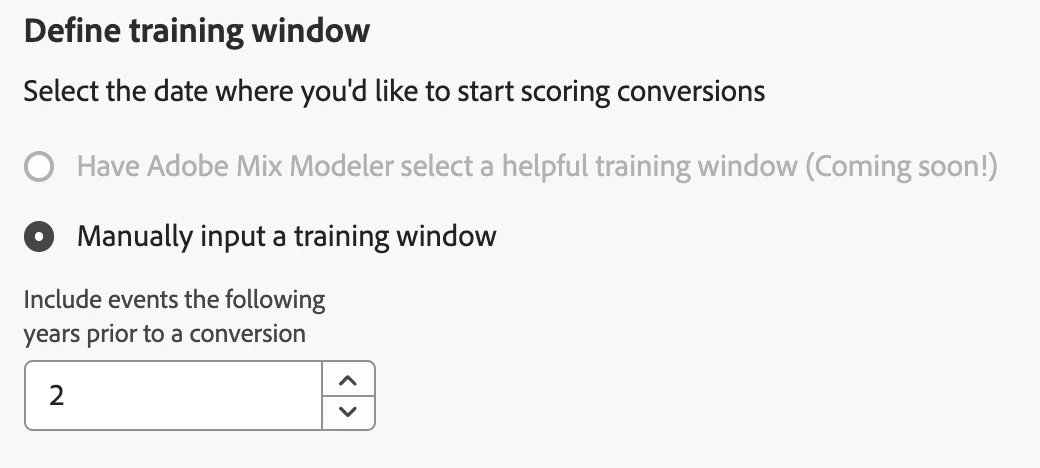
Run your model on this training window first. Once the model has trained and scored successfully, you can go back and adjust the training window.
Find the model in the Model tab, click the “…” to see the model options, and select Train Model.
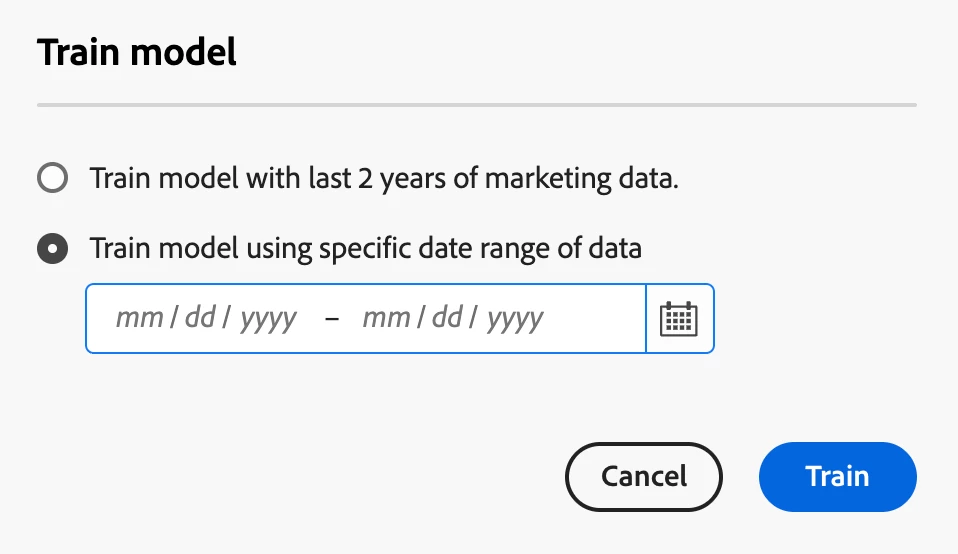
From this window, you will be able to select a specific training start and end date.
By retraining your model on a date range with complete data, you will give your model a more reliable base on which to assess marketing impact on conversions.
Conclusion
Before running any new AMM model, take time to validate the underlying data. Incomplete or outdated data can invalidate the model output and compromise any subsequent decisions based on that output. Identifying and using a valid training window is essential for developing trustworthy and actionable models and can help save time and avoid costly mistakes down the line.