Error installing Mesh Source CommerceCatalogServiceGraph | Adobe Higher Education
Skip to main content
New Member
August 29, 2025
Question

Error installing Mesh Source CommerceCatalogServiceGraph

Hello,

I'm trying to connect my Storefront with my Adobe Commerce PaaS instance (with Live Search), so I'm trying to install the sources CommerceCatalogServiceGraph and CommerceCoreGraph to my API MESH. However, when I try to install, I receive the following errors:


User does not belong to the organization.

Unable to update the mesh. Please check the mesh configuration file and try again. If the error persists please contact support. RequestId: c0eb7d5c-8fde-4633-b3d6-c612438f6708 
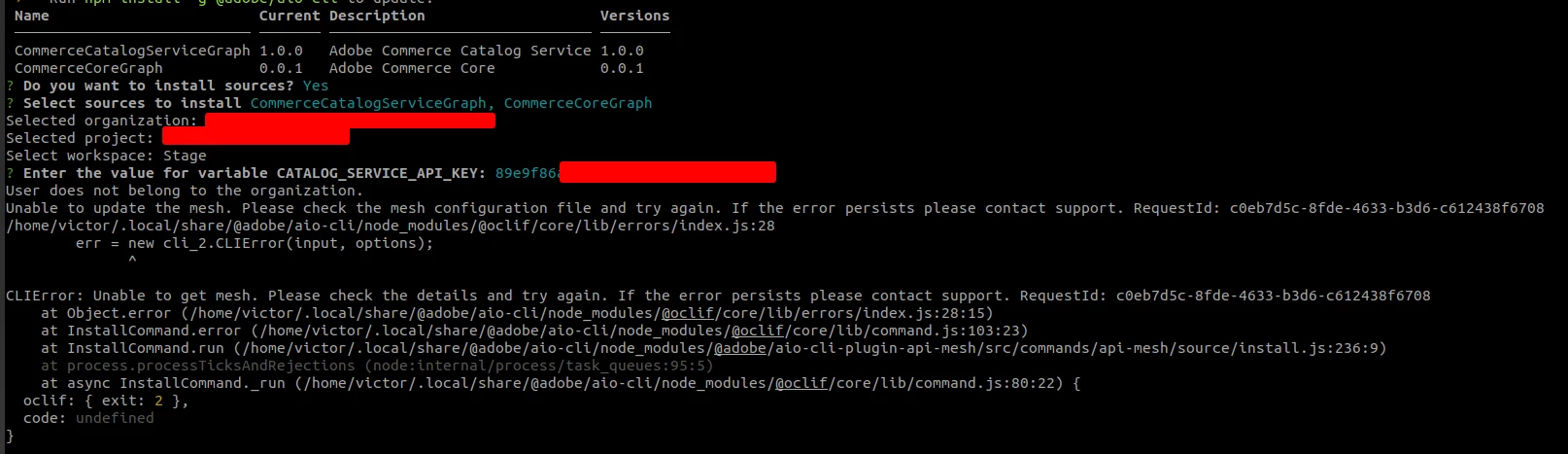
 

Also, just to clarify, where can I get the variable CATALOG_SERVICE_API_KEY?


Thanks,

Victor Soares.

1 commentaire

AmitVishwakarma
Community Advisor
Community Advisor
September 9, 2025

Hi @victorso6 ,

The "User does not belong to the organization" error indicates that your Adobe Developer account lacks proper access permissions to the Adobe organization managing your Commerce instance. This is a common issue when there's a mismatch between your Adobe Developer Console access and your Commerce Cloud project permissions. https://experienceleague.adobe.com/en/docs/commerce-learn/tutorials/api-mesh/aio-projects-workspaces

Step-by-Step Solution

Step 1: Verify Adobe Organization Access

First, ensure you have the correct organizational access: https://experienceleague.adobe.com/en/docs/experience-cloud-kcs/kbarticles/ka-19448
1. Check Your Current Organization
     - Log into the Adobe Developer Console at https://developer.adobe.com/console
     - Click the organization switcher (org switcher) dropdown in the top-right corner
     - Verify you're in the correct organization that owns your Adobe Commerce instance
     - If the organization doesn't appear, you need access granted by an administrator

2. Request Developer Access
  - Contact your Adobe organization administrator
  - Request Developer Access or System Administrator privileges
  - Specifically ask for permissions to the Adobe Commerce product profiles

Step 2: Add Required Services to Your Workspace
Once you have proper organizational access:
1. Navigate to Your Project0
  - Go to Adobe Developer Console
  - Select your project and workspace
  - If you don't have a project, create one first

2. Add API Mesh Service
  - Click Add Service → API
  - Filter by Adobe Experience Platform
  - Select API Mesh for Adobe Developer App Builder
 

3. Add Additional Required Services
  - I/O Management API (for authentication)
  - Adobe Commerce as a Cloud Service (for REST source access)

Step 3: Obtain Your CATALOG_SERVICE_API_KEY

The CATALOG_SERVICE_API_KEY is generated through your Commerce Services Connector:

1. Access Your Commerce Account
  - Log into https://account.magento.com using the license owner's account
  - Navigate to Magento tab → API Portal


2. Generate API Keys
  - From Environment menu, select Production (or Sandbox for testing)
  - Enter a name in the API Keys section
  - Click Add New to generate the key pair
  - Important: Download immediately as this is your only opportunity to copy the private key


3. Configure in Commerce Admin
  - Go to System → Services → Commerce Services Connector
  - Enter your public and private API keys for both sandbox and production
  - The x-api-key header value you need is your public API key

Step 4: Configure API Mesh Authentication
1. Set Up Organization Permissions
  - Ensure your user has Project Admin or Contributor role in the Commerce Cloud project
  - Verify you have access to the specific environment (production/staging/development)
  - Configure CLI Authentication

bash aio login aio where

  - Verify you're authenticated with the correct organization and project

Step 5: Update Your Mesh Configuration

Create your mesh.json with proper configuration:

{ "meshConfig": { "sources": [ { "name": "CommerceCatalogServiceGraph", "handler": { "graphql": { "endpoint": "https://catalog-service.adobe.io/graphql", "operationHeaders": { "x-api-key": "{env.CATALOG_SERVICE_API_KEY}", "Magento-Environment-Id": "{env.MAGENTO_ENVIRONMENT_ID}", "Magento-Store-View-Code": "default", "Magento-Website-Code": "base" } } } }, { "name": "CommerceCoreGraph", "handler": { "graphql": { "endpoint": "https://your-commerce-instance.com/graphql" } } } ] } }


Step 6: Set Environment Variables
1. Set the required environment variables:

export CATALOG_SERVICE_API_KEY="your-public-api-key" export MAGENTO_ENVIRONMENT_ID="your-environment-id"


You can find your Environment ID by running: 
bash
bin/magento config:show services_connector/services_id/environment_id

Thanks,
Amit