Hi @vedhasri
To ensure that only logged-in users can download assets from the "we.retail" folder on the published site and prevent anonymous users from doing so, a combination of configurations and security measures will need to be implemented within Adobe Experience Manager (AEM) as a Cloud Service. Here's a step-by-step guide to achieving this goal: ### Step 1: Enabling Asset Download Servlet on Publish Instance The AssetDownloadServlet needs to be enabled manually via an OSGi configuration for it to allow downloading assets from the DAM on publish instances. However, it's important to do this cautiously as enabling asset download can have performance implications. 1. Create a configuration folder with a naming convention that targets the publish run mode, e.g., `/apps//config.publish`. 2. Create a file of type `nt:file` named `com.day.cq.dam.core.impl.servlet.AssetDownloadServlet.config`. 3. Configure the servlet with an appropriate maximum download size, for example: ```html
enabled=B"true"
asset.download.prezip.maxcontentsize=I"102400"
``` This sets the maximum size of the ZIP download to not exceed 100 KB. ### Step 2: Blocking Anonymous Asset Downloads To prevent anonymous users from downloading assets, you can update the dispatcher configuration to block any asset download requests from users who are not authenticated. 1. Edit the `dispatcher.any` configuration and add a rule to the filter section to deny asset download requests: ```html
/0100 {
  /type "deny"
  /url "*.assetdownload.zip/assets.zip*"
}
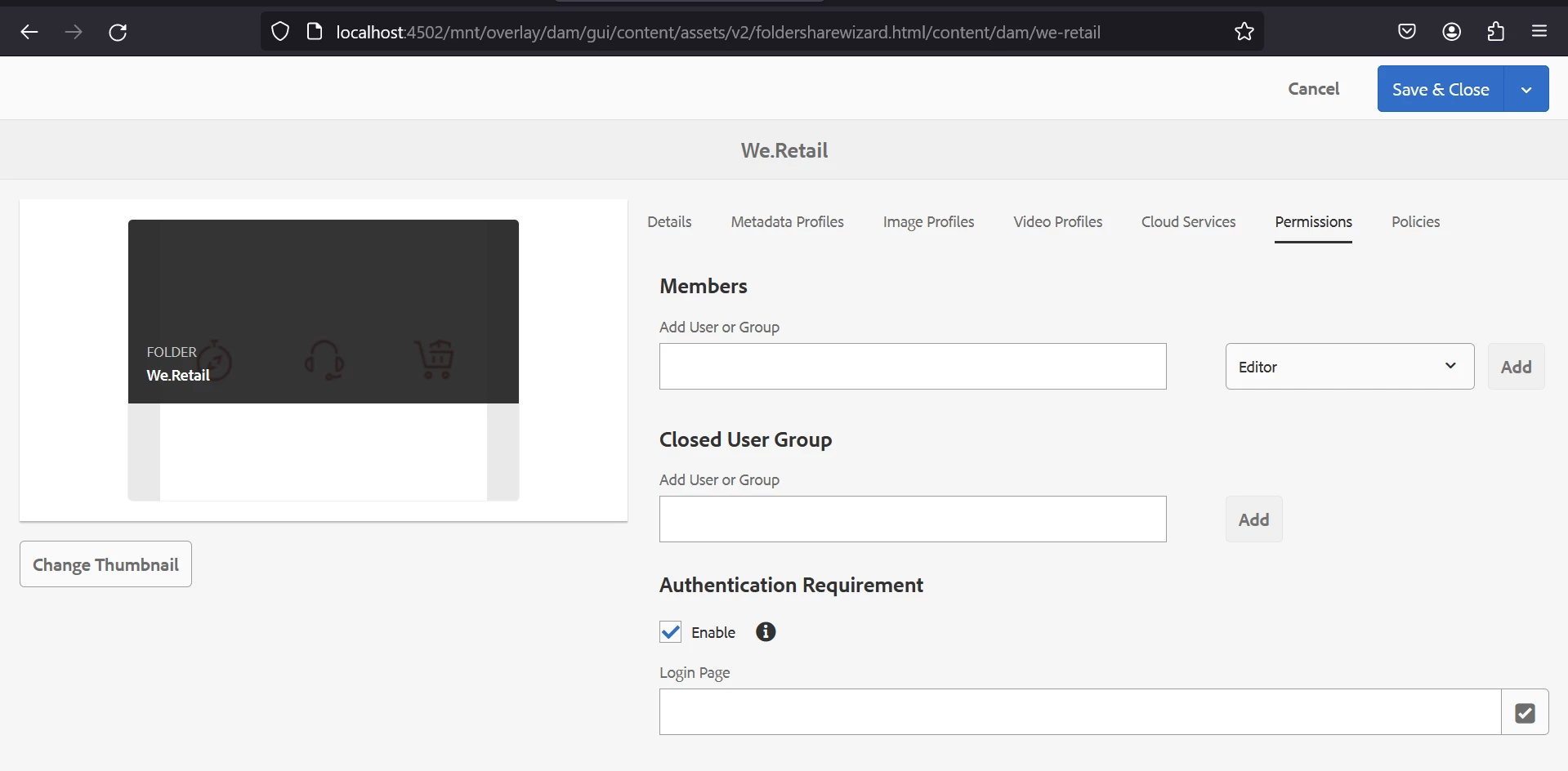
``` ### Step 3: Using Closed User Groups (CUGs) Implement Closed User Groups (CUGs) to restrict access to the "we.retail" folder, which will require users to authenticate before they can access the assets. 1. Open the folder properties in the AEM Assets UI and go to the Permissions tab. 2. Add the appropriate AEM User Groups to the CUGs, which will contain the users authenticated through the third-party tool (forgerock). 3. Enable the login screen for the folder by selecting a login page path in AEM. ```html
- Enable option: Checked
- Path to a login page: Specify the path if not using the default
``` 4. Publish the folder and test accessing it from the publish instance; a login screen should be displayed. ### Step 4: Synchronizing Forgerock Users with AEM User Groups For users authenticated through Forgerock to access the assets, you need to ensure that these users are synchronized with AEM User Groups that have access to the "we.retail" folder. 1. Set up an identity provider (IDP) integration between AEM and Forgerock. 2. Map Forgerock user groups to corresponding AEM User Groups that are included in the CUGs for the "we.retail" folder. ### Step 5: Best Practices and Additional Considerations - Ensure that the AssetDownloadServlet is configured to handle the expected load without impacting the server's performance. - Use AEM’s permission management to provide fine-grained access control to the assets for different user groups. - Regularly audit access to the assets using AEM’s reporting tools to ensure compliance with your organization’s policies. ### Sources - Download Assets - Manage Digital Assets - Permission Considerations for Headless Content This approach should help you to ensure that only authenticated users can download assets from the "we.retail" folder on the published site.