Create a new custom template type step by step in AEM 6.4
Create New Custom template type from the existing we-retail site.
Step 1 : Navigate to the /conf/we-retail/settings/wcm
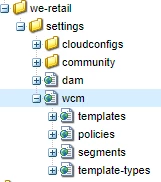
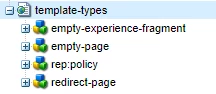
Expand the template-types
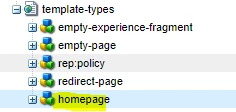
Step 2: Copy the empty-page template inside the /template-types and rename as homepage or other name as per your choice.
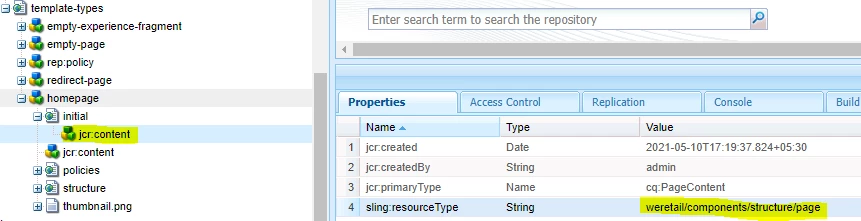
Step3 : Now Navigate to /conf/we-retail/settings/wcm/template-types/homepage/initial/jcr:content here you can give your rendering component path
For Example – If I am creating the template-type for the home page then I can give the homepage as a rendering component as per the below.
weretail/components/structure/homepage
But I am using the page as a rendering component. Please see the snapshot below for the reference.
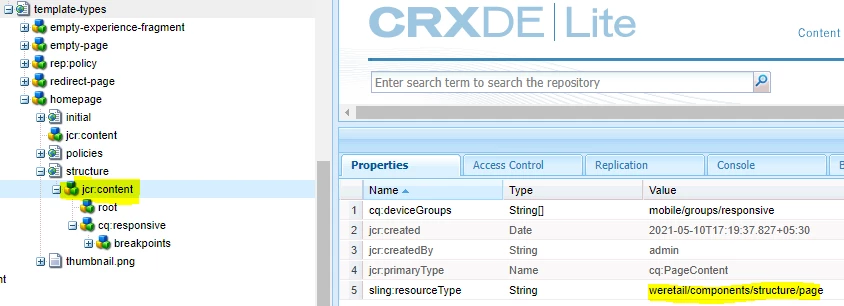
Step4 : Now Navigate to /conf/we-retail/settings/wcm/template-types/homepage/structure/jcr:content update the same rendering component whichever you have given on above. I used the page as rendering component above and I am giving the same here.
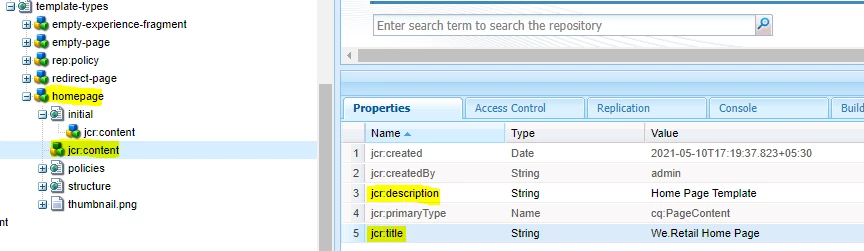
Step5: Navigate to /conf/we-retail/settings/wcm/template-types/homepage/jcr:content and change the title and description as per below.
Save the changes.
Step6 : Now you can create the template using the homepage template type
Navigate to the templates Screen(http://localhost:4502/sites.html/content/we-retail)
Open the we-retail templates (http://localhost:4502/libs/wcm/core/content/sites/templates.html/conf/we-retail)
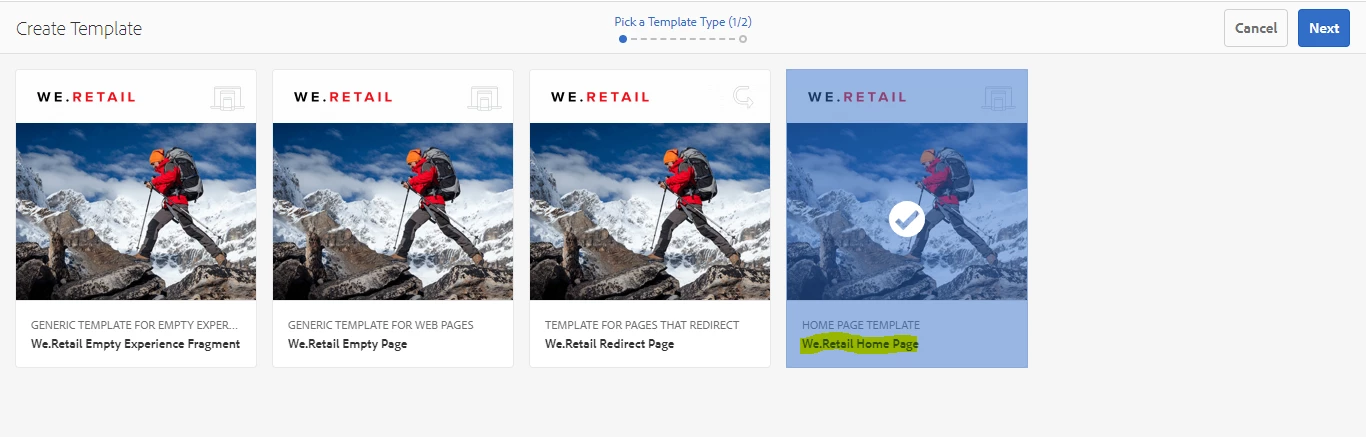
Now you can try to create the template so that you can see the new template-type as homepage.