Planned Hours for Team Assignments | Community
Skip to main content
Level 3
April 10, 2023
Solved

Planned Hours for Team Assignments

  • April 10, 2023
  • 2 replies
  • 833 views

We often have our tasks assigned to a team and then the members of those teams will look at the team requests to select the tasks they will work on. From what I can tell the Workload Balancer and Planner in the Resourcing area will only show hours assigned to the individual, which could be deceiving if the team has additional tasks assigned them that are net yet claimed. Example: Worker A has 7 hours assigned to him for the 8 hour day, Worker B has 6 hours assigned.  Worker C has 4 hours assigned. Yet the team has an additional 20 hours in tasks assigned. If the team would then claim those task that would show them over utilized.

I'm looking for a way that you can see the hours of the individuals and the planned hours for tasks sitting in team requests . Can anyone point me in the correct direction? Thanks
This post is no longer active and is closed to new replies. Need help? Start a new post to ask your question.
Best answer by Rafal_Bainie

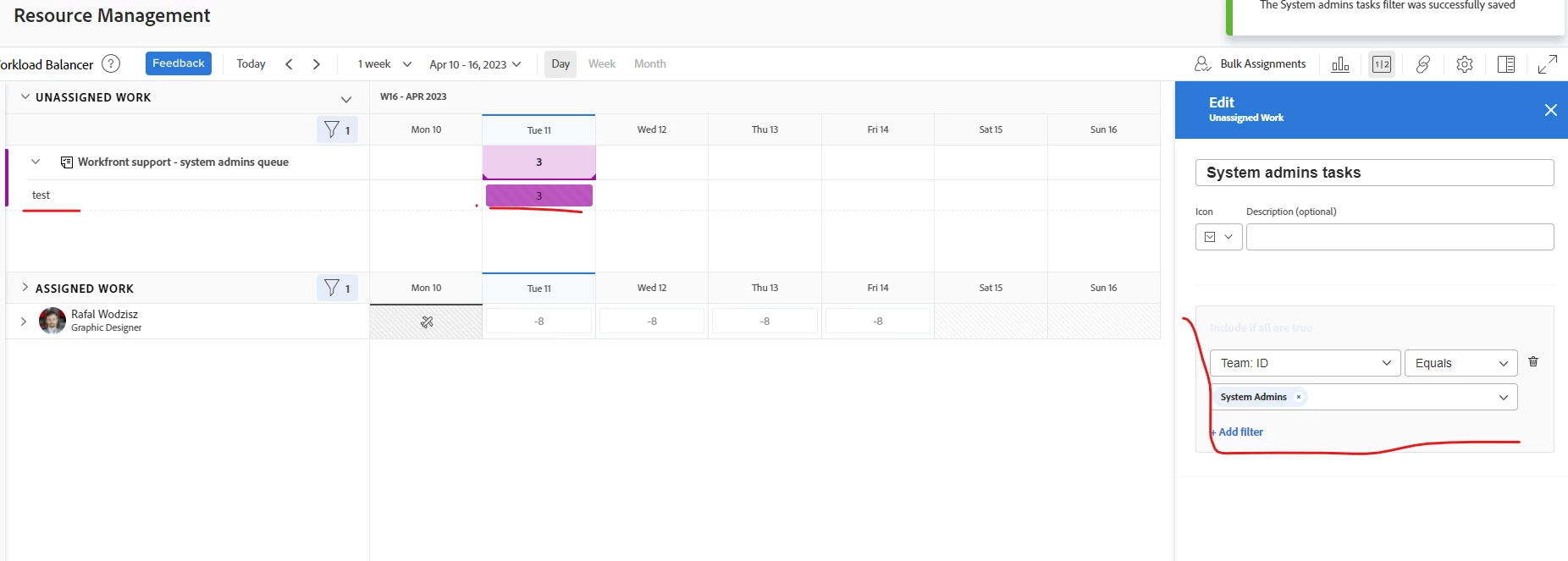
I would try to setup a filter for team assignments in the unassigned work area. That will give you some idea of how much work is pending for given team:


2 replies

RandyRoberts
Community Advisor
Community Advisor
April 10, 2023

If you open the Summary panel, you can set that up in Layouts to view the planned hours. The one caveat is that layouts only take affect if the viewer is also the assignee. If the viewer is not the assignee, it shows some useless default layout in the summary panel, with no way to change it.

Summary panel for MY Tasks assigned to me:

Summary Panel for tasks NOT assigned to me:

Rafal_Bainie
Community Advisor
Rafal_BainieCommunity AdvisorAccepted solution
Community Advisor
April 11, 2023

I would try to setup a filter for team assignments in the unassigned work area. That will give you some idea of how much work is pending for given team:


RandyRoberts
Community Advisor
Community Advisor
April 11, 2023

Or you could just click on a team from the waffle menu.