
New Reporting UI: Compare 2 fields in filters | Adobe Higher Education
Skip to main content
KellieGardner
Community Advisor
Community Advisor
February 27, 2025
Question

New Reporting UI: Compare 2 fields in filters

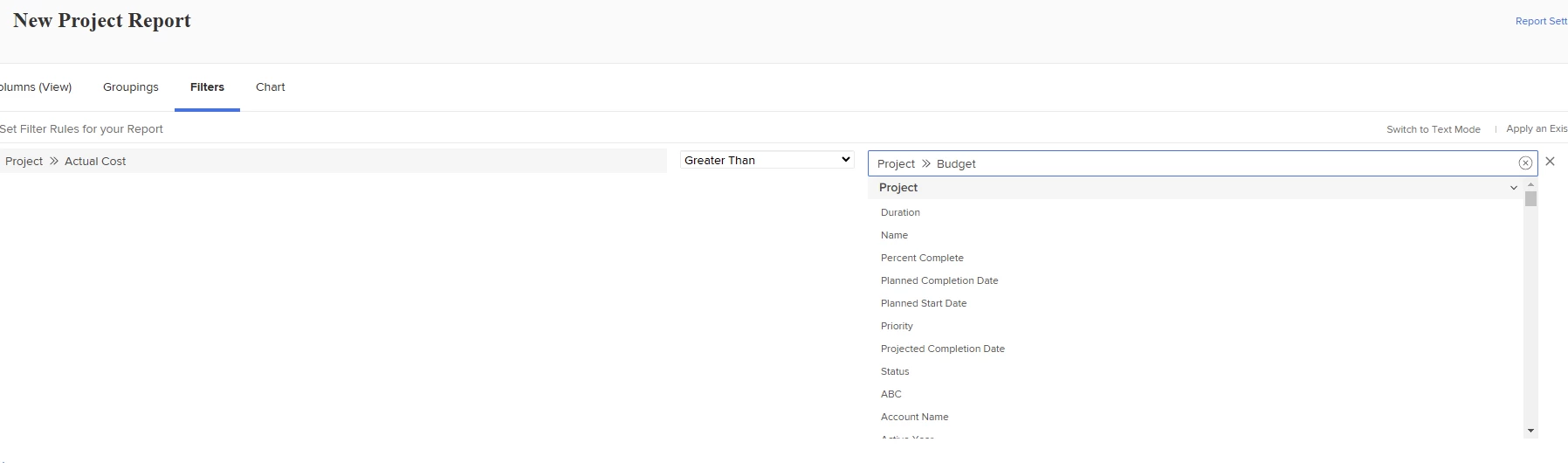
In the old reporting UI, we were able to compare 2 fields in the filters for reporting (example here). When trying to do this in the new reporting UI, it doesn't appear to be working. Does anyone know how to compare 2 fields in report filters?


Old UI: 
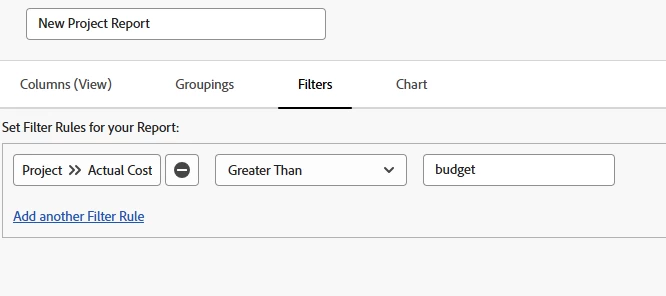
New UI doesn't recognize the field names and you can't get the "picker" to populate.


@nicholevargas - tagging you since you are the text mode reporting guru and I learned this originally from you.

2 commentaires

NicholeVargas
Adobe Employee
Adobe Employee
February 27, 2025

@kelliegardner I reached out to the Product Manager for clarification on this! I'm also not able to compare 2 fields in a filter using the FIELD:ID option in text mode, so let me try and get more information. 

KellieGardner
Community Advisor
Community Advisor
February 28, 2025

Thanks Nichole! 

skyehansen
Community Advisor
March 3, 2025

it looks to be still working as long as you stay in text mode. So the standard UI no longer works but the text mode still will.


(I took the example from this link:

https://experienceleague.adobe.com/en/docs/workfront/using/reporting/reports/custom-view-samples/filter-items-by-comparing-two-fields


actualCompletionDate=FIELD:plannedCompletionDate
actualCompletionDate_Mod=gt 


and did gt and lt, and both gave me correct results if I spot check. So you just need to stay in text mode for the time being)

KellieGardner
Community Advisor
Community Advisor
March 4, 2025

I tested that as well and was able to achieve the same results. I just wondered why it wasn't working with the picker option the way it did in the old UI. The old way was a lot more seamless and allowed for easier/quicker changes to reporting.