Is there a way to report on "if a team was tagged in the updates" | Community
Skip to main content
Level 5
June 7, 2021
Solved

Is there a way to report on "if a team was tagged in the updates"

  • June 7, 2021
  • 2 replies
  • 1231 views

We have a process in which teams will tag another team in the updates to escalate an issue. Is there a way for me to pull that information into a column or filter in a report? Basically looking for (Updates contain Team ABC) but I can't seem to find any option that allows for that information to be reported on.

If we change the process and ask them to assign the team as part of the escalation process I could report on that team being assigned but I was hoping not to have to change the process.

Any ideas?

This is where I got to but full disclosure I am sick and not running on all cylinders.

valueexpression=IF({opTask.updates}CONTAINS{Network Super User},"Escalated","")

textmode=true

valueformat=html

displayname=Escalated
This post is no longer active and is closed to new replies. Need help? Start a new post to ask your question.
Best answer by imgrund

Hi Ross - I would recommend doing the out-of-the-box "wizard" for the filters that you want first for the object (in this case a note), and then when you are done, you can just switch to text mode and paste in the EXISTS filter you need.

Step 1:


Step 2:


Hope that helps 🙂 

2 replies

imgrund
Adobe Employee
Adobe Employee
June 7, 2021

Hi!

This is interesting....

From an Issue object type, you have to go to Updates, Update Note, Note Tag, and then Team (Although if you did it based on a Team ID, you could skip that last one). And that is going to a collection to a reference, to a collection to a reference.

Now, I do have an idea that would filter "Escalated Issues" for you. But again, based on a Team ID, so hoping you are looking at just one team and not a bunch.

You will want to do a Note report, not an Issue. However, you can pull in all the fields that you want for the issue and should be able to that without text mode. (Although let me know if you need help with a certain field).

For the filter, you will want

EXISTS:1:$$OBJCODE=NTAG

EXISTS:1:noteID=FIELD:ID

EXISTS:1:teamID=c018bbf3df9245cae053a7656a0a9384

EXISTS:1:teamID_Mod=in

opTask:projectID=608c51210002053774d30099904b543f

opTask:projectID_Mod=in

opTask:statusEquatesWith=CLS

opTask:statusEquatesWith_Mod=notin

What this does...

-- The EXIST filter is connecting the NOTE object type to the NOTE TAG object types (it is a collection) and then says if any of the tags are for a specific team (just change the ID)

-- The opTask:projectID is if you want it tied to a specific project (which I think you are looking at this for the Help Desk Queue, so just change out the ID)

-- status Equates With looks for closed and cancelled statuses and does not include them.

I hope this helps you.

Ross_Barton
Level 4
February 14, 2023

Hi @imgrund, hope you are doing well!


I'm trying to build upon the text code you shared in this thread to filter a note based on a team being tagged, but I would like it to be for projects in planning or current status, showing only entries from the past week (sorted by entry date, most recent at the top). Can you share how do to that or point me in the right direction to documentation? TYSM


EXISTS:1:$$OBJCODE=NTAG
EXISTS:1:noteID=FIELD:ID
EXISTS:1:teamID=63c188da002004e10de8b786d3e2f321
EXISTS:1:teamID_Mod=in

imgrund
Adobe Employee
imgrundAdobe EmployeeAccepted solution
Adobe Employee
February 14, 2023

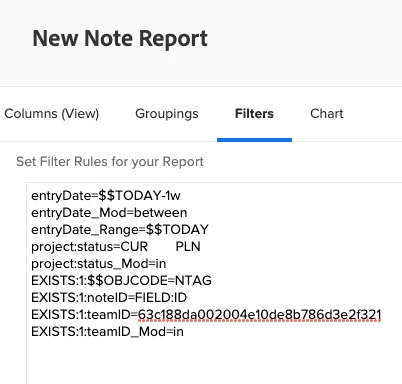
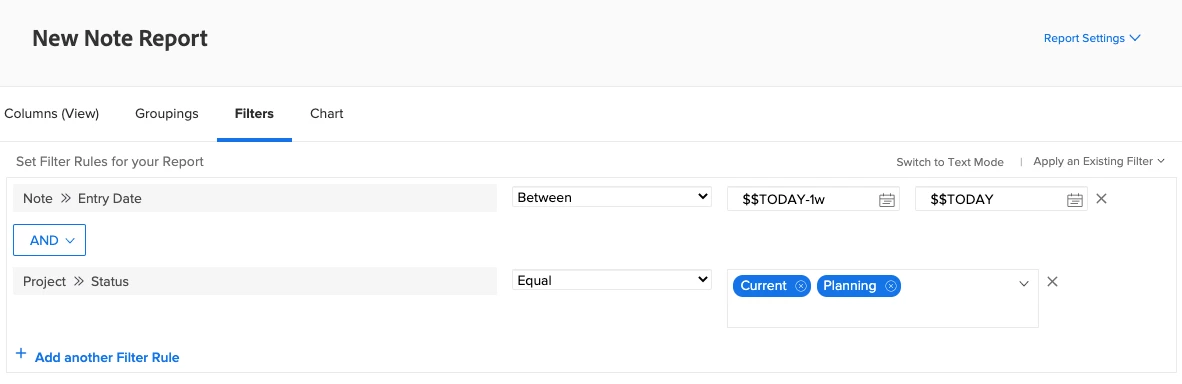
Hi Ross - I would recommend doing the out-of-the-box "wizard" for the filters that you want first for the object (in this case a note), and then when you are done, you can just switch to text mode and paste in the EXISTS filter you need.

Step 1:


Step 2:


Hope that helps 🙂 

Doug_Den_Hoed_AtAppStore
Community Advisor
Community Advisor
June 8, 2021

Hi Tracy,

Following, and interested.

In order to show whether a particular team was tagged in an update, it occurs to me that you could create one or more calculated parameters using this Targeted Auditing technique with a formula similar to your original that watches the Last Update Note (i.e. "as it happens") for the particular Team Name(s) being monitored, and as a result, "build up" (if a single textbox) or "fill in" (if a set of individual Tag Team X, Tag Team Y, etc. calcs) the data you need to both easily filter and visualize in a column.

Either way, that should be enough for the viewer to then rest assured that at least one such team-tagged update then does exist, should they wish do go find it.

Regards,

Doug