Is there a way to change the Display Name of columns in Groupings | Community
Skip to main content
Level 4
May 19, 2023
Solved

Is there a way to change the Display Name of columns in Groupings

  • May 19, 2023
  • 3 replies
  • 2595 views

We use the system name by following naming conventions like 


Display: Company Name Other

System: XX_CompanyName_Other


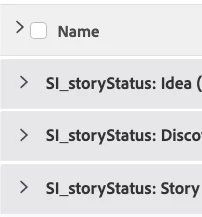
This becomes a problems when you use "grouping" within list views (see image).  Basically, the system name comes through instead of the "Display Name". 


Is there a way to get the display name to show up when groupings are used? I'm guessing this might be an "Advanced" option but I'm a little lost on that.

I'd like to see the grouping display "Story Status" instead of "SI_storyStatus" ...


This post is no longer active and is closed to new replies. Need help? Start a new post to ask your question.
Best answer by D____D

This is a really odd issue .. it's almost seems situational or that there are just different ways to solve the same problem ... this worked for me ...  The two bold type script lines being the key. 

I'd like to thank everybody who replied though as it did help me get to where I needed to be.


group.0.displayname=Story Status
group.0.iscollapsed=true
group.0.linkedname=direct
group.0.namekey=SI_storyStatus
group.0.namekeyargkey.0=Story Status
group.0.valuefield=SI_storyStatus
group.0.valueformat=customDataLabelsAsString
textmode=true

3 replies

D____DAuthor
Level 4
May 19, 2023

Tried Standard Mode -> Text Mode and added group.0.displayname=Story Status but the display name for the grouping did not change ... 
Tried group.0.name=Story Status .. same result ..


I feel like I'm missing something simple here

skyehansen
Community Advisor
May 19, 2023

Can you post your code? I think I was trying this out with one of my coworkers last night and we found that deleting all the namekey lines also helped.

Madalyn_Destafney
Community Advisor
Community Advisor
May 19, 2023

If you change your groupings tab when editing a report to text mode, you'll see a grouping line with 'namekey' like this:
group.1.namekey=view.relatedcolumn

This is where you can easily modify it to anything you want by removing anything from 'key' on and replacing it with just name=X. For example:
group.1.name=Story Status

If this helped you, please mark correct to help others! : )

If this helped you, please mark correct to help others : )
D____DAuthor
Level 4
May 19, 2023

I feel like what you are saying is make this - 

group.0.iscollapsed=true
group.0.linkedname=direct
group.0.namekey=SI_storyStatus
group.0.valuefield=SI_storyStatus
group.0.valueformat=customDataLabelsAsString
textmode=true


Into this (changes in bold)


group.0.iscollapsed=true
group.0.linkedname=direct
group.0.namekey=view.relatedcolumn

group0.name=Story Status
group.0.valuefield=SI_storyStatus
group.0.valueformat=customDataLabelsAsString
textmode=true

Madalyn_Destafney
Community Advisor
Community Advisor
May 19, 2023

Almost, you're missing the 1st period after group. Grab what I posted, all you need to change in your grouping text mode is the group namekey line. Change this:
group.0.namekey=SI_storyStatus

To this:
group.0.name=Story Status

If this helped you, please mark correct to help others : )
D____DAuthorAccepted solution
Level 4
May 19, 2023

This is a really odd issue .. it's almost seems situational or that there are just different ways to solve the same problem ... this worked for me ...  The two bold type script lines being the key. 

I'd like to thank everybody who replied though as it did help me get to where I needed to be.


group.0.displayname=Story Status
group.0.iscollapsed=true
group.0.linkedname=direct
group.0.namekey=SI_storyStatus
group.0.namekeyargkey.0=Story Status
group.0.valuefield=SI_storyStatus
group.0.valueformat=customDataLabelsAsString
textmode=true