Hi Tegwyn,
Ehm...it is a bit tricky, so step by step, in WF Classic:
- Reporting > Reports > New Report > Task
- View > Delete all columns
- View > Add Column > Project Name > highlight the column > Sort By Column (A-Z)
- View > Add Column > Template Task Template ID > highlight the column > Sort By Column (A-Z) > switch to textmode > click to edit > change "templateID" to "template:name" (3 places) > click Done (to save textmode)
- View > Add Column > Task Number > highlight the column > Sort By Column (A-Z)
- View > Add Column > Task Name
- Grouping > Add Grouping > Project Name
- Grouping > Add Grouping > Template Task ID > switch to textmode > click to edit > change "group.1.valuefield=templateTask:ID" to "group.1.valuefield=templateTask:template:name", and "group.1.namekeyargkey.1=ID" to "group.1.namekeyargkey.1=template:name" > click Done (to save textmode)
- Filter > Task Template Task ID Is Not Blank (plus any other conditions you wish)
- Chart > none (at least, not related to Template Names)
- Save Report
- Run Report
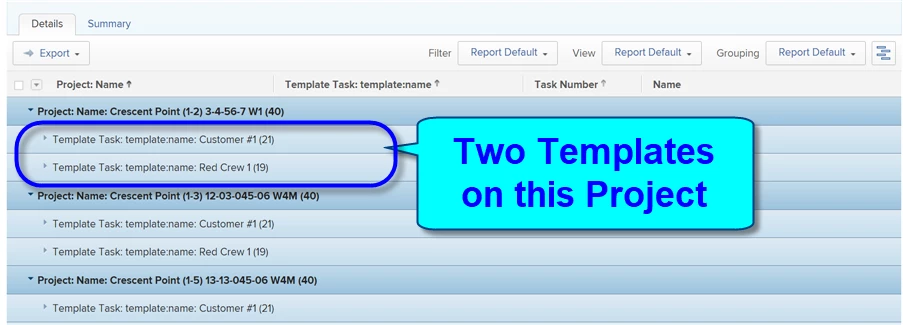
The results should be something similar to my example below, collapsing the Tasks to hide the (boring) details and instead revealing by Project the Template(s) used on each Project (which is interesting).
Regards,
Doug