Help with matrix style milestone report conditional formatting | Community
Skip to main content
August 18, 2025
Solved

Help with matrix style milestone report conditional formatting

  • August 18, 2025
  • 2 replies
  • 462 views

Hello,

From my testing I do not think this is possible but I thought I would ask the community...

I would like to display the {plannedCompletionDate} value the color "blue" IF the Task/Milestone is 100% complete...etc.

each column has a unique milestone ID

each row is a project


My text code...

displayname=Planned Completion Date of R1 Design Comp
listdelimiter=<div>
listmethod=nested(tasks).lists
type=iterate
valueexpression=IF({milestone}.{ID}="xxxxxxxxxxxxxxxxxxxxx",CONCAT({plannedCompletionDate}))
valueformat=HTML

Best answer by KristenS_WF

Hi @kristens_wf 

That's a work around I have not thought about. I'd like to hand off report to our client in an easy to read format (ie color coded) and WF just does not have the chops for it.

So you basically download to Excel and import in to MS Access?

I can't say I have created a cross tab query-based report before but I will look into it.

Thanks

Mark


Correct.  Currently we have 4 Access queries for each report.

The first query just includes project-based fields that can be aggregated:

The second query includes the task-based fields that will form the heart of the crosstab; in it I created a custom field that includes both the task due date and completion percentage (on separate lines):
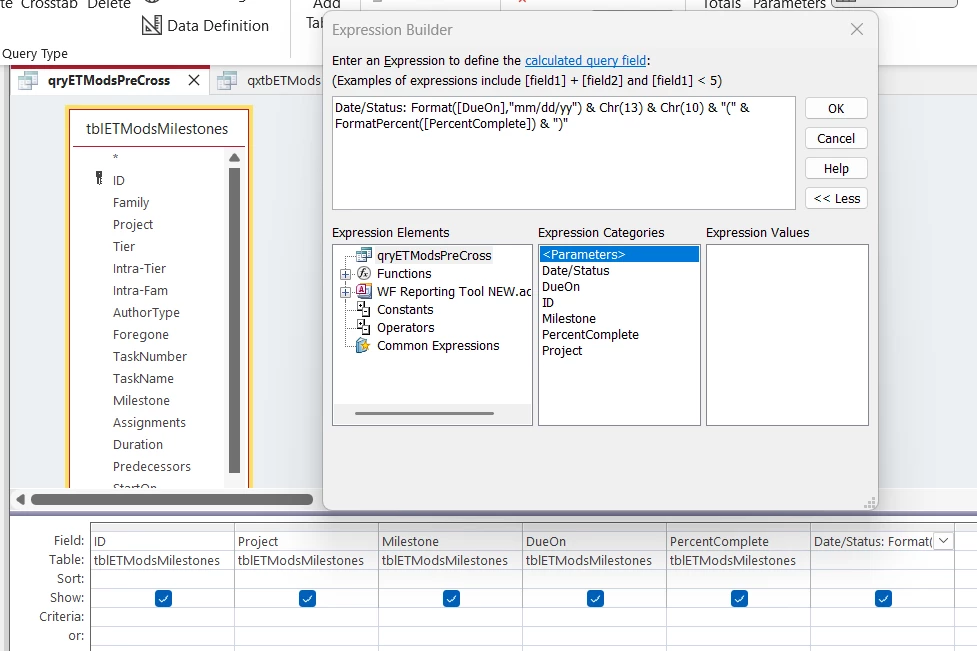
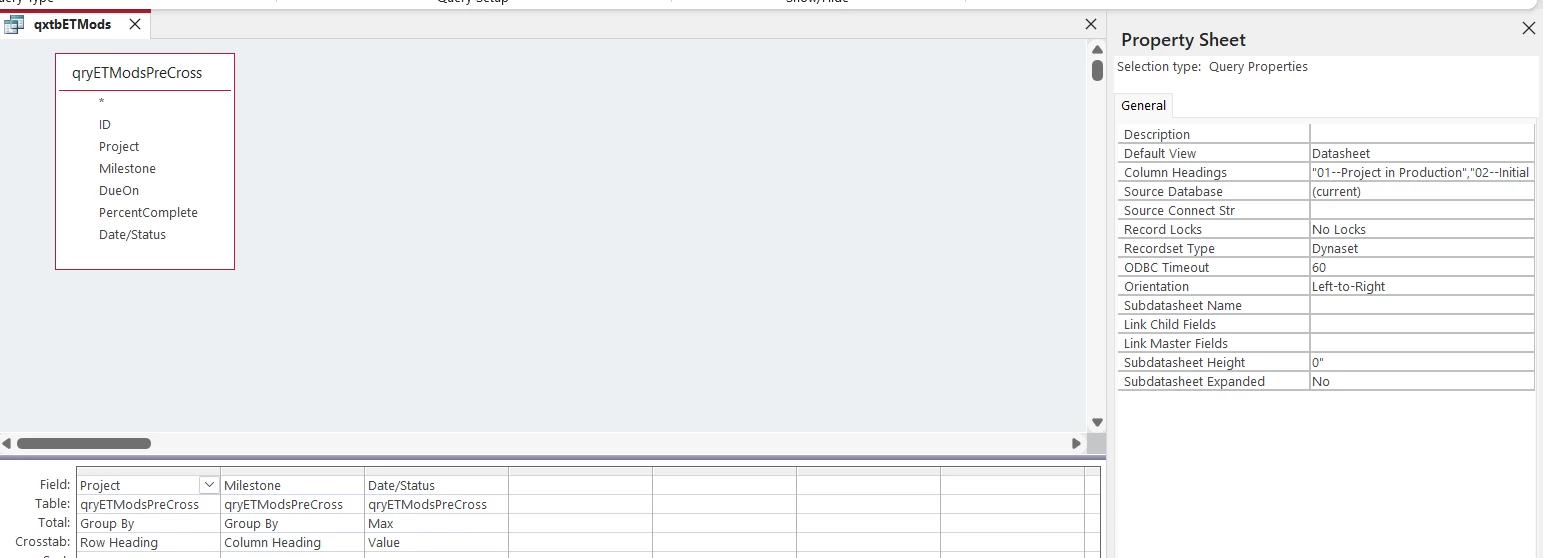
I then used this second query as the source for the actual crosstab query; I specified the milestone column headings in the order I want them to appear:
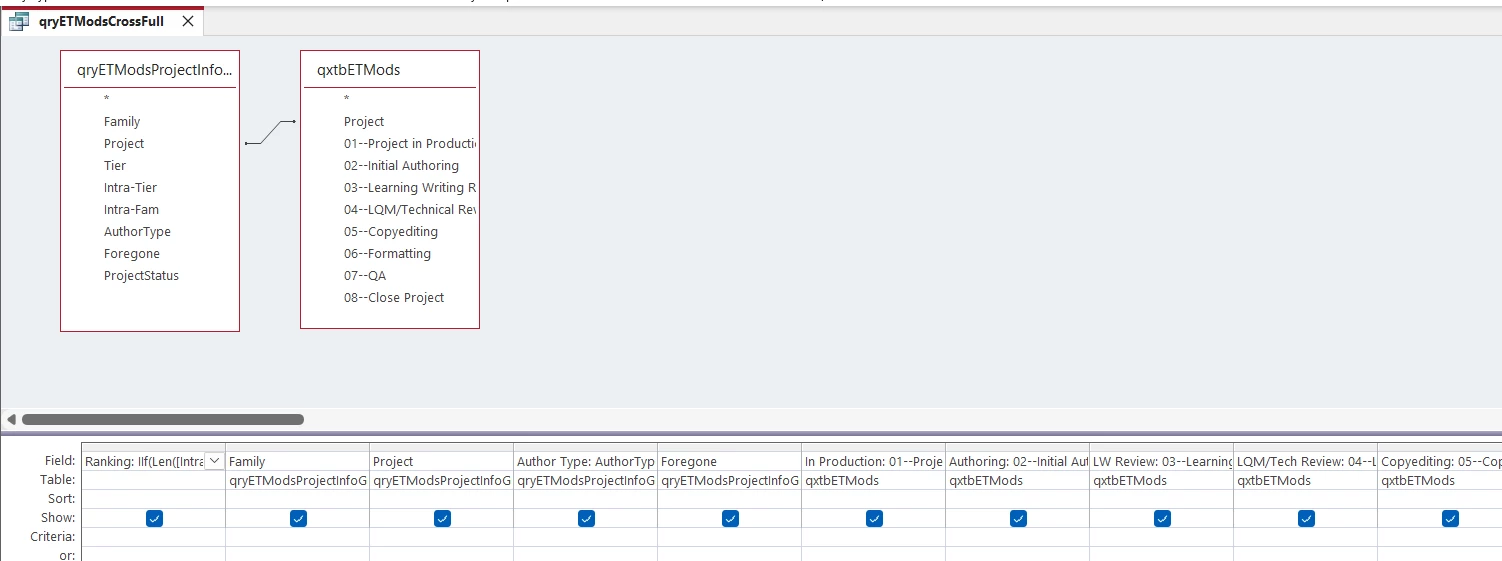
Finally I created a fourth query that joins the first query (with the grouped project info) and the crosstab query; the queries are joined using the project name:
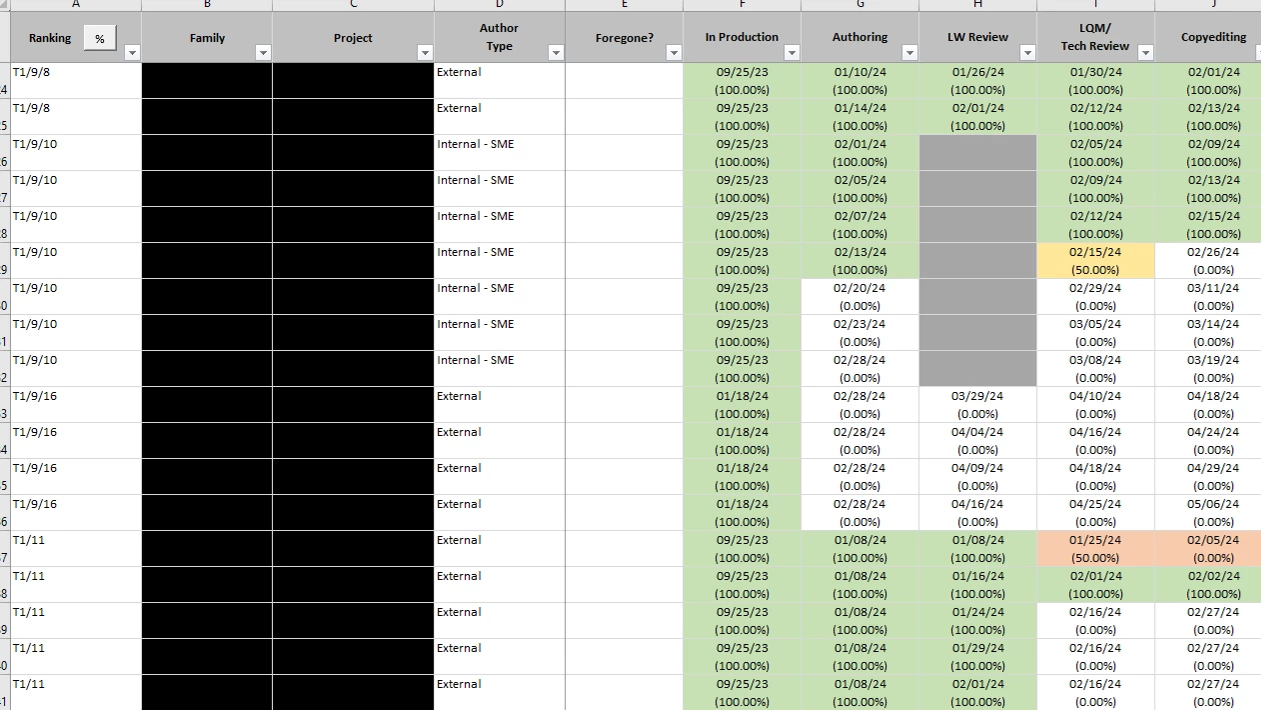
This last query is the one I export back to Excel.  The conditional formatting in the report is based off of the date and completion percentage (milestones that are 100% complete are green; ones that are less than 100% and are due today are yellow; ones that are less than 100% and were due in the past are red; incomplete future tasks have no formatting; if a milestone/cell is blank, it's gray).  I usually have the row widths set to only show the dates, but if I expand the row width, the percentage is also visible.
I've got coding in the Access tool that handles the import, export, and formatting of the Excel report.  Ideally I'd love to be able to do all this in WF, but this has been working for us in the interim.  Hopefully it will give you some ideas.



2 replies

JustinRenteria2
Level 6
August 18, 2025

Unfortunately, you're correct, this is not possible. You cannot use conditional formatting on collections. 

MarkSa18Author
August 18, 2025

uggh...that's what I thought

Thank you @justinrenteria2 


That was my best attempt at a workaround for matrix style report.

Thanks again.

Best,

Mark

MarkSa18Author
August 19, 2025

Correct.  Currently we have 4 Access queries for each report.

The first query just includes project-based fields that can be aggregated:

The second query includes the task-based fields that will form the heart of the crosstab; in it I created a custom field that includes both the task due date and completion percentage (on separate lines):

I then used this second query as the source for the actual crosstab query; I specified the milestone column headings in the order I want them to appear:

Finally I created a fourth query that joins the first query (with the grouped project info) and the crosstab query; the queries are joined using the project name:

This last query is the one I export back to Excel.  The conditional formatting in the report is based off of the date and completion percentage (milestones that are 100% complete are green; ones that are less than 100% and are due today are yellow; ones that are less than 100% and were due in the past are red; incomplete future tasks have no formatting; if a milestone/cell is blank, it's gray).  I usually have the row widths set to only show the dates, but if I expand the row width, the percentage is also visible.

I've got coding in the Access tool that handles the import, export, and formatting of the Excel report.  Ideally I'd love to be able to do all this in WF, but this has been working for us in the interim.  Hopefully it will give you some ideas.



Kristen, that's awesome...I will have to noodle on that a bit to see if I recreate the same report.

Thank you again for sharing with me. 

Best,

Mark

kautuk_sahni
Community Manager
Community Manager
September 1, 2025

@marksa18 Hi there, just checking in. Were you able to get this resolved? If one of the replies above helped, even if it didn’t fully solve the issue but pointed you in the right direction, marking it as accepted can still guide others who may face a similar question. And if you discovered another way to fix it, sharing your approach would be a big help to the community. Your follow-up not only closes the loop but also ensures others benefit from your experience. Thanks again for being part of the conversation!

Kautuk Sahni