How To: Replace Typeahead with External Lookup Fields
In my instance, we've added a number of Typeahead fields over the years that we've come to regret, mainly because they appear as top-level objects in Reporting tools and confuse everyone trying to build reporting. I can only explain why Project reports show two Portfolio and Program options with completely different options under them so many times. (Yes, I could re-name the fields but I wanted a better solution.)
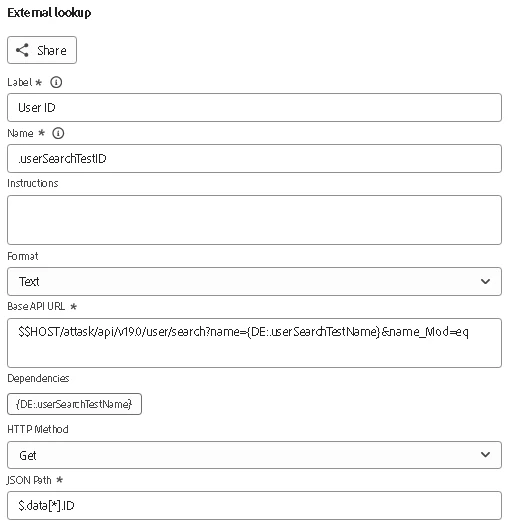
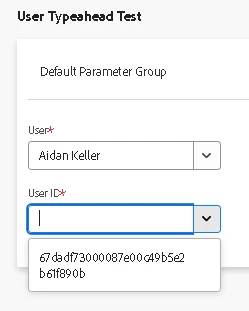
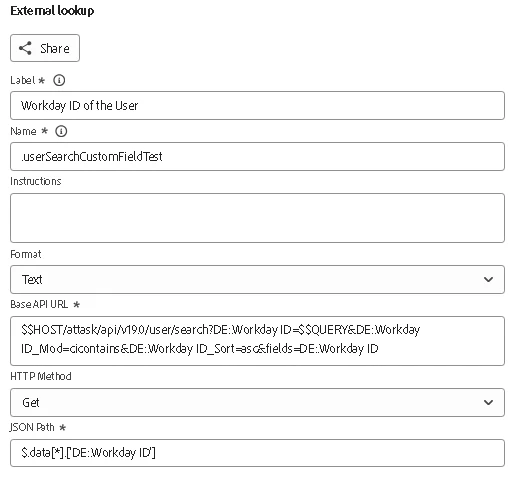
Finally I decided to experiment with replacing the Typeaheads with External Reference fields that looked the information up from Workfront's API instead. I've included a set of examples below for the objects I replaced, along with some gotchas I found along the way.
- Project Templates. This was the easiest one, since we have less than 100 active templates in our instance. Depending on what I wanted the drop-down to display, I could potentially filter further by the Group of the template, or any other template field. This returns a list of all Active Template Names, in ascending alphabetical order.
- $$HOST/attask/api/v17.0/tmpl/search?
- isActive=true&
- name_Sort=asc
- Note: This does respect Template sharing settings, so the User interacting with the field will still not see any Templates they don't already have access to view.
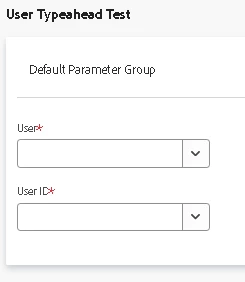
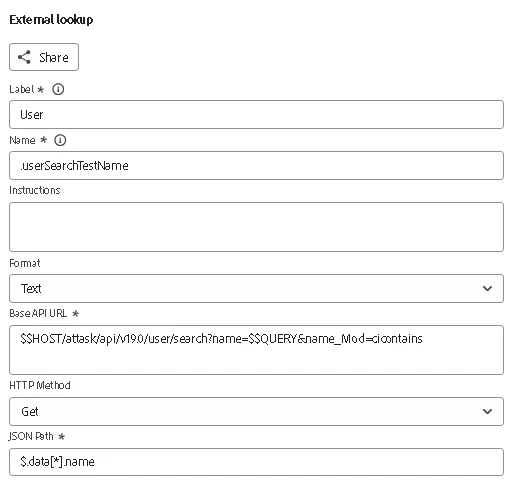
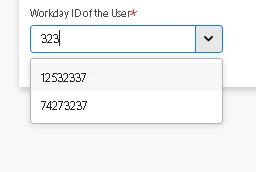
- User Dropdown: This one has a few layers to it, because I needed Active users, with Plan licenses, NOT in a certain Group. Similarly to the Template example, then I wanted the User Name field in ascending order. #5 was the final addition, when I realized my list of filtered users was still greater than the default 100 results returned by the API.
- $$HOST/attask/api/v17.0/user/search?
- isActive=true&
- licenseType=F&
- homeGroupID=<removed systemID from Group here, insert yours as needed>&homeGroupID_Mod=ne&
- $$LIMIT=200&
- name_Sort=asc
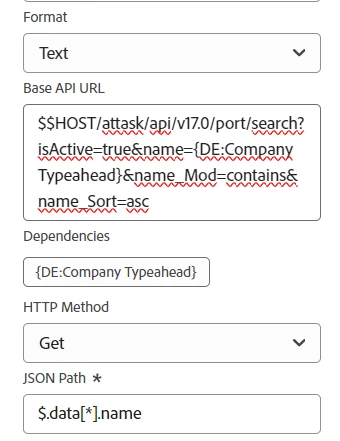
- Portfolio: This was my next challenge, since we have thousands of active Portfolios. The form I wanted to put this field on happened to contain a Typeahead field to the Company object though, and what I really wanted in the drop-down was a list of Portfolios corresponding to that Company. The same Typeahead also appears on every Portfolio in our instance, so what I needed was a match on a custom field. Because our Portfolio names are auto-assigned and contain the entire Company name in them, I could use 'contains' as below.
- $$HOST/attask/api/v17.0/port/search?
- isActive=true&
- name={DE:Company Typeahead}&name_Mod=contains&
- name_Sort=asc
- Note: What I really wanted here was to reference the ID returned from the Company Typeahead rather than match on the names, but never figured out that trick. If anyone else has, please comment below?!
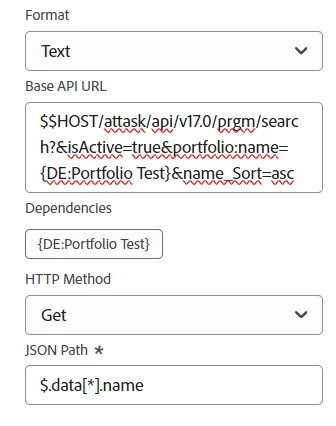
- Program: Now I want to display a list of Active Programs that correspond to the Portfolio the user just selected which is almost exactly what worked for the Portfolio with one more layer. In this example, 'Portfolio Test' is the name of the field I created in step #3 above.
- $$HOST/attask/api/v17.0/prgm/search?
- isActive=true&
- portfolio:name={DE:Portfolio Test}&
- name_Sort=asc
Notes.
- The use of $$HOST instead of my full domain 'https://sampledomain.my.workfront.com' is so that when our Preview/Sandbox environments are reset, the links continue to work there normally for testing instead of my sandbox still trying to call data out of Prod.
- Form field logic is not supported with External Ref fields (yet, maybe someday?)
- Data returned from an External Ref field is ordinary text data, rather than a reference to the object. Consider implications for Fusion if you have Typeaheads being referenced in any Fusion scenarios. It's still workable, but will require changes to handle.
- By default, the API will only return the first 100 results without a $$LIMIT=$$$$ edit in the call. You can increase the limit up to 2,000 but consider form responsiveness in your testing. If it takes awhile to load, users may perceive the form is broken instead.
Reference Pages:
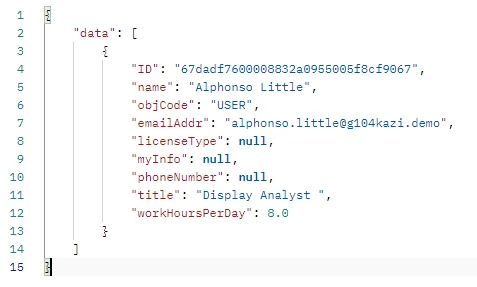
- JSON Path Finder: JSON Path Finder This is what I dump my initial output into in order to find the right path for the JSON Path inputs.
- Workfront API Explorer: API Explorer This is where I reference the field names/abbreviations to put together the Base API URL path.
- Workfront API Basics: https://experienceleague.adobe.com/en/docs/workfront/using/adobe-workfront-api/api-general-information/api-basics#get-behavior