


Use AEM Metadata in DITA-OT PDF output
REQUIREMENT
You are managing DITA content in AEM, and you want to publish that content to (say) PDF output. But you have metadata for your publication(ditamap) managed as AEM metadata - and you want to pass this metadata to the publishing engine to use it in the output.
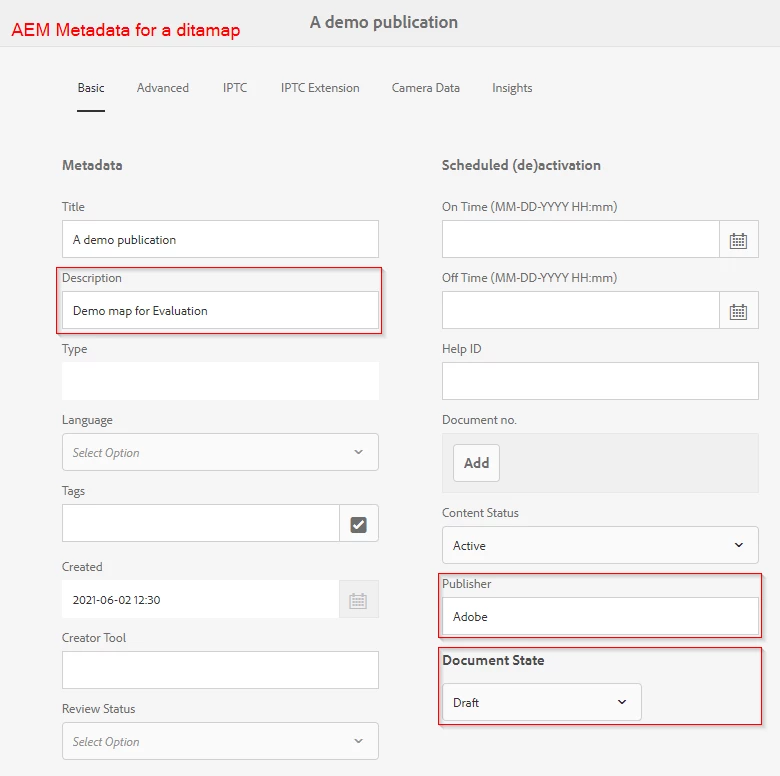
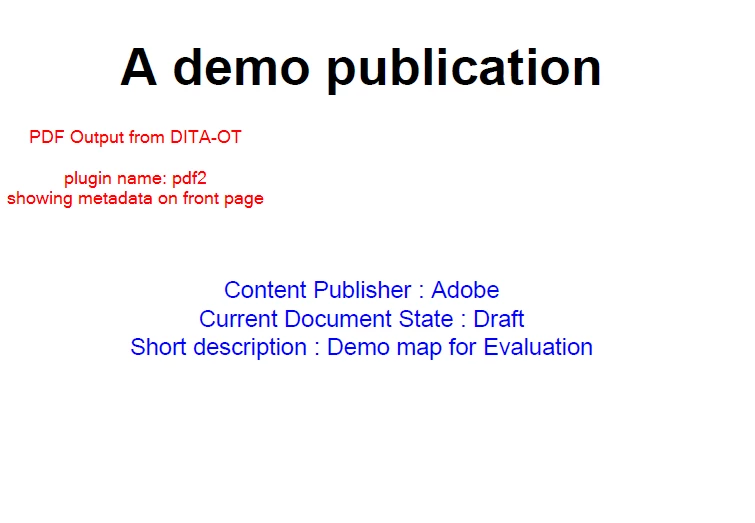
Let us understand this with an example. You have some AEM metadata, say "docstate" or "publisher" or "description" in AEM metadata schema, and you want to show this metadata on front page of the PDF output. Where we are:
1. Managing the publication/ditamap metadata in AEM assets
2. And the publication is published to PDF output using DITA-OT (pdf2 plugin)
IMPLEMENTATION
Part 1: Setup metadata in AEM
Add custom metadata fields in AEM as desired (for this example 'docstate', 'description' were available out of the box, we added the 'publisher' field in this case using AEM Metadata Schema)
- Add a metadata field 'published' as shown in screenshot below (more details on how to add metadata field are documented on this page)
- Save the form, and then your assets should have ability to add that metadata
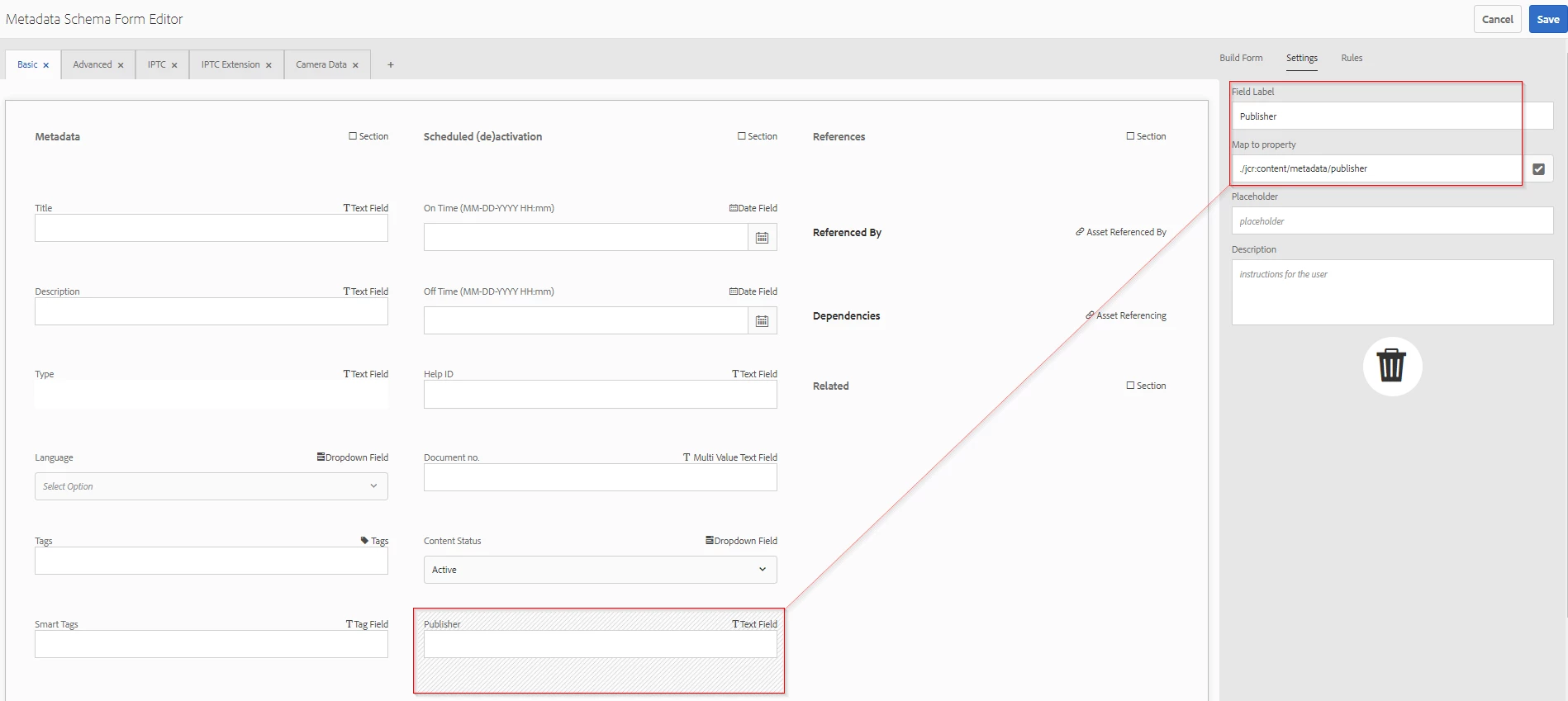
NOTE: Make sure to point the path for this metadata field to "./jcr:content/metadata/published"
Part 2: Enable metadata fields for DITA publishing
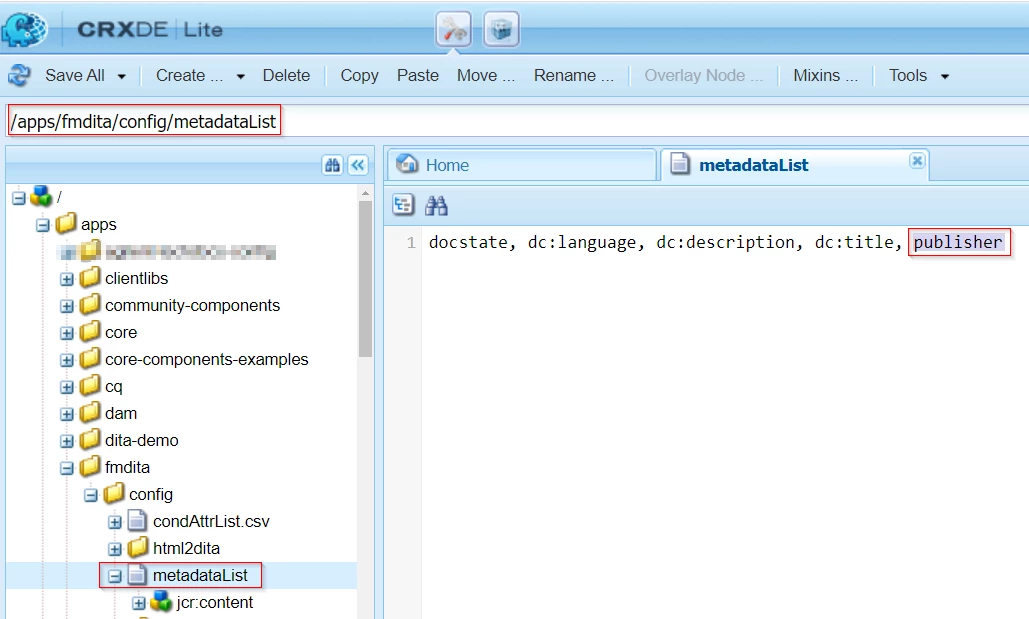
To enable these metadata fields for the users to pick one of these metadata properties (see Part 3 for screenshot) while they are publishing the content to various output formats, the metadata fields needs to be enabled in a configuration. To do so, overlay a file "/libs/fmdita/config/metadataList" in AEM, i.e. create a copy of this file under "/apps/fmdita/config/metadataList". This file lists all the metadata properties that users can use to pass as parameters to DITA-OT plugins.
Add 'publisher' to this list, refer screenshot below:
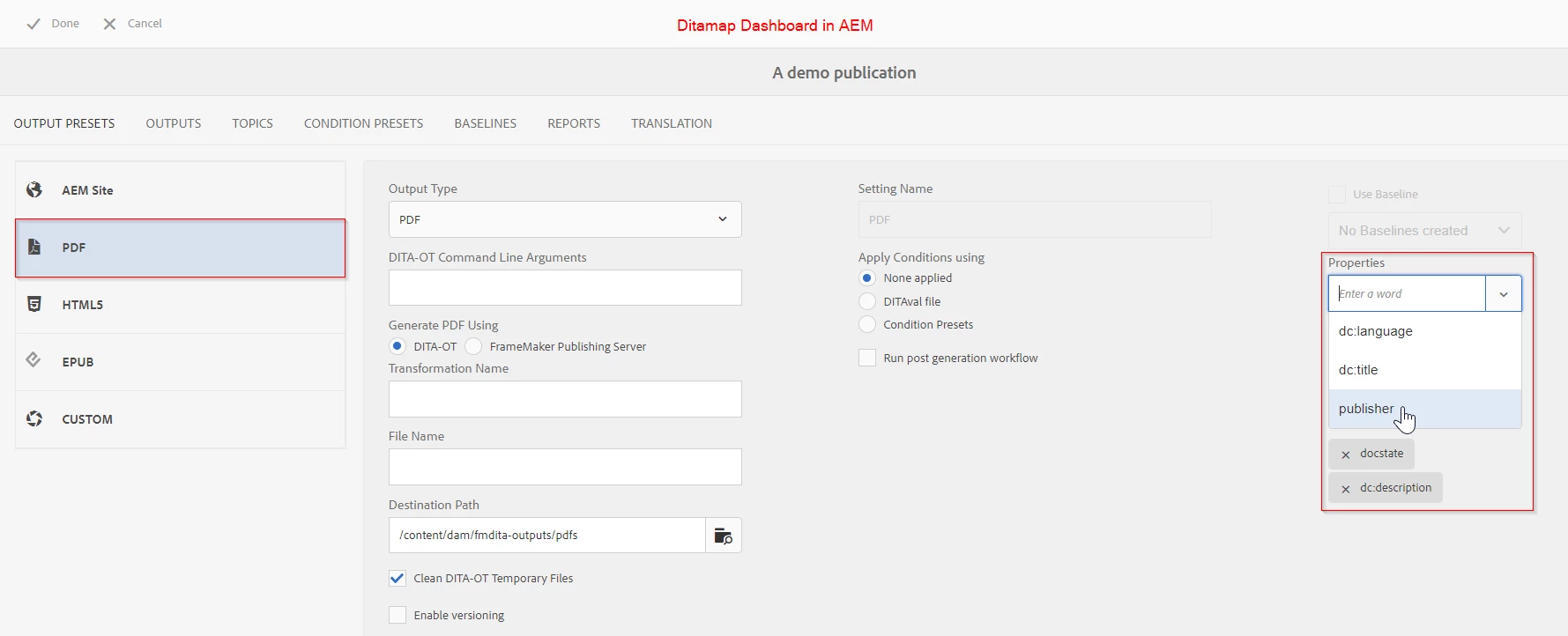
Part 3: Choose the metadata to pass to DITA-OT
Assuming you have already defined the values in the properties of a ditamap,
- open the ditamap dashboard
- select the preset to which you want to publish and pass the metadata fields
- select the properties that you want to pass to DITA-OT
- Save the changes
In screenshot below, we chose PDF preset, and we intend to add 'publisher' property to the list
Part 4: Enable the DITA-OT plugin to read the metadata and use it
This is the part where you can play with presentation and logic on how you want to use the properties that are passed by AEM.
Once your configurations and content is setup in AEM, you also need to make changes in DITA-OT plugin so that the properties that are passed by AEM can be read and used in the plugin.
The steps for doing so (assuming you have DITA-OT on your file system and you have a "pdf2" plugin in the plugins directory of that)
- Create a file with name "insertParameters.xml" having the required parameters and save to the root of pdf2 plugin directory (<DITA-OT directory path >\plugins\org.dita.pdf2). The content of this file will be:
<?xml version='1.0' encoding='UTF-8'?>
<dummy>
<param name="docstate" expression="${docstate}"/>
<param name="dc_description" expression="${dc:description}"/>
<param name="publisher" expression="${publisher}"/>
</dummy> - Define the extension point in "plugin.xml" file available in the plugin directory (<DITA-OT directory path >\plugins\org.dita.pdf2). Please note that the we are passing the argument to pdf hence the extension point is used as 'dita.conductor.pdf2.param'. For other use cases , define your extension point accordingly.
<feature extension="dita.conductor.pdf2.param" file="insertParameters.xml"/>
- Define the usage of these parameters in the "pdf2" XSL, here we can decide what needs to be done with the parameters. In this case, we intent to show the parameter values on front page, so for that we will update the file "DITA-OT\plugins\org.dita.pdf2\cfg\fo\xsl\custom.xsl" and add following to the file:
<xsl:param name="docstate"/>
<xsl:param name="dc_description"/>
<xsl:param name="publisher"/>

<xsl:template name="createFrontCoverContents">
<!-- set the title -->
<fo:block xsl:use-attribute-sets="__frontmatter__title">
<xsl:choose><xsl:when test="$map/*[contains(@class,' topic/title ')][1]">
<xsl:apply-templates select="$map/*[contains(@class,' topic/title ')][1]"/>
</xsl:when></xsl:choose>
</fo:block>

<fo:block xsl:use-attribute-sets="metadata" font-weight="" color="blue">
<xsl:choose><xsl:when test="$publisher">
Content Publisher : <xsl:value-of select="$publisher"/>
</xsl:when></xsl:choose>
</fo:block>
<fo:block xsl:use-attribute-sets="metadata" font-weight="" color="blue">
<xsl:choose><xsl:when test="$docstate">
Current Document State : <xsl:value-of select="$docstate"/>
</xsl:when></xsl:choose>
</fo:block>
<fo:block xsl:use-attribute-sets="metadata" font-weight="" color="blue">
<xsl:choose><xsl:when test="$dc_description">
Short description : <xsl:value-of select="$dc_description"/>
</xsl:when></xsl:choose>
</fo:block>
</xsl:template> - All changes are done. Now build the plugin and add it to the DITA-Profile in AEM [for more details on this you can refer this article]
Try this out
Through the ditamap dashboard, when you publish the map to PDF output:
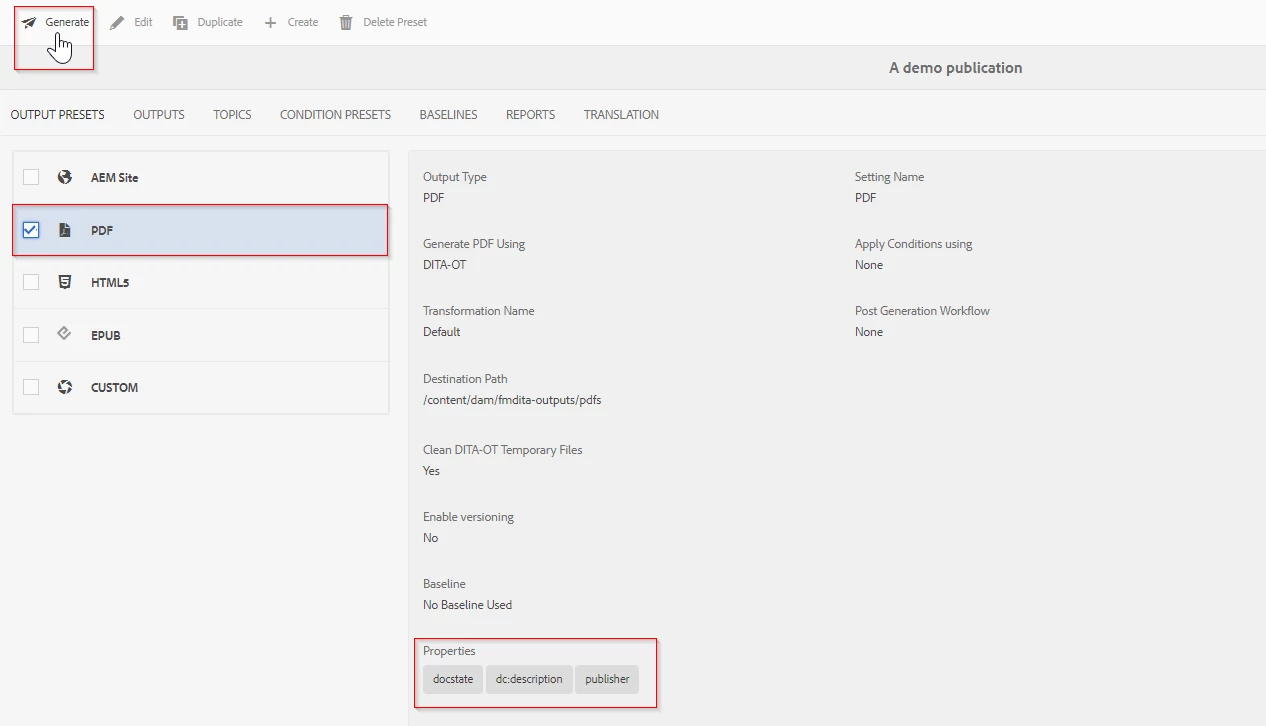
You will get the desired metadata printed on front page of PDF output: