How to give Asset report generation access from tools without admin rights | Community
Skip to main content
Level 2
April 23, 2024

How to give Asset report generation access from tools without admin rights

  • April 23, 2024
  • 4 replies
  • 2506 views

Hi All,

I am trying to give access to Assets under tools for business(Tools -> Assets). But I could not give the access without admin rights. Is there any way to give access to Assets without Admin rights?
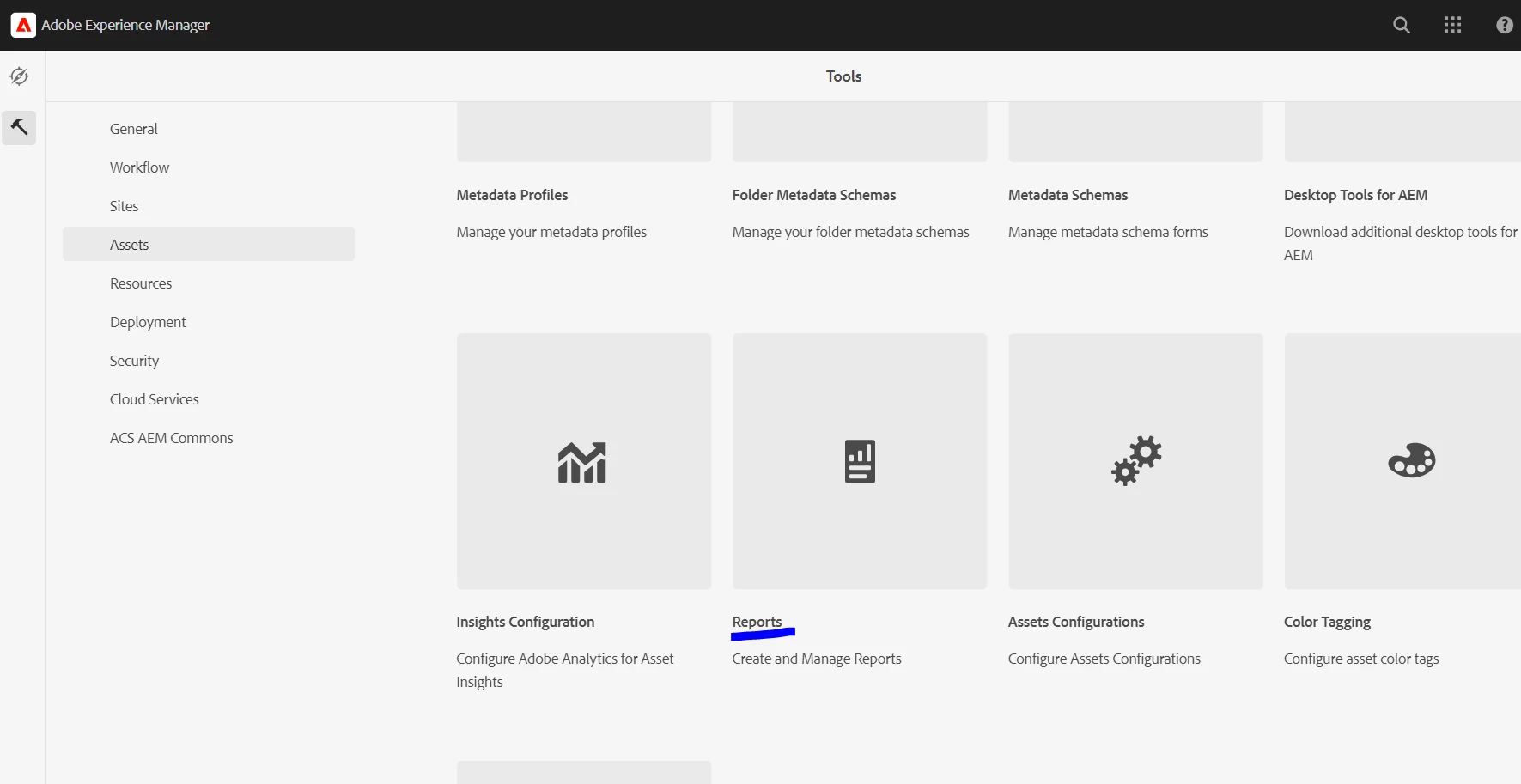
Thanks in Advance.

4 replies

sravs
Community Advisor
Community Advisor
April 23, 2024

Hi @dmanibabu ,


Please provide the access to the user/group for the below paths

To make the reports tool visible to user, provide access to 

/libs/dam/gui/content/nav/tools/assets/assetreports

To generate the reports, edit and delete them provide required ACL to the path
/libs/dam/gui/content/reports

dmanibabuAuthor
Level 2
April 23, 2024

Hi  @sravs ,

In AEM cloud, we dont have libs path - /libs/dam/gui/content/nav/tools/assets/assetreports
How we can provide access in AEM Cloud.


sravs
Community Advisor
Community Advisor
April 23, 2024

Hi @dmanibabu ,


You can provide access to 'nav' folder, and add the restriction path to /tools/assets/assetreports. PFA screenshot.


HrishikeshKagne
Community Advisor
Community Advisor
May 5, 2024

HI @dmanibabu ,

In Adobe Experience Manager (AEM), access to tools like Assets typically requires certain permissions, which are typically managed through user groups and permissions. To grant access to the Assets tool without providing full admin rights, you can follow these steps:

  1. Create a New User Group: If you haven't already, create a new user group specifically for users who need access to the Assets tool.

  2. Define Permissions: Define the permissions that members of this user group should have for the Assets tool. This may include permissions such as read, write, modify, delete, etc. You can set these permissions at various levels (e.g., folder level, asset level) based on your organization's requirements.

  3. Assign Users to the Group: Add the relevant business users to the newly created user group. This can be done through the AEM user administration interface.

  4. Assign Permissions: Once users are added to the group, assign the appropriate permissions to the group for accessing the Assets tool. You can do this by configuring the permissions of the relevant folders, asset types, or other components within the Assets tool.

  5. Test Access: Verify that users in the new group can access the Assets tool and perform the necessary actions based on the assigned permissions. Make sure they can view, upload, download, edit, or perform other required tasks according to their permissions.

  6. Review and Adjust Permissions: Regularly review the permissions assigned to the user group and make adjustments as needed based on changes in roles, responsibilities, or organizational requirements. Ensure that permissions are granted only to users who require access to the Assets tool.

By following these steps, you can grant access to the Assets tool in AEM without providing full admin rights. This allows business users to perform asset-related tasks while maintaining appropriate levels of access control and security.

Hrishikesh Kagane
kautuk_sahni
Community Manager
Community Manager
May 16, 2024

@dmanibabu Did you find the suggestions from users helpful? Please let us know if more information is required. Otherwise, please mark the answer as correct for posterity. If you have found out solution yourself, please share it with the community.

Kautuk Sahni
dmanibabuAuthor
Level 2
May 16, 2024

@kautuk_sahni Working with Adobe team on the solution. I will update here once we found the solution.

kautuk_sahni
Community Manager
Community Manager
May 16, 2024

Thank you!! That would help others with similar issue. 

Kautuk Sahni
June 27, 2024

Any updates on this? Running into the same issue so would love to know if a solution was found. Thanks.

March 4, 2025

I can't add  /libs/dam/gui/content/nav this path to ACE as well. I am a administrator for the author. Not sure why.