Custom Resources in ACS from a flat file | Community
Skip to main content
alicep47308254
Level 3
October 18, 2017
Solved

Custom Resources in ACS from a flat file

  • October 18, 2017
  • 3 replies
  • 1607 views

Hello,

I want to add some new fields in the Database Profile and I am using the Custom Resources.

I am using a flat file to insert all the data (sorry for the Italian name of the fields).
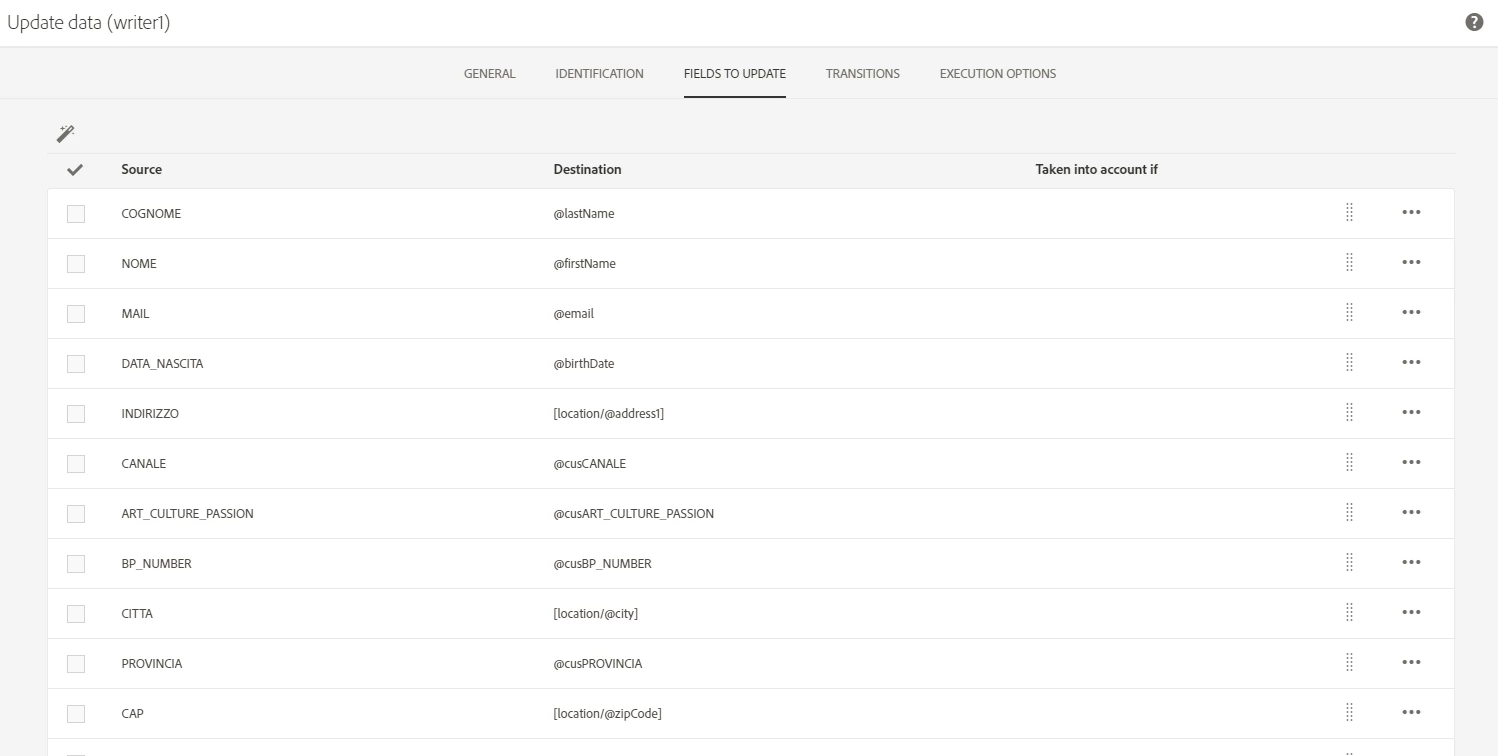
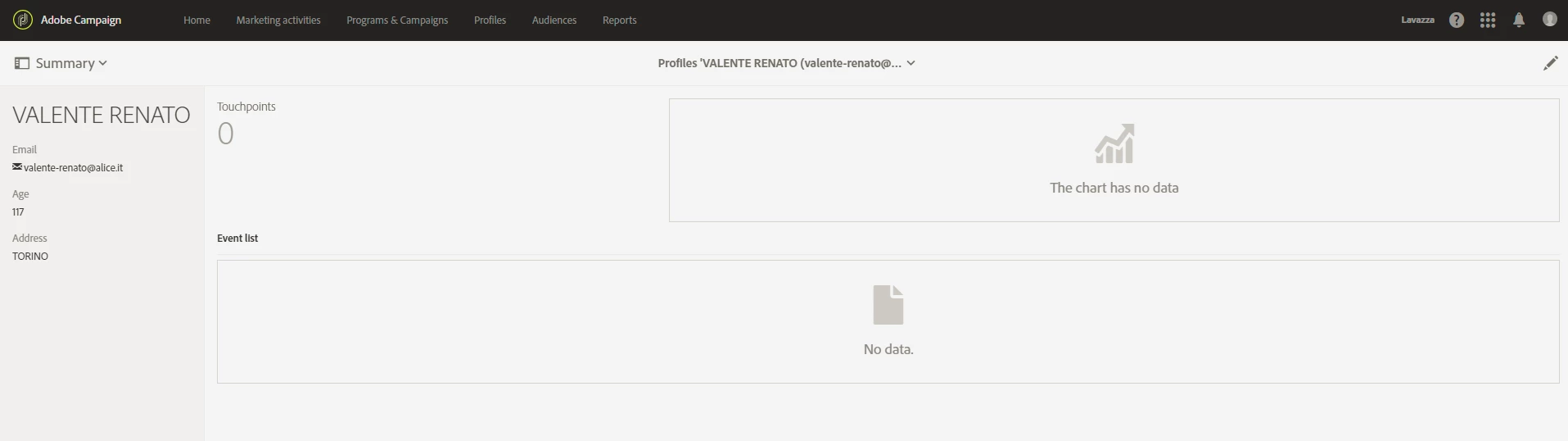
Why I can't see the new fields in the Profile?
Have a nice day

Alice

This post is no longer active and is closed to new replies. Need help? Start a new post to ask your question.
Best answer by florentlb

Hi Alice,

In addition to what Adhiyan suggested, can you check the screen definition settings of your custom resource?

When you extend (or create) a resource, you have not only to specify the new fields, but also to define which fields you want to see in the detailed screen of the resource (otherwise the fields exist in the database but are not visible in the page).

See here for more information: Step 3: Configure the screens

Hope this helps,

Florent

3 replies

Adhiyan
Adobe Employee
Adobe Employee
October 18, 2017

Hey Alice,

Can you please click on the edit icon on the top right of the profiles page and see if data is visible . By default , in ACS the touch points are visible and the attributes are are hidden from the view.

Regards,

Adhiyan

alicep47308254
Level 3
October 18, 2017

Hello Adhiyan,

I went inside the profile, but I can't see my new fileds neither in General or in the other Tabs (Sending Logs or Tracking Logs or Subscription).

Where can I find my new fields?

Regards

Alice

florentlb
florentlbAccepted solution
Level 10
October 18, 2017

Hi Alice,

In addition to what Adhiyan suggested, can you check the screen definition settings of your custom resource?

When you extend (or create) a resource, you have not only to specify the new fields, but also to define which fields you want to see in the detailed screen of the resource (otherwise the fields exist in the database but are not visible in the page).

See here for more information: Step 3: Configure the screens

Hope this helps,

Florent