Generate a file and download it in local PC in a Campaign Workflow | Community
Skip to main content
salvdangelo
Level 5
February 1, 2019

Generate a file and download it in local PC in a Campaign Workflow

  • February 1, 2019
  • 2 replies
  • 10270 views

Hello,

I ask you how it is possible to create and save a file locally (not server) when using a campaign workflow (note that File Transfer activity is not available in CAMPAIGN workflow, only in technical workflow)
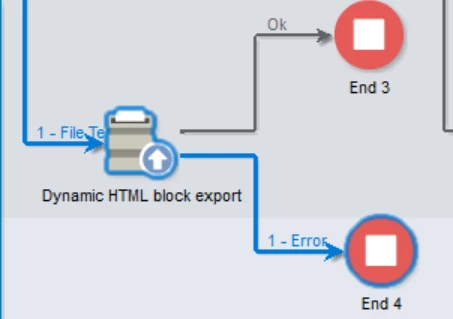
In Data Extraction activity I set up the file and after that I do expect a javascript activity or something like that which let me download this file in my local machine.

Could you explain me in detail how to do that?

Thanks,
Salvatore

Jean-Serge Biron

Vipul Raghav

florentlb

Adhiyan

Adobe Campaign Classic

This post is no longer active and is closed to new replies. Need help? Start a new post to ask your question.

2 replies

Adhiyan
Adobe Employee
Adobe Employee
February 1, 2019

Hi Salvatore,

I do not think there is  any way by which we can download a file locally to your machine.

We can only export the results in csv , xml or text by the right click > export option to save files locally but not through the workflow.

Regards,

Adhiyan

Jonathon_wodnicki
Community Advisor
Community Advisor
February 1, 2019

Hi,

Export it to your public resources dir on the server and download it through a web browser.

Thanks,

-Jon

salvdangelo
Level 5
February 4, 2019

Hello,

Please, keep apart the local download issue.

Suppose that I want to create and save a file and put it in a remote location.

Usually I would use a DATA EXTRACTION (FILE) activity and after that a FILE TRANSFER activity.

In this case DATA EXTRACTION requires a Target Schema but in my scenario I have no schema as input: I have to write an HTML contained in a vars.myHtml variable (note that HTML may exceed 255 bit) inside a new file.
This file will be sent to FILE TRANSFER as usual.

How may I do this?

Could you give me a simple working example?

Thank you,

Salvatore

Jonathon_wodnicki
Community Advisor
Community Advisor
February 5, 2019

Hi,

From the product doc, put this in a js activity before file transfer:

var f = new File('c:/file.txt');
f.open('w');
f.writeln(vars.myHtml);
f.close();

Thanks,

-Jon