
Pictures do not load in email template | Community
Skip to main content
Michael_Soprano
Level 10
August 26, 2024
Question

Pictures do not load in email template

  • August 26, 2024
  • 1 reply
  • 1587 views


I have got two mailings. I created a workflow which requests JSON product recommendations to Target. Then I put urls/product name, price etc. into html.

  • One has an h2 with a header. It looks like this the pictures are not loaded. 
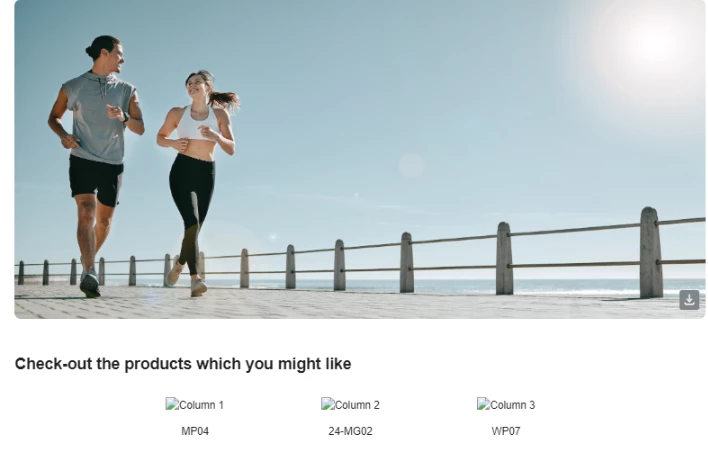
 

  • The other doesn't have it the div with text and it works ... Pictures are loaded
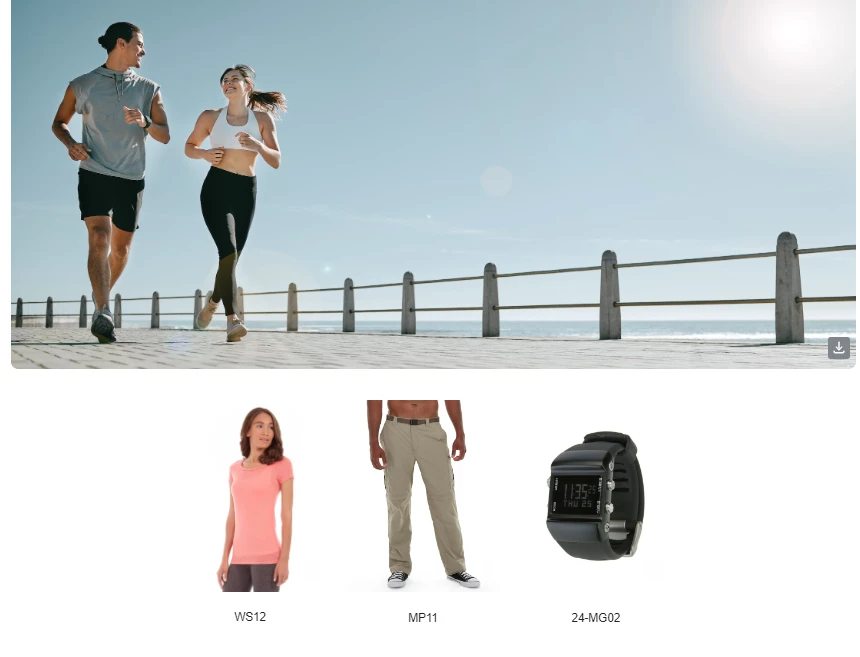
HTML is like this. If I add bold element then the product pictures does not work:

<div style="text-align: center; padding-bottom: 20px;">
<img src="https://demo-system-next.s3.amazonaws.com/assets/luma/banners/AdobeStock_570499457.jpg" alt="Banner Image" style="width: 100%; border-radius: 8px;">
</div>
<div>
Check-out the products which you might like
</div>
<div style="width: 100%; max-width: 600px; margin: 0 auto; text-align: center;">
<div style="display: flex; justify-content: space-between;">
<div style="width: 32%; padding: 10px; box-sizing: border-box;">
<img src=<%= variables.x1 %> alt="Column 1" style="max-width: 100%; height: auto;">
<p><%= variables.x2 %></p>
</div>
<div style="width: 32%; padding: 10px; box-sizing: border-box;">
<img src=<%= variables.x4 %> alt="Column 2" style="max-width: 100%; height: auto;">
<p><%= variables.x5 %></p>
</div>
<div style="width: 32%; padding: 10px; box-sizing: border-box;">
<img src=<%= variables.x7 %> alt="Column 3" style="max-width: 100%; height: auto;"> </img>
<p><%= variables.x8 %></p>
</div>
</div>
</div>

Do you you have any ideas why is that?  How to debug this?


This post is no longer active and is closed to new replies. Need help? Start a new post to ask your question.

1 reply

MeitMedia
Level 4
August 26, 2024

Hi @michael_soprano ,


Here is mine observation and some suggestions for your issue:

Potential Issues and Debugging:

  1. HTML Structure and Flexbox: The code uses display:flex to arrange the product columns. Flexbox layouts can sometimes be sensitive to additional elements (like headers) that might inadvertently disrupt the layout. If an <h2> or other block-level elements are added directly before the flexbox container, they might push or misalign elements, causing issues with image rendering.
  2. CSS Specificity and Inheritance: Adding an <h2> might introduce unexpected margins, paddings, or other CSS properties that affect the layout. These properties might shift elements or cause layout issues in email clients, leading to images not loading.
  3. Email Client Rendering: Different email clients render HTML and CSS differently. Adding a header tag, such as <h2>, might trigger different rendering modes or cause issues with how the email client processes the HTML structure.

Suggestions:

  • Test with Inline Styling on the Header: If you plan to use an <h2>, ensure you control its styling to prevent it from affecting the layout.
    Add this before the product container and see if the images still load.


<h2 style="margin: 0; padding: 10px 0; text-align: center;"> Check-out the products which you might like </h2>​​


  • Place Header Outside Flexbox: Ensure that if you're using a header, it's placed outside any display: flex containers to avoid any layout disruption.
  • Use a <div> Instead of <h2>: If you don't require the semantic benefits of a header tag, consider using a styled div to simulate the header:


<div style="font-size: 24px; font-weight: bold; margin-bottom: 20px; text-align: center;"> Check-out the products which you might like </div>​​


  • Run an Email Client Test: Tools like Litmus or Email on Acid can help test how the email renders across different clients and diagnose where the issue may lie.

These steps should help you identify and resolve the issue with the images not loading when using a header.

Best regards,

MEIT MEDIA (https://www.meitmedia.com)

Find us on LinkedIn

Contact Us: infomeitmedia@gmail.com


Michael_Soprano
Level 10
August 27, 2024

Thank you very much for you extensive response.

It seems like that it does not work with any addidional div with text. I also tried tr / td structure and it also did not work. 

If I add here whatever div with text it does not work:

<body>
<div style="text-align: center; padding-bottom: 20px;">
<img src="https://demo-system-next.s3.amazonaws.com/assets/luma/banners/AdobeStock_570499457.jpg" alt="Banner Image" style="width: 100%; border-radius: 8px;">
</div>
<div style="width: 100%; max-width: 600px; margin: 0 auto; text-align: center;">
<div style="display: flex; justify-content: space-between;">
<div style="width: 32%; padding: 10px; box-sizing: border-box;">
<img src=<%= variables.x1 %> alt="Column 1" style="max-width: 100%; height: auto;">
<p><%= variables.x2 %></p>
</div>
<div style="width: 32%; padding: 10px; box-sizing: border-box;">
<img src=<%= variables.x4 %> alt="Column 2" style="max-width: 100%; height: auto;">
<p><%= variables.x5 %></p>
</div>
<div style="width: 32%; padding: 10px; box-sizing: border-box;">
<img src=<%= variables.x7 %> alt="Column 3" style="max-width: 100%; height: auto;">
<p><%= variables.x8 %></p>
</div>
</div>
</div>
</body>

MeitMedia
Level 4
August 28, 2024

Unfortunately still the same problem for the code which you recommend. I am using gmail not outlook 😞


Hi @michael_soprano ,


Thank you for clarifying that you're facing this issue in Gmail. Gmail is generally more flexible with CSS compared to other email clients like Outlook, so it should be easier to narrow down the problem and fix the issue.


Try the following diagnostic steps:

  • Send the email to your personal Gmail account or an alternate Gmail address. This can help isolate the issue from your office network or your system. Additionally, for easier diagnosis, you can send the copy of email to me at our below Gmail address.
  • Temporarily replace the src="<%= variables.x %>" in the image tag with a static image URL (e.g., src="https://your.image.url") to see if the image loads correctly. This is can help to narrow down if the variable causing image rendering issue. 

  • Access your Gmail account on a mobile device connected to a different network, like your mobile data or a public Wi-Fi network.
  • Press F12 on your keyboard while viewing the email in Gmail to open Chrome’s Developer Tools. Click on the Console tab and refresh the page with the email open. Look for any errors or warnings, especially related to image loading or blocked content. 
  • Right-click on the broken image icon and select Inspect from the context menu. In the Elements tab, check the HTML code for the image, particularly the src attribute, to see if the image URL is correctly resolved.
  • In the Developer Tools, switch to the Network tab and refresh the page again. Filter by "Img" to see the list of image requests. Check if the request for your image returns a successful status (200 OK) or an error.

This combined approach should help you effectively diagnose and narrow down the root cause of the problem.


Best regards,

MEIT MEDIA (https://www.meitmedia.com)

Find us on LinkedIn

Contact Us: infomeitmedia@gmail.com