Disable all the delivery approval flags | Community
Skip to main content
salvdangelo
Level 5
June 4, 2018
Solved

Disable all the delivery approval flags

  • June 4, 2018
  • 5 replies
  • 4354 views

Hi,

I am trying to disable by default all the flags you can find in the delivery 'Approvals' tab (see image below)
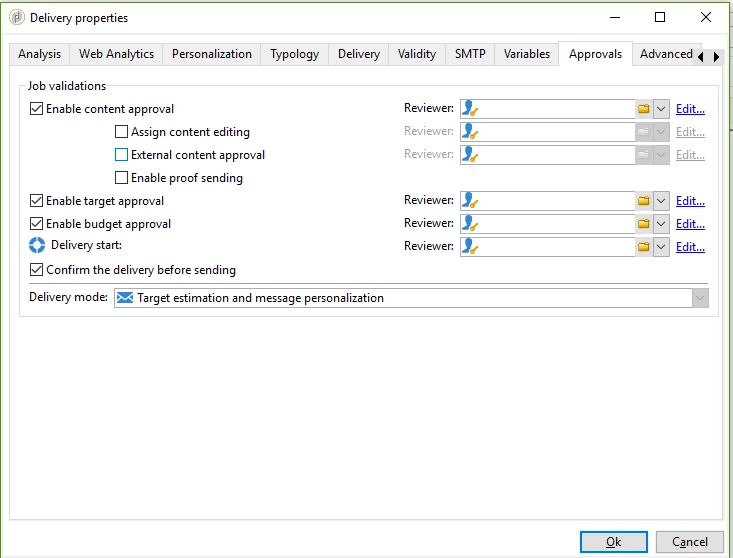
Could you tell me the best practice to do this thing?


I've found ALMOST all the related fields investigating on the 'Structure' tab in nms:delivery but still cannot find them in the data schema editor.
May you tell me where can I find them? Or if these fields are in an other data schema?

     Enable content approval

    @useContentValidation


     Assign content editing

     @assignEdition

     External content approval

     @externalValidation

     Enable proof sending

     @useFCPValidation

     Enable target approval

     @useTargetValidation

     Enable budget approval

     @useBadgetValidation

     Confirm the delivery before sending

     ?

Thanks,
Salvatore

Jean-Serge Biron

Amy_Wong

florentlb

SeaMonkey7

kirti.rawat

Adobe Campaign

This post is no longer active and is closed to new replies. Need help? Start a new post to ask your question.
Best answer by Amit_Kumar

Hi Salvatore,

You need to set the validationMode = "auto"; for the given delivery and it will work.

sample script will look like this

var delivery = NLWS.nmsDelivery.load(deliveryId);

delivery.scheduling.validationMode = "auto";

delivery.validation.useBudgetValidation =false;

delivery.validation.useContentValidation = false;

delivery.validation.useExtractionValidation = false;

delivery.validation.useTargetValidation = false;

delivery.validation.useFCPValidation = false;

delivery.save();

Regards,

Amit

5 replies

Adhiyan
Adobe Employee
Adobe Employee
June 4, 2018

Hi Salvatore,

The approval settings are inherited in a delivery from the Campaign it's associated with and deliveries which are stand alone do not have approvals enabled.

Hence the best approach should be to change the Campaign template and choose the approval to no as shown in the screenshot below.

Path Edit > Advanced Campaign parameters

This should not show the approvals at all.

Else, you may also change the campaign template to disable all the approvals and it will not show up on any deliveries which are built in a Campaign using this Template.

Regards,
Adhiyan

salvdangelo
Level 5
June 4, 2018

Hi Adhiyan,

If I've fully understand your response, you are proposing to deleting the entire tab so that the operator will have that flags always equals to FALSE.

Indeed, I would like to keep this tab (in order to let the business user to add an approval step for that delivery) but put all these flags equals to FALSE by default.

Could you kindly explain me how may I do this?

Thank you,
Salvatore

Adhiyan
Adobe Employee
Adobe Employee
June 4, 2018

Hi Salvatore,

That was the last part of my response.

You can choose the Campaign template under resource >templates> Campaign templates.

Go to the advanced campaign parameters from Edit tab of the campaign template and then uncheck all the approval tabs.

This would enable you to have the approval flag disabled (set to FALSE) for all new campaigns you create using this template.

Regards,
Adhiyan

salvdangelo
Level 5
June 4, 2018

Hi Adhiyan,

I found the specific tab you were referring to.


I still cannot find the option to disable the last flag "Confirm the delivery before sending"

Could you send me a screenshot for this one?

Thanks in advance,
Salvatore

Amit_Kumar
Amit_KumarAccepted solution
Level 10
June 5, 2018

Hi Salvatore,

You need to set the validationMode = "auto"; for the given delivery and it will work.

sample script will look like this

var delivery = NLWS.nmsDelivery.load(deliveryId);

delivery.scheduling.validationMode = "auto";

delivery.validation.useBudgetValidation =false;

delivery.validation.useContentValidation = false;

delivery.validation.useExtractionValidation = false;

delivery.validation.useTargetValidation = false;

delivery.validation.useFCPValidation = false;

delivery.save();

Regards,

Amit

igarciacufre
March 9, 2021
Hi I have a question, where can I set the: ValidationMode ="auto". Is it possible to do it in the campaign template?