Specify "Period" parameter when generating report export using xtk.report | Adobe Higher Education
Skip to main content
Level 2
August 3, 2022
Question

Specify "Period" parameter when generating report export using xtk.report

Hello!

I'm automating some Message Center reports, using this as a basis:

https://experienceleague.adobe.com/docs/campaign-classic/using/automating-with-workflows/use-cases/monitoring/sending-a-report-to-a-list.html?lang=en

I'm specifically looking at the "Message Center Service Level" report, and I'm getting a basic PDF generated using this code:

var reportName = "messageCenterQualityOfService"; var path = "/home/customers/specsavers/incoming/Temp/mcqos.pdf"; var exportFormat = "PDF"; var _ctx = <ctx _context="global" _reportContext="messageCenterQualityOfService" /> var isAdhoc = 0; xtk.report.export(reportName, _ctx, exportFormat, path, isAdhoc);

This generates a report based on the default parameters, "Channel", "Execution Instance" and "Period".

Can someone help me set the "_ctx" parameter so that I can generate the report for different "Periods". e.g. "1 week view" via JavaScript?
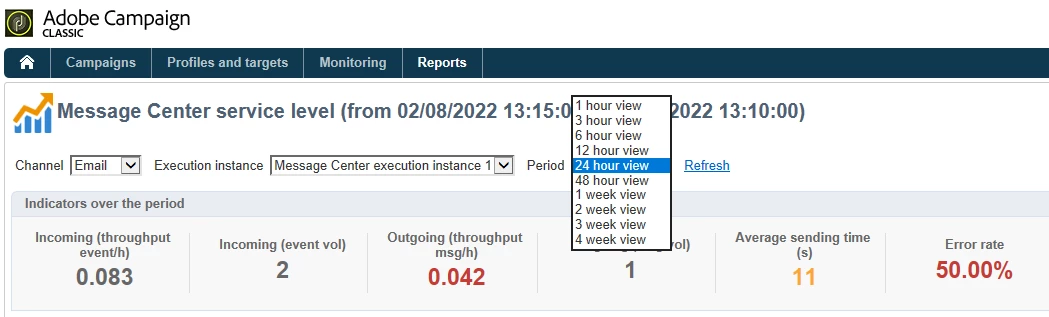
Thank you!

Ce sujet a été fermé aux réponses.

3 commentaires

Adobe Employee
August 3, 2022

Hello,


Is it possible to check the debug view to see the context elements/attributes (and so parameters/values) available?

Level 2
August 5, 2022

Thank you, imicu.


I'm so sorry, how do I see the debug view of the report? It's an out-of-the-box report:

Many thanks!

Adobe Employee
August 5, 2022

I do not have that report in my sandbox, but what you can do it to go to Explorer > Administration > Configuration > Reports


From here you have 2 options:

  1. Select the report, go to Properties and variable Tab and note the XPath for that variable.
  2. Select the report, go to Preview, select Global and tick 'Enable debug mode' checkbox. Play around with Period dropdown (refresh after changing the period) confirm that period tag modifies under vars. In my case (may not apply to you), it was looking like this 
<vars>
<period>7</period>
</vars>

All the variables defined in the variables tab are accesible under the ctx.vars.yourVariable

Once you identify the variable, you can use it in JS script by accessing with: 

ctx.vars.period = <VALUE>

Hope this helps.

Sukrity_Wadhwa
Community Manager
Community Manager
August 18, 2022

Hi @iainollerenshaw,

Were you able to resolve this query with the help of the given solutions or do you still need more help here? Do let us know. In case the given solutions were helpful, then kindly choose the one that helped you the most as the 'Correct Reply'.
Thanks!

Sukrity Wadhwa
Level 2
August 24, 2022

No luck, unfortunately. I'm following this guide which makes use of a JavaScript activity. According to the documentation, there is no "ctx" object that I can use in this activity, yet that seems to be the recommended solution. I'm very new to this aspect of Campaign, so struggling a bit!

Level 2
September 1, 2022

Any help here? I haven't been able to get any further with this.