


How to Submit a Support Ticket on Experience League
This blog is part of a Community Walkthrough series for old Workfront One Community members. Please see the directory below to navigate to other topics in this walkthrough guide:
Welcome to the Workfront Experience League Community
How to Navigate the Experience League Community
Logging into the Community for the first time as a new or existing Workfront Experience League Community member
How to Access Workfront Experience League Events, Documentation, and Learning Pages
Submitting Ideas to the Workfront Innovation Lab on Experience League
Setting up your Email Digest in the Workfront Experience League Community
Logging into the Workfront Experience League Community after Username Registration
How to Redirect Old Workfront One Community URLs
Earn and Showcase your Accomplishments with Gamification
How to Submit a Support Ticket on Experience League
*Updated in January 2025
The process for submitting Workfront support tickets is now directly integrated with the Experience League support platform. This is a self-service portal that was recently redesigned to offer more personalization and ease-of-use for entitled customers. Check out this guide below for more information on how to access the Experience League Support portal and log a ticket.
Please note that submitting a Support ticket is only available to authorized support contacts. For your support queries, please continue to submit your support tickets to Workfront One until July 27th, 2022. Following this date, you can submit your support tickets via the Experience League Support portal as described below.
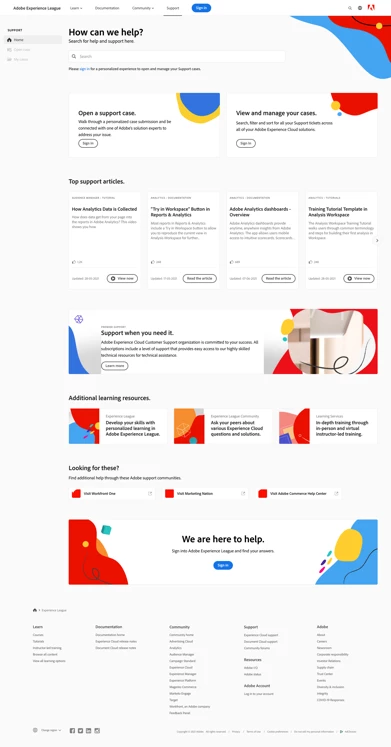
- To access the Support portal, visit the Experience League website and select the “Support” tab located at the top of the page. Alternatively, you can visit the direct link.

- From the support homepage, you can easily navigate to your open support cases, log a new case, view the top Support articles, or access additional learning sources.
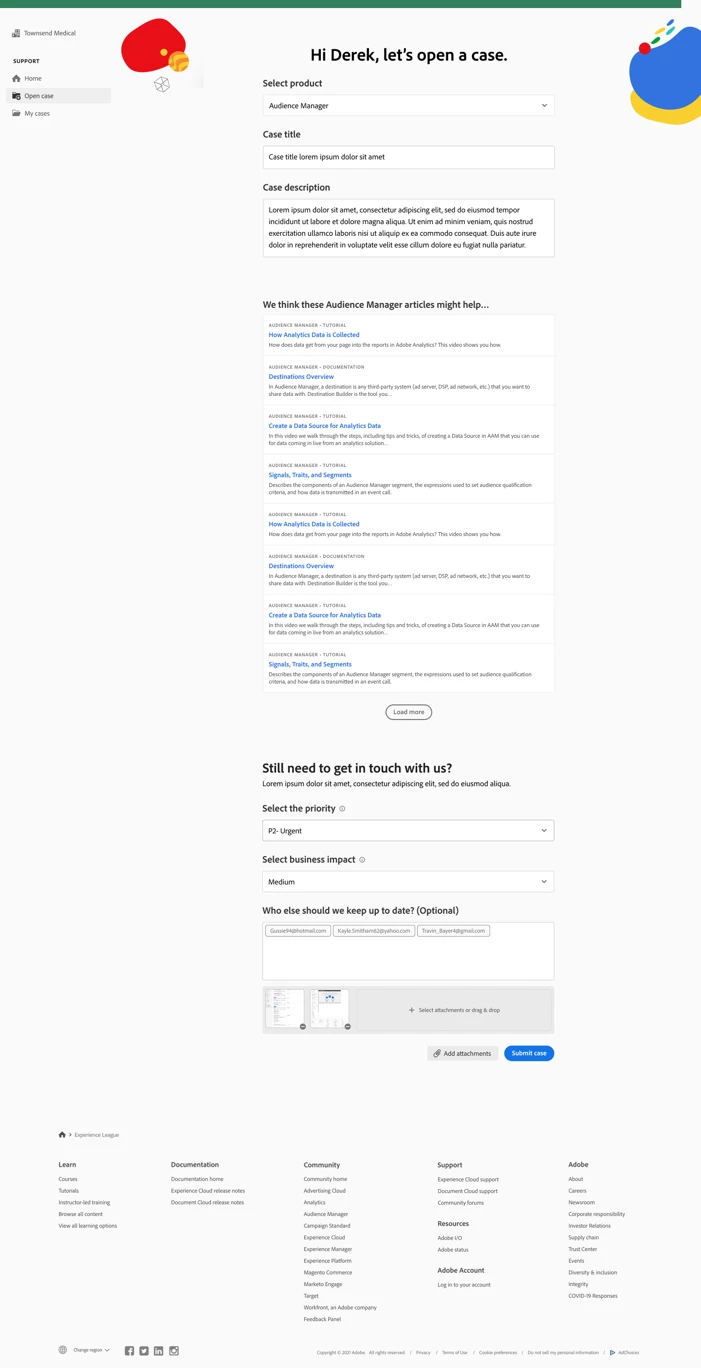
- To submit a case, select the option “Open a support case.” You can also select the “Open case” option on the sidebar menu. You will be directed to the case creation page, where you can enter your product name (Audience Manager, Campaign, Target, etc.), case title, and case description. To expedite the troubleshooting process, please be as descriptive as possible when describing the issue you are facing.
Towards the end of the form, please fill out the following fields to provide us with more specific information that will help us troubleshoot:
- Case Priority (Low, Medium, High, Critical)
- Case Product (DAM, Fusion, Goals, etc.)
- Environment (Production, Preview, Sandbox, etc.)
- Customer Region (Americas, EMEA, APAC)
Lastly, be sure to upload any relevant files before you click submit.
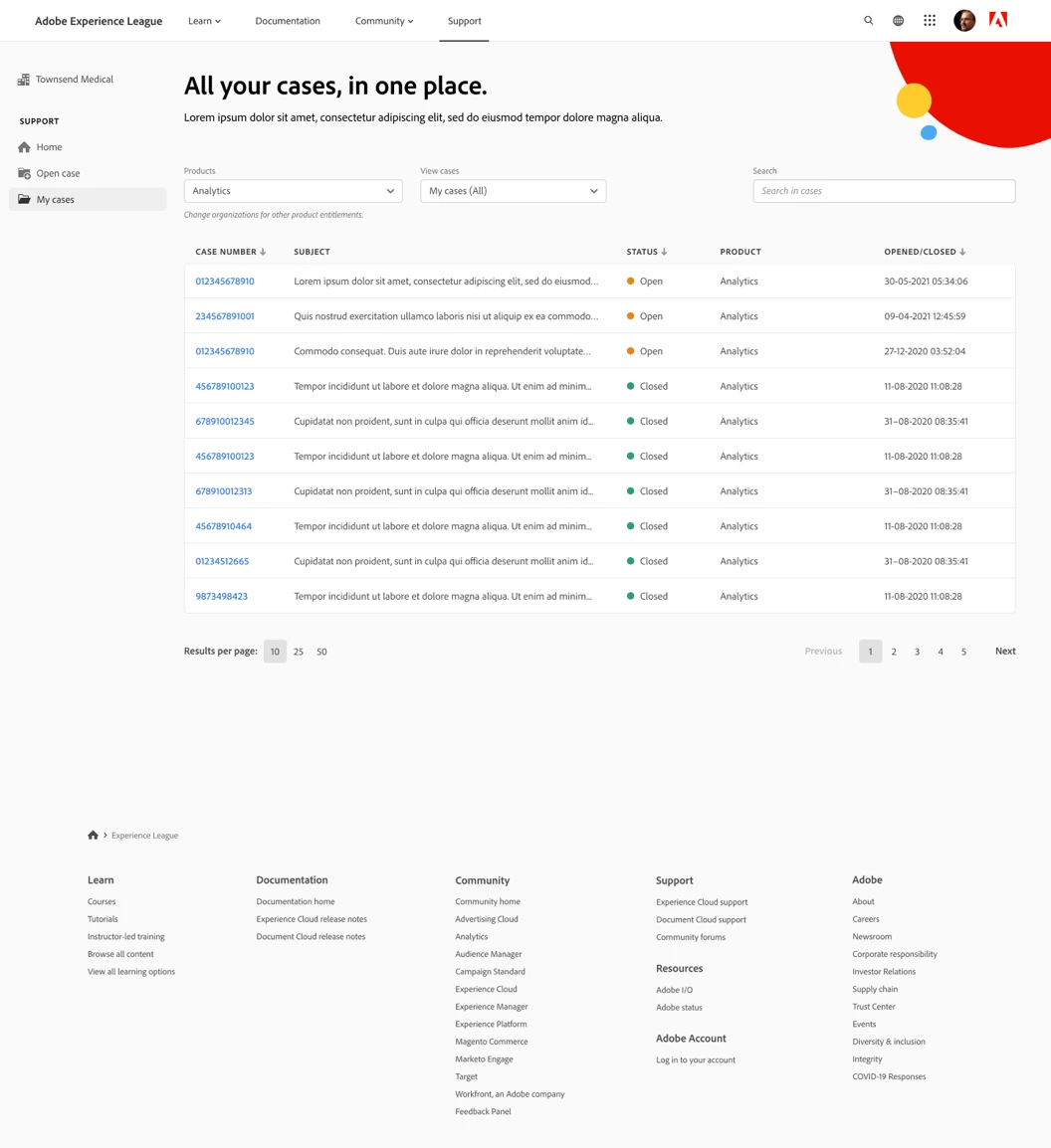
- Once you click Submit, you will be redirected to the “My Cases” page, where you can view any and all cases that your organization has submitted. You can also navigate to this page by clicking the “My Cases” button on the sidebar menu. On this page, you’ll be able to view all your open and closed Support cases. Using the options at the top of the page, you can filter by case status (open or closed) or by Experience Cloud solution. You can also use the search bar to search for any keywords pertaining to your support issues.
- To view more details on a case, click on the case to access its case view. Within the case view you can view the latest comments with the assigned case owner and add any additional attachments or responses you’d like.
You can escalate a case by selecting the “Escalate to management” option on the right-hand side of the page under Case Detail. You can also close the case out by selecting the adjacent “Close case” button.
Additional Notes
For our Support leadership team to address your escalations in the most efficient manner, please submit a case escalation only if it is severely impacting your organization, partners, or customers.
If you have any further questions on how to use the Experience League Support portal, please let us know in the comment section below, or reach out to our Support team directly.