How can I run a report on "second" template used in a project? would be great if details tab showed all templates used...? is that a thing? | Community
Skip to main content
Level 6
October 22, 2020
Solved

How can I run a report on "second" template used in a project? would be great if details tab showed all templates used...? is that a thing?

  • October 22, 2020
  • 4 replies
  • 1792 views

I have a need to report on templates that have been tacked on to another schedule...the details tab only shows first template used.

this actually causes some problems in other areas.

help?

This post is no longer active and is closed to new replies. Need help? Start a new post to ask your question.
Best answer by Doug_Den_Hoed__AtAppStore

Hi Tegwyn,

Ehm...it is a bit tricky, so step by step, in WF Classic:

  • Reporting > Reports > New Report > Task
  • View > Delete all columns
  • View > Add Column > Project Name > highlight the column > Sort By Column (A-Z)
  • View > Add Column > Template Task Template ID > highlight the column > Sort By Column (A-Z) > switch to textmode > click to edit > change "templateID" to "template:name" (3 places) > click Done (to save textmode)
  • View > Add Column > Task Number > highlight the column > Sort By Column (A-Z)
  • View > Add Column > Task Name
  • Grouping > Add Grouping > Project Name
  • Grouping > Add Grouping > Template Task ID > switch to textmode > click to edit > change "group.1.valuefield=templateTask:ID" to "group.1.valuefield=templateTask:template:name", and "group.1.namekeyargkey.1=ID" to "group.1.namekeyargkey.1=template:name" > click Done (to save textmode)
  • Filter > Task Template Task ID Is Not Blank (plus any other conditions you wish)
  • Chart > none (at least, not related to Template Names)
  • Save Report
  • Run Report

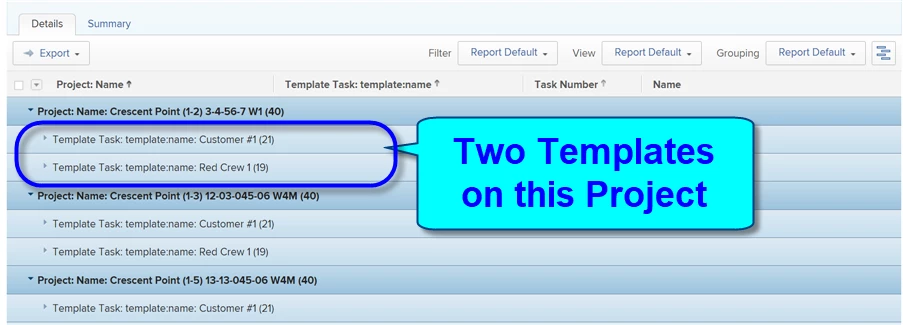
The results should be something similar to my example below, collapsing the Tasks to hide the (boring) details and instead revealing by Project the Template(s) used on each Project (which is interesting).

Regards,

Doug
4 replies

Doug_Den_Hoed__AtAppStore
Community Advisor
Community Advisor
October 22, 2020

Hi Tegwyn,

If these extra templates are due to people "Add Template"-ing additional Tasks into the Workplan, one way is to create a Template Task report, grouped by Project, by Template, then collapse the Template Task details, since what you need to know is covered by the two groupings. Adding a prompt by Project might be helpful, too.

Regards,

Doug

TegwynSt1Author
Level 6
October 23, 2020

@Doug Den Hoed‚ alas, i did not figure out yet...how do you group by "project" in a task report? is it a calc field? I think I have it somewhere in some report but no idea where!

we have some projects (a lot of them) that need to get translated into Spanish....so after initial English design is created we add another template to get translation and design completed.

some Spanish we translate internally while others get sent to vendor (so, like 5-6 different templates just for Spanish route)

I'm trying to capture how many projects are attached to Spanish Template 1,2,3 - and which projects are attached to 4,5,6 etc etc.....

I can do a regular task report and try to use task names (include word vendor, or spanish) but that seems so arduous.

I am putting in a support ticket now but my Manager was hoping I'd get this report to her today (or last week actually) =)

TegwynSt1Author
Level 6
October 22, 2020

Hi Doug,

thank you! ....I'll try to follow what you're suggesting above and let you know if I can figure out.

Teg

Doug_Den_Hoed__AtAppStore
Community Advisor
Doug_Den_Hoed__AtAppStoreCommunity AdvisorAccepted solution
Community Advisor
October 23, 2020

Hi Tegwyn,

Ehm...it is a bit tricky, so step by step, in WF Classic:

  • Reporting > Reports > New Report > Task
  • View > Delete all columns
  • View > Add Column > Project Name > highlight the column > Sort By Column (A-Z)
  • View > Add Column > Template Task Template ID > highlight the column > Sort By Column (A-Z) > switch to textmode > click to edit > change "templateID" to "template:name" (3 places) > click Done (to save textmode)
  • View > Add Column > Task Number > highlight the column > Sort By Column (A-Z)
  • View > Add Column > Task Name
  • Grouping > Add Grouping > Project Name
  • Grouping > Add Grouping > Template Task ID > switch to textmode > click to edit > change "group.1.valuefield=templateTask:ID" to "group.1.valuefield=templateTask:template:name", and "group.1.namekeyargkey.1=ID" to "group.1.namekeyargkey.1=template:name" > click Done (to save textmode)
  • Filter > Task Template Task ID Is Not Blank (plus any other conditions you wish)
  • Chart > none (at least, not related to Template Names)
  • Save Report
  • Run Report

The results should be something similar to my example below, collapsing the Tasks to hide the (boring) details and instead revealing by Project the Template(s) used on each Project (which is interesting).

Regards,

Doug

TegwynSt1Author
Level 6
October 23, 2020

I was soooo hoping to hear from you!!!

This looks awesome, and yes, tricky indeed...one of the few "text mode" things I know is ID to :name but I was just not wrapping my head around all the rest!

going to attempt now...surely I can follow directions lol

I appreciate your time and sharing your knowledge @Doug Den Hoed‚

let you know when I find success! 👻 (in "spirit" of the coming holiday) 👍 😃

Doug_Den_Hoed__AtAppStore
Community Advisor
Community Advisor
October 25, 2020

Thanks Tegwyn,

Since I'd built it as a byproduct of writing the above instructions, I created a Package of the Project Templates Report solution, released it to our catalog, and have invited everyone who's interested to deploy it to their own Workfront environment.

Regards,

Doug