Change height of last note column | Community
Skip to main content
michelleb526471
March 26, 2025
Solved

Change height of last note column

  • March 26, 2025
  • 1 reply
  • 462 views

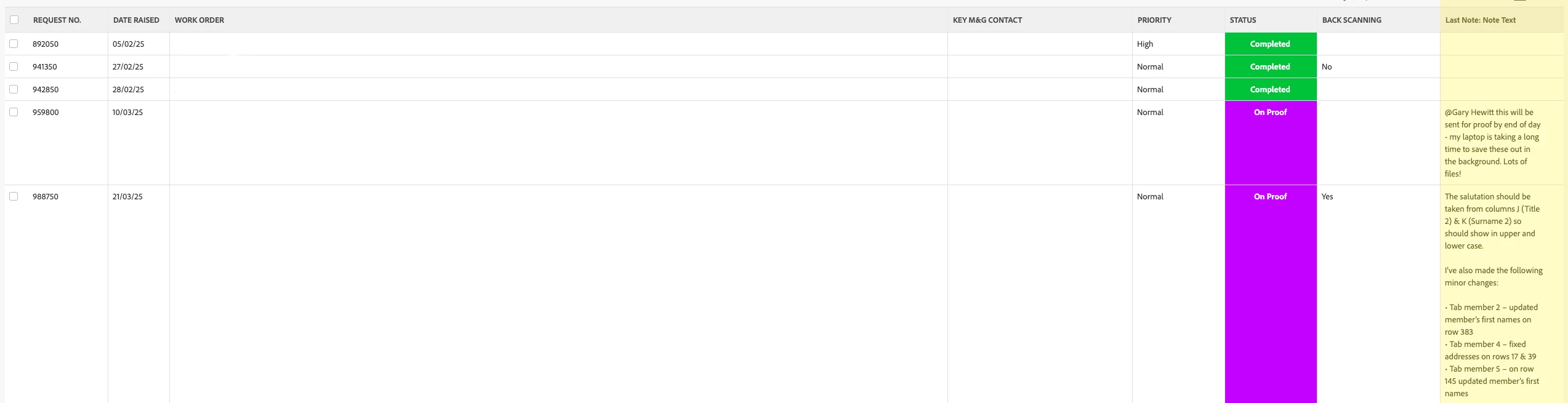
Hey all, does anyone know how to have the height of the last (Highlighted) column the same as the rest? Its increasing in size to account for the added text, but that means viewing less on the page. 
Can I stop the wrap, and just display whatever it can fit?

linkedname=lastNote
namekey=view.relatedcolumn
namekeyargkey.0=lastNote
namekeyargkey.1=noteText
querysort=lastNote:noteText
shortview=true
valuefield=lastNote:noteText
valueformat=HTML


Best answer by Sven-iX

Hi @michelleb526471  - kinda. 
In text mode we can put in some HTML. Sadly there is no way to set CSS for example on hover: we're limited to putting inline styles on tags. 
Options:

  1. truncated shows 2 lines - however much fits
  2. scrolling lets you scroll the value

In my report i have columns 6,7,8 = truncated, 9,10,11 = scrolling
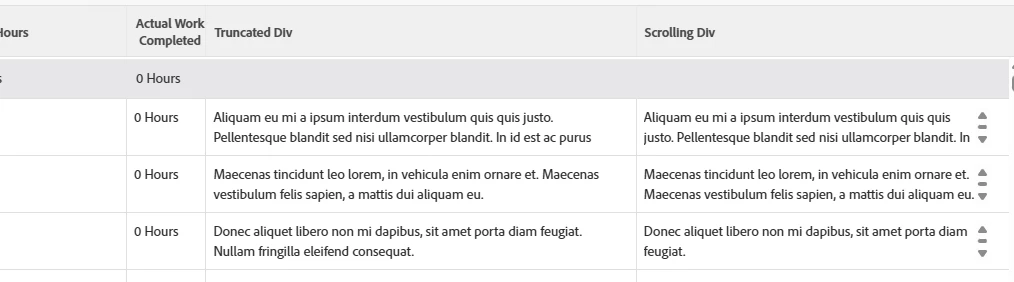
Code for truncated - make sure you adjust numbering (1st col = 0)

column.5.valueexpression='<div style="height: 2.5rem; overflow:hidden;">' column.5.textmode=true column.5.sharecol=true column.5.displayname=Truncated Div column.5.valueformat=HTML column.6.valueexpression={task}.{lastNote}.{noteText} column.6.valueformat=HTML column.6.textmode=true column.6.displayname=Last Note Text column.6.sharecol=true column.7.displayname=end div column.7.value=</div> column.7.valueformat=HTML column.7.textmode=true


Code for scrolling

column.8.valueexpression='<div style="height: 2.5rem;overflow-y: auto">' column.8.valueformat=HTML column.8.displayname=Scrolling Div column.8.sharecol=true column.8.textmode=true column.9.sharecol=true column.9.textmode=true column.9.valueformat=HTML column.9.displayname=Last Note Text column.9.valueexpression={task}.{lastNote}.{noteText} column.10.valueformat=HTML column.10.displayname=end div column.10.value=</div> column.10.textmode=true


I want to caution you that this is pretty experimental and not officially support ... and Adobe could stop supporting this sort of chicanery anytime.  Instead you could maybe use a valueexpression with SUBSTR({lastNote.{noteText},200)?
Or, something like {lateNote}.{entryDate} to show that when the last note was added.


Explanation

  • WF accepts HTML via value and valueexpression
  • Mixing a field with HTML doesn't always work as intended, hence 3 columns
  • Adding a style attribute is - touchy. Workfront strips some tags and attributes (because they could affect the rest of the UI)
  • height must be set - otherwise the height is driven by the amount of text
  • overflow tells the browser how to handle the case when the text is longer than the box it's in: scrolling, or just hide it

1 reply

Sven-iX
Community Advisor
Sven-iXCommunity AdvisorAccepted solution
Community Advisor
March 26, 2025

Hi @michelleb526471  - kinda. 
In text mode we can put in some HTML. Sadly there is no way to set CSS for example on hover: we're limited to putting inline styles on tags. 
Options:

  1. truncated shows 2 lines - however much fits
  2. scrolling lets you scroll the value

In my report i have columns 6,7,8 = truncated, 9,10,11 = scrolling

Code for truncated - make sure you adjust numbering (1st col = 0)

column.5.valueexpression='<div style="height: 2.5rem; overflow:hidden;">' column.5.textmode=true column.5.sharecol=true column.5.displayname=Truncated Div column.5.valueformat=HTML column.6.valueexpression={task}.{lastNote}.{noteText} column.6.valueformat=HTML column.6.textmode=true column.6.displayname=Last Note Text column.6.sharecol=true column.7.displayname=end div column.7.value=</div> column.7.valueformat=HTML column.7.textmode=true


Code for scrolling

column.8.valueexpression='<div style="height: 2.5rem;overflow-y: auto">' column.8.valueformat=HTML column.8.displayname=Scrolling Div column.8.sharecol=true column.8.textmode=true column.9.sharecol=true column.9.textmode=true column.9.valueformat=HTML column.9.displayname=Last Note Text column.9.valueexpression={task}.{lastNote}.{noteText} column.10.valueformat=HTML column.10.displayname=end div column.10.value=</div> column.10.textmode=true


I want to caution you that this is pretty experimental and not officially support ... and Adobe could stop supporting this sort of chicanery anytime.  Instead you could maybe use a valueexpression with SUBSTR({lastNote.{noteText},200)?
Or, something like {lateNote}.{entryDate} to show that when the last note was added.


Explanation

  • WF accepts HTML via value and valueexpression
  • Mixing a field with HTML doesn't always work as intended, hence 3 columns
  • Adding a style attribute is - touchy. Workfront strips some tags and attributes (because they could affect the rest of the UI)
  • height must be set - otherwise the height is driven by the amount of text
  • overflow tells the browser how to handle the case when the text is longer than the box it's in: scrolling, or just hide it
Doug_Den_Hoed_AtAppStore
Community Advisor
Community Advisor
March 26, 2025


Slick workaround, great explanation, and sage caveats @sven-ix,


In addition, I'd add a caution that such Special Treatments are fragile, trickier to maintain, and non-editable (for anyone tempted to use them against text boxes).


Regards,

Doug