
Avoiding the dreaded “Invalid Image URL” error with tokenized assets
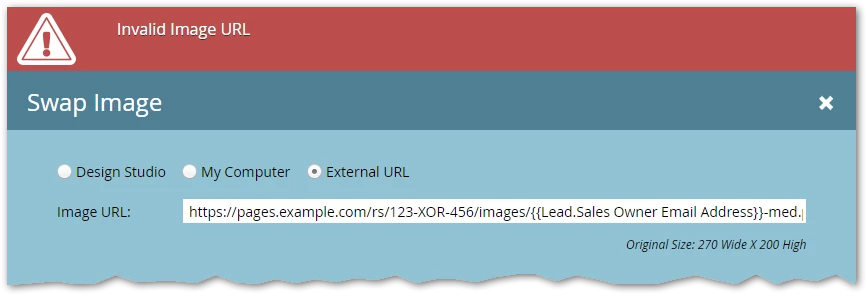
It’s holiday email time and you’re feeling strategic.
Rather than trying to manage signature snippets — or, even worse, cloning entire emails — you upload your sales team’s headshots into Design Studio.
You choose a great naming convention: <email address>-med.png (“med” for medium-size, in case you want to add other image sizes later):
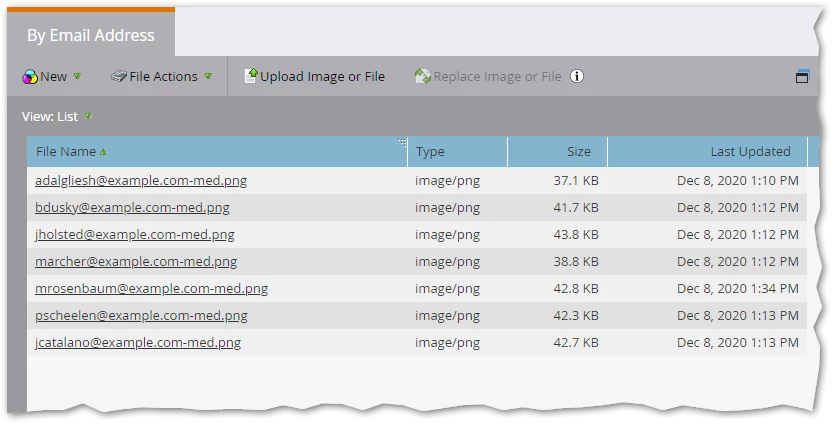
This’ll allow you to use a token to create a dynamic image source:
https://pages.example.com/rs/123-XOR-456/images/{{Lead.Sales Owner Email Address}}-med.png
(I used {{Lead.Sales Owner Email Address}}, but it could be any {{Lead.}}, {{Company.}} or other token that has the right values.)
So you fire up Email Editor, drag in a module, and click the mktoImg element your designer set up. You paste the tokenized value above and...
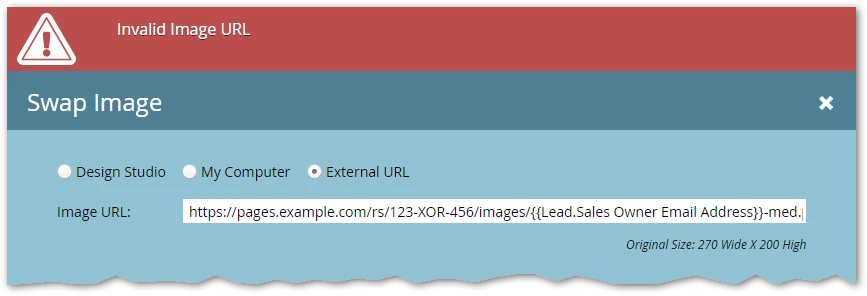
... big oops! Doesn’t work, and you can’t bypass the error (the Swap Image button is disabled).
Why this happens
The reason for the “Invalid Image URL” error is obvious — after you troubleshoot it, that is!
In the Image Browser/Swap Image popup, but only in that particular context, the {{Lead.Token}} notation has no special meaning. It’s just some plain old curly brace characters in a string, not a variable that gets replaced by an underlying database value.
To be clear, as soon as you save the value (when you’re allowed to) it operates like the {{Lead.Token}} variable you were expecting, and works just fine in emails.
But when the Image Browser pre-checks that the image exists, it checks the literal URL: https://pages.example.com/rs/123-XOR-456/images/{{Lead.Sales Owner Email Address}}-med.png. (And until you put in the fix below, that URL redirects to your fallback page, which in turn creates a CORB error since it’s not an image, and then the red error pops up.)
How to fix it
The solution is so, so simple. Upload an image whose name matches the literal URL — with the curly braces and token name!
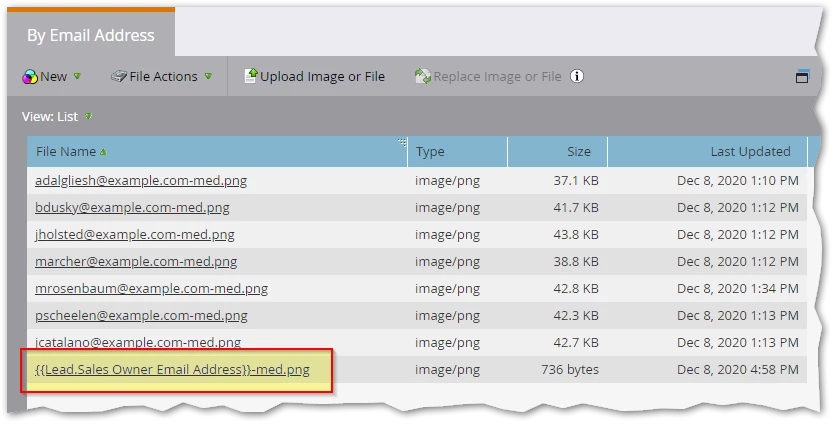 That’s an all-white PNG in my screenshot, but it could instead contain informational text like the dimensions of the image and/or be a cute kitten.
Enjoy!