


Content Simulation Skill — Cover Every Conditional Branch with AI-Built Variants, No Hand-Crafted Data
Introduction
Personalized content is one of Journey Optimizer's strengths — but it is also one of the hardest things to test before you publish. A single email can personalize the subject line, branch on loyalty points and marital status in the body, and use fallback copy when attributes are missing — all in the same template. Simulate content variations gave you a dedicated screen to preview multiple variants and send proofs without the Adobe Experience Platform test profile workflow. That was a real step forward.
But it still left the hardest part on your plate: figuring out which test variants you need, and building each one by hand.
The Content Simulation Skill takes that job off your plate entirely. It reads your content, analyzes every conditional branch and personalization field, works out the minimal set of variants needed to cover each branch at least once, and uses AI to fill in realistic profile, context, and target attribute values that satisfy those branches. You preview the rendered output, send proofs to stakeholders, and move on — no branch-tracing, no hand-built variants, no row-by-row attribute entry.
This post walks through that end-to-end, using a loyalty travel email as the running example.
The Problem: The Manual Testing Tax on Personalized Content
Picture a loyalty email for a travel brand. The subject line and greeting personalize on first name with a fallback. The body branches on loyalty points and marital status.
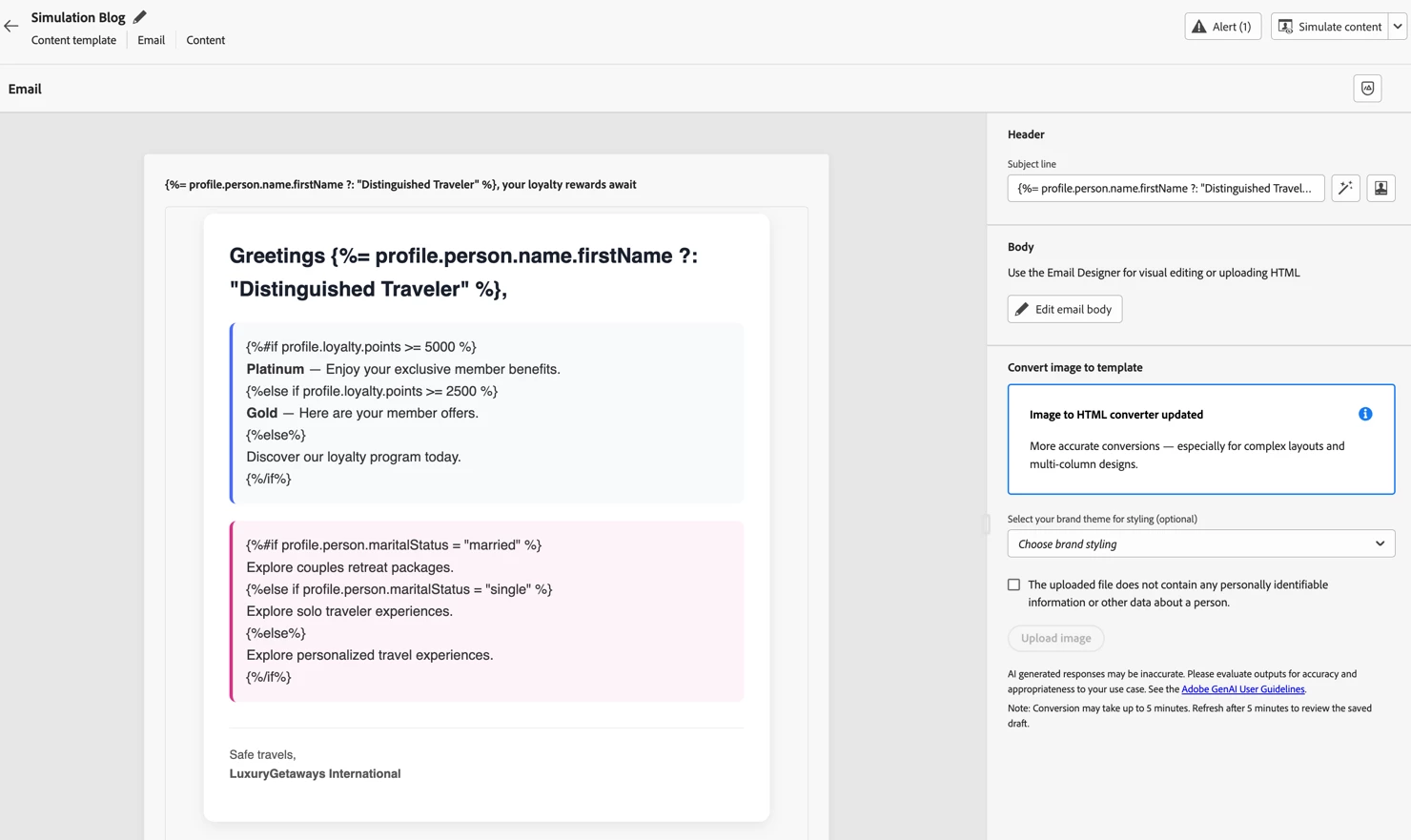
Simulate content variations lets you test this message before it goes live — but it solved where you test, not how much work testing takes. To cover this email properly, you still have to:
- Map every branch by hand. Trace each
{%#if%},{%else if%},{%else%}, and?:fallback — in the subject, greeting, and body. Miss one branch and you ship untested copy. - Work out the data each branch needs — including valid values from your attribute schemas (enum options, numeric ranges, formats). The Platinum path needs
profile.loyalty.points >= 5000. The Gold path needs points between 2500 and 4999. The couples copy needsprofile.person.maritalStatus = "married". The subject and greeting fallbacks needprofile.person.name.firstNameabsent. - Create a variant for each distinct path, entering values for every detected field — in the subject and body — including
loyalty.points,person.maritalStatus,person.name.firstName, and any others the system surfaces. - Preview each variant and send proofs so reviewers see the actual rendered message, not just a checklist of conditions you believe you covered.
It is slow, easy to get wrong, and gets harder as your content grows. Every additional condition — whether nested inside another or independent — adds branches you must trace and variants you must build. One more {%else if%} tier, a nested geography check, or a fallback on another field, and your spreadsheet of test rows grows again. That manual burden compounds quickly, standing between "draft content" and "confident enough to publish."
The Solution: Content Simulation Skill
The Content Simulation Skill automates that entire loop for you. Under the hood it does four things — each one replacing a chore you used to do by hand:
- Finds the minimal set of variants that cover your content. It scans your entire message — personalization fields, conditional blocks, and reusable fragments, across whatever channel you are editing — and identifies every decision point (each
if/else if/elsearm, each?:present-or-absent pair, compound conditions, and nested logic). It then applies a set-cover step to keep the smallest set of execution paths that still exercises every branch at least once — no redundant variants, no missed arms, even as independent and nested conditions stack up. - Generates a realistic variant for each path — with AI. For each path, AI uses the branch requirements and your attribute schemas — you do not need to look up valid enums, formats, or ranges yourself. The result is a coherent set of values: real-looking first names (not
test_user_3), plausible loyalty point totals, and marital status values that match the right{%#if%}arm. Attributes your content never references are not invented. Values respect schema constraints — enums, formats, ranges — pulled from profile, context, and target attribute schemas. - Surfaces everything as ready-to-use content variants. Generated variants appear in the Simulate content variations screen, ready to select, preview in the render pane, and optionally save as simulated users for reuse elsewhere. No CSV template to fill, no manual "Create sample" for every branch combination.
- Connects straight to preview and proof. Once variants exist, you preview how each one renders and send email proofs to yourself or stakeholders — the same preview and proof workflow you already use, now fed by AI-built data instead of hand-typed rows.
Net effect: branch tracing, attribute data entry, and "did I miss a branch?" second-guessing that used to eat your afternoon all collapse into a single click on Generate.
How to use the Content Simulation Skill: A Step-by-Step Guide
The skill runs inside the Simulate content variations experience. You can open it from a content template, a journey message action, or an orchestrated campaign message — anywhere you edit AJO content and see Simulate content.
Step 1 — Open simulation and generate variants
Open the email (or other supported channel content) you want to validate. From the content editor or Email Designer, click Simulate content.
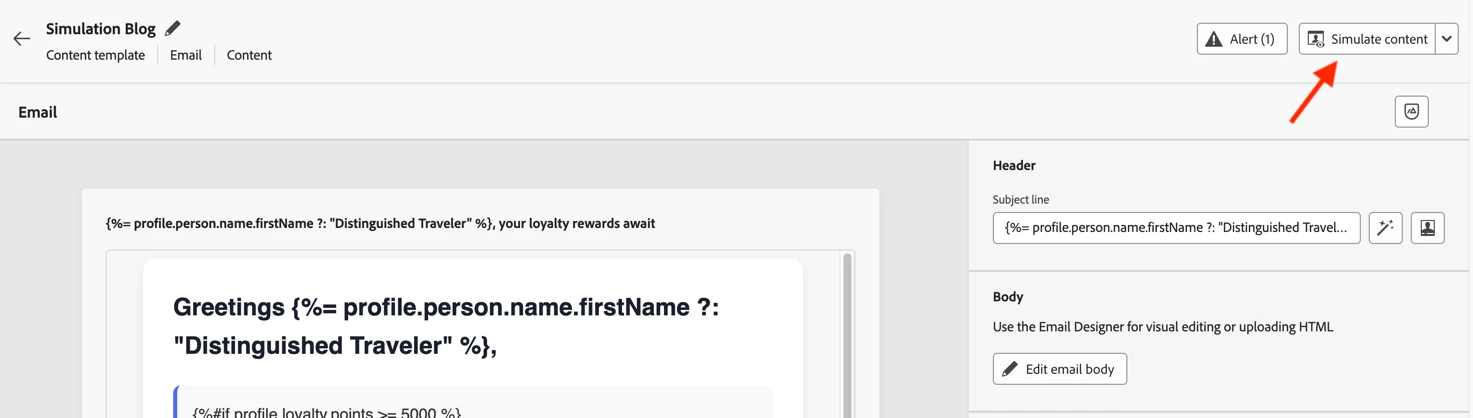
The simulation panel opens with a default Variant 1 already in the list — Journey Optimizer has auto-detected the personalization fields your content uses (person.maritalStatus, person.name.firstName, loyalty.points, and any others) but left the values empty. Click Generate to create AI-built variants; it replaces every variant in the list with the generated set. Remove all is optional — use it only if you want to clear the panel before generation starts.
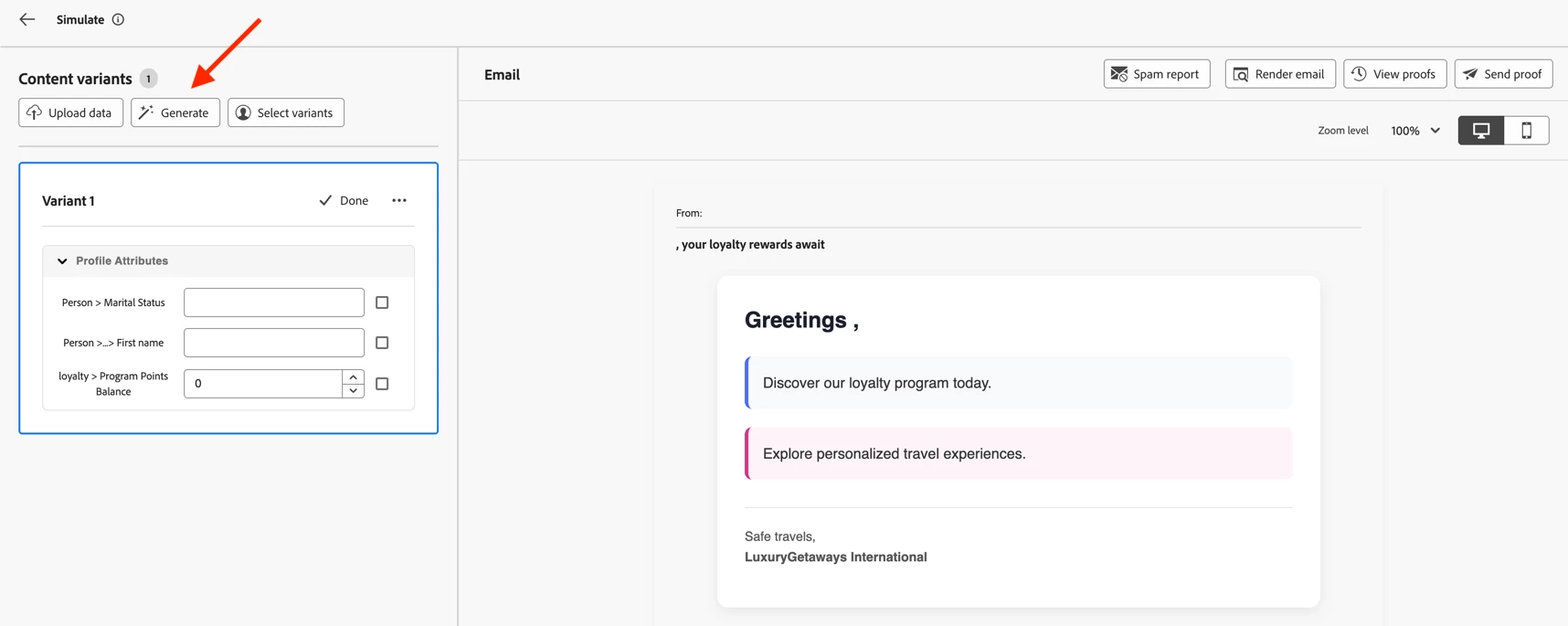
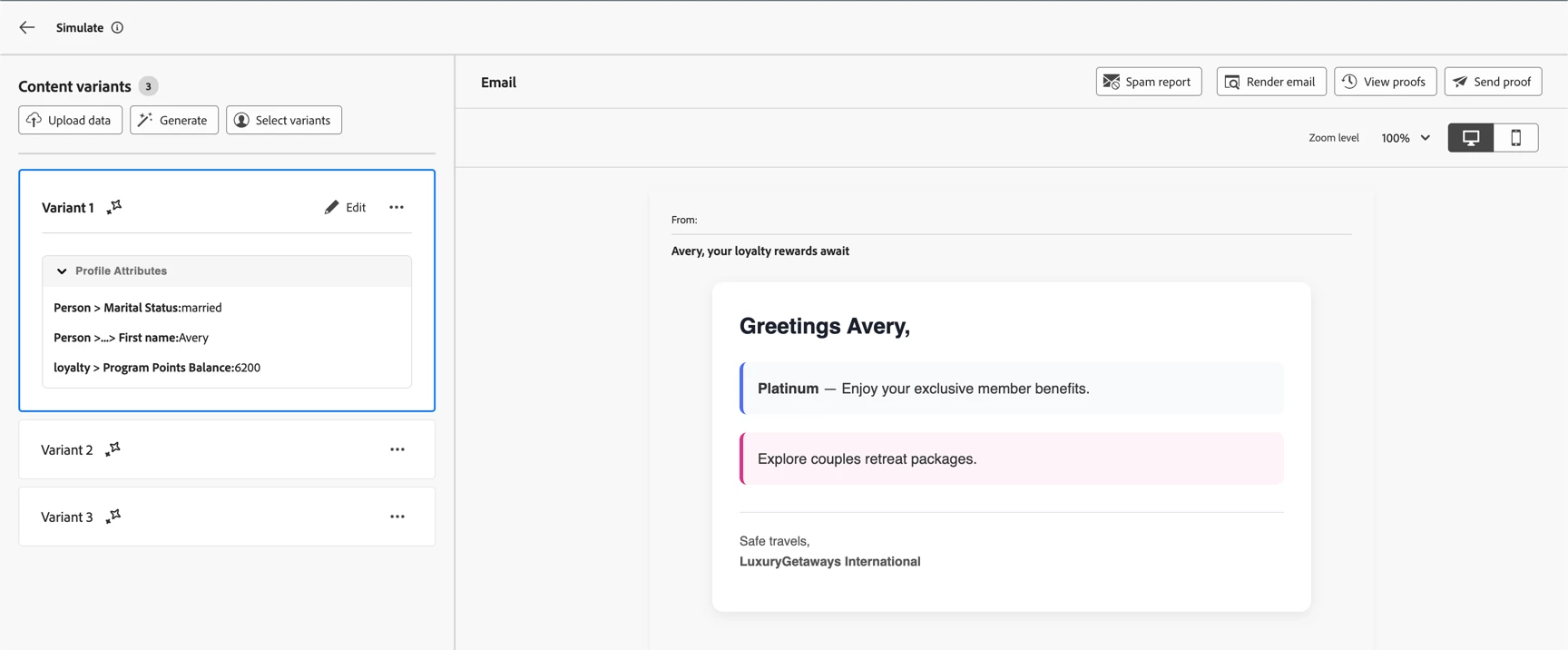
AI analyzes your content, determines how many variants are needed to cover all personalization branches, and creates them with realistic attribute values. For this email, it produced three variants. Variant 1 is selected below — firstName is Avery, loyalty.points is 6200, and maritalStatus is married — and the preview reflects all three: the subject reads Avery, your loyalty rewards await, the greeting shows Greetings Avery, the Platinum block renders, and the couples retreat copy appears.
What to expect
| Topic | Behavior |
|---|---|
| Variant count | Depends on your content. Our loyalty email produced 3 variants; content with more branches can produce more. AI generation supports up to 40 variants. |
| Replace warning | Generate replaces all variants in the list with the AI-generated set. Remove all is optional — it only clears the panel first; skipping it does not change the final result. |
| Channels | Email, SMS, Push, and inbound channels (Web, Code-based experience, In-app, Content cards). |
| Permissions | AI generation requires the Generate Content permission. |
Step 2 — Preview the remaining variants
Select Variant 2 in the list — loyalty.points is 3200, maritalStatus is single, and firstName is absent — so the preview uses the fallback throughout: the subject reads Distinguished Traveler, your loyalty rewards await, the greeting shows Greetings Distinguished Traveler, the Gold block renders, and the solo traveler copy appears.
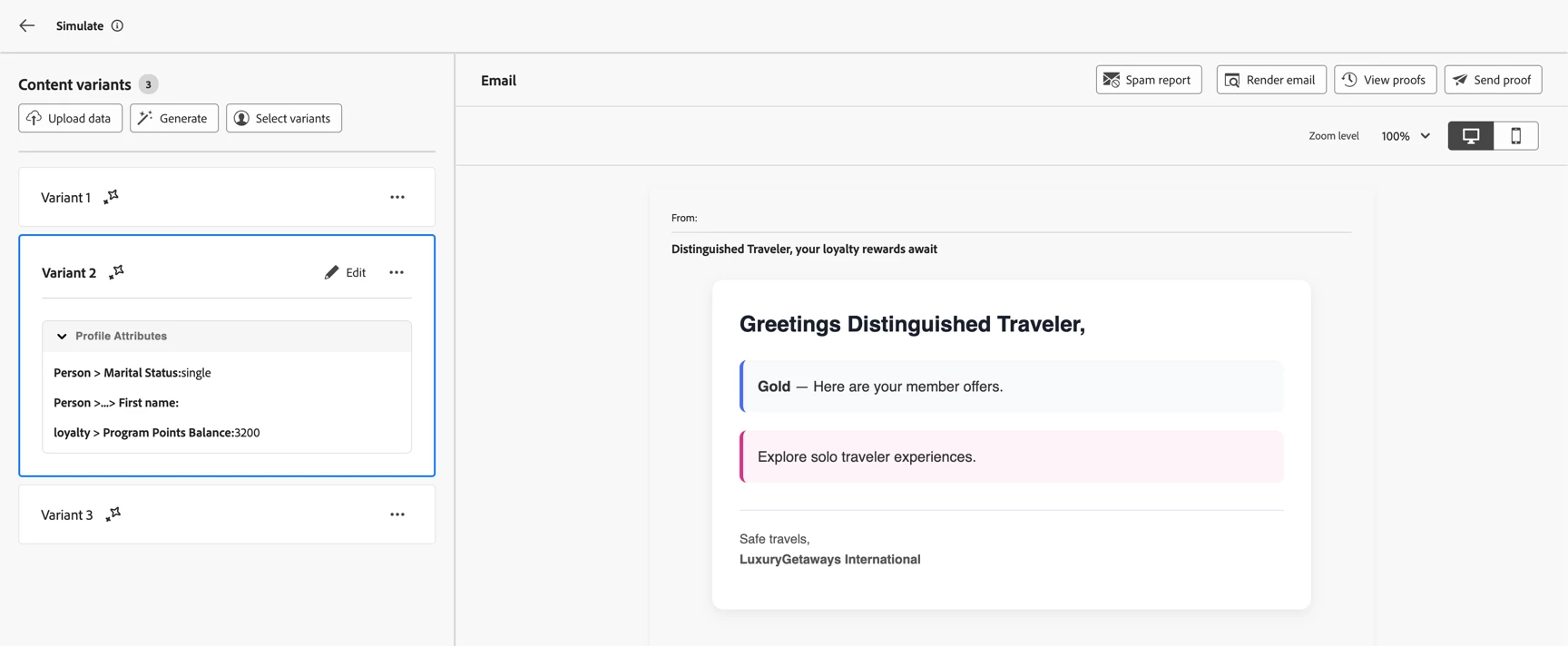
Select Variant 3 for the last branch — Discover membership copy and personalized travel experiences. Expand the attribute fields on any variant card if you want to inspect the values behind a preview.
If you need to tweak a value for an edge case, you can edit a variant manually after generation. Session edits affect the current simulation only; they are not written back to saved simulated users unless you save them explicitly.
Step 3 — Send proofs to stakeholders
This is where it all pays off. When you are satisfied with the variants, send proofs so reviewers see real rendered messages in their inbox — no guesswork about whether every branch looks right in a real inbox.
- Click Send Proof.
- Enter recipient email addresses (up to 10) and click Add.
- Select one or more variants to include in the proof. Each selected variant produces a separate proof message per recipient.
- Click Send Proof, then use View proofs to track delivery status.
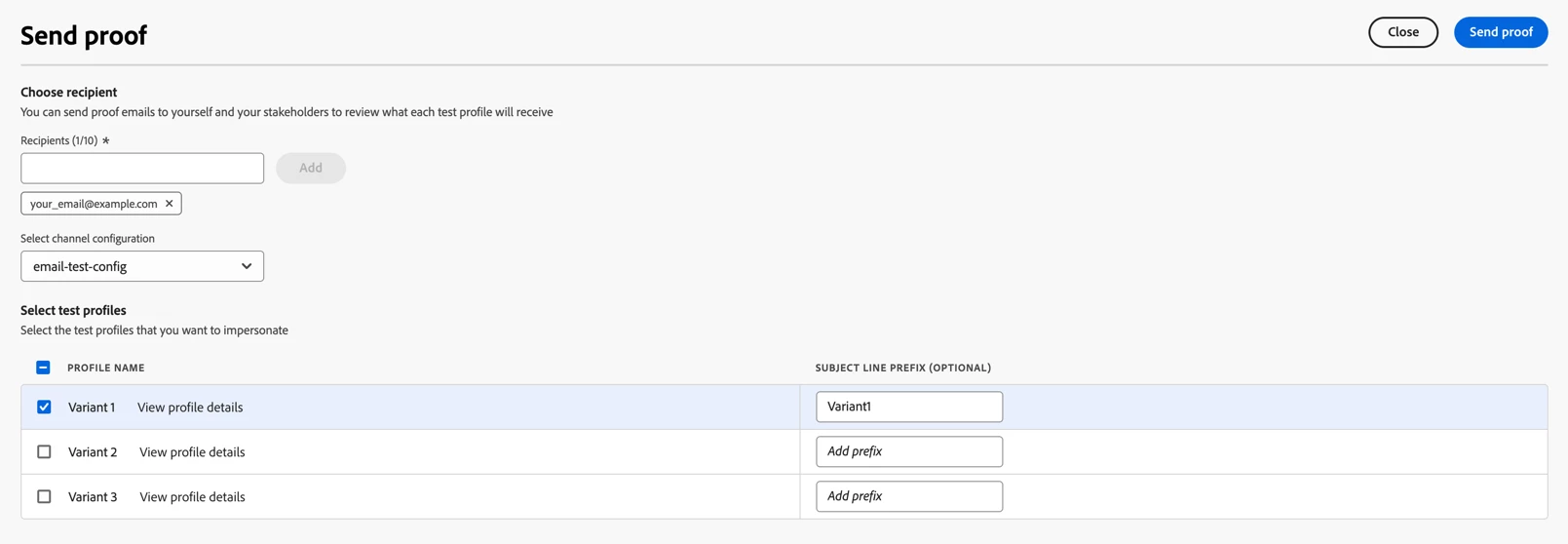
Proofs use the variant attribute values you generated — so stakeholders review the same branch coverage you validated in preview, not a single generic catch-all variant.
Optional — Reuse variants as simulated users
If you want the same test data in a journey simulation later, save a variant as a simulated user from the simulation screen, or pick existing simulated users via Select variants. That bridges content testing and journey testing without re-entering attributes.
Summary
Simulate content variations gave AJO practitioners a single place to preview personalized messages and send proofs without AEP test profiles. The Content Simulation Skill makes that workflow practically effortless:
- No branch analysis by hand — AI finds the minimal set of variants that covers every personalization branch and fallback in your content.
- No hand-built test data — AI generates realistic, schema-valid attribute values for each path — no manual schema lookup.
- Preview and proof in one flow — generated variants plug directly into render preview and email proof, so you validate what recipients will actually see.
- Less time between draft and publish-ready — especially when content stacks
if/else ifchains, fallbacks, and nested conditions.
What used to be a careful spreadsheet exercise becomes a single click on Generate. You spend your time judging whether the copy is right — not whether you remembered every branch. Next time you have personalized content to validate, let AI do the busywork — click Simulate content, hit Generate, and see for yourself.
Reference links
We focused this walkthrough on content-level simulation — variants, preview, and proof from the message editor. When your message sits inside a draft journey and you need to validate paths through the canvas (conditions, waits, events, and message actions together), pair this with the Journey Simulation Agent:
- Journey Simulation Agent — Cover Your Whole Journey in a Few Clicks with AI-Built Test Users, No Hand-Crafted Data
- Stop Crafting Test Events by Hand — Let the Journey Simulation Agent Do It
Experience League documentation
- Simulate content variations — AI generation, manual/file variants, simulated users, preview, and proofs
- Preview and test your content — overview of AEP test profiles vs. sample-input simulation
- Send email proofs — proof workflow and recipient limits