Trying to print form fields only | Community
Skip to main content
Level 2
March 22, 2010
Solved

Trying to print form fields only

  • March 22, 2010
  • 29 replies
  • 28640 views

I have made a fillable form with LiveCycle Designer, it is a 2 page form that my customer will receive by email, fill out and then feeds into a regular ink jet printer to print off fields onto an already pre-printed page they have in their office (they are basically filling out their name, address, etc contact information to print onto a brochure that is pre-printed) My client will use Acrobat Reader to fill in the form. Does anyone know a way to do this? I have read about making the background non-printable, or non-visible, but my background is an already created PDF that I have imported (with the forms built on top of it in LiveCycle). Doesn't seem to work unless I import it as an EPS.

I also have Adobe Acrobat 8 Professional. Is there a different way I should be doing this instead of LiveCycle? I have tried to import the PDF background as an EPS, but the quality makes it really bad and I want the professional quality of the pdf that I already have built, as I have 10 of these to do and the PDFs are already done.

I have been trying to work this out for 2 weeks and still not getting anywhere. Any help would be greatly appreciated.
This post is no longer active and is closed to new replies. Need help? Start a new post to ask your question.
Best answer by Niall_O_Donovan

Hi,

OK I am back at the desk.

I have checked the help files for Acrobat 8 Pro and Acrobat 9 Pro and it appears that the ability to "import as a layer" was added in version 9. Sorry.

You can check out the help file here: http://help.adobe.com/en_US/Acrobat/8.0/Professional/index.html and go to Editing PDFs > Layers.

If the original PDF was generated from InDesign you may still be able to get the layers into the PDF: Help file

"To retain layers when you convert InDesign CS or later documents to PDF, make sure that Compatibility is set to Acrobat 6 (PDF 1.5) and that Create Acrobat Layers is selected in the Export PDF dialog box"

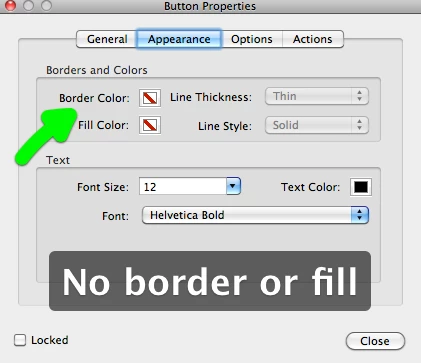
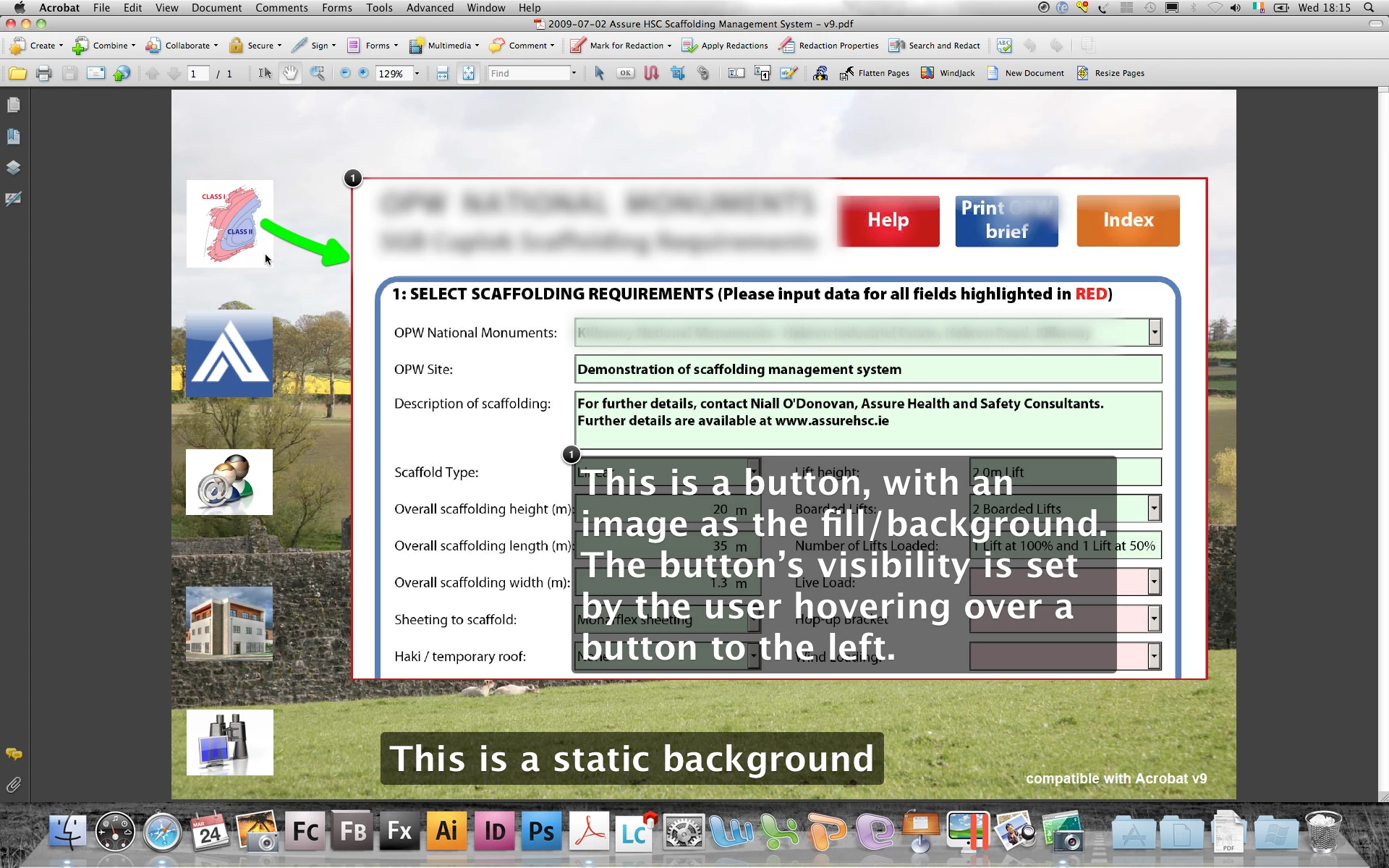
The last thing I can suggest (and I believe you can do this in Acrobat 8) is to start off with the blank PDF and from the Forms menu add a button to the page.

Resize the button to the full page and then right click on the button and get its properties.

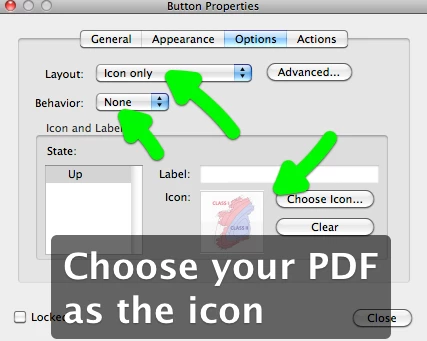
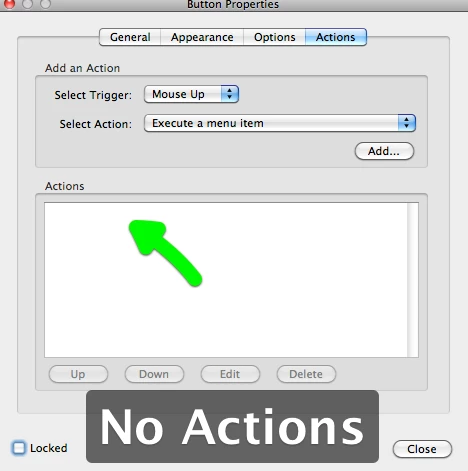
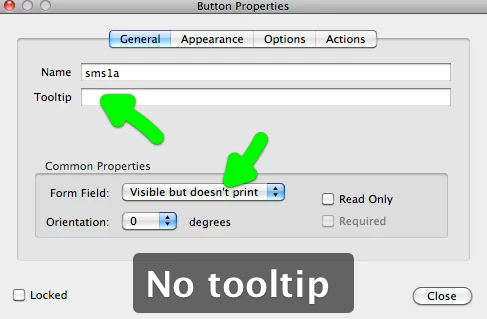
The screen shots should look similar to v8. I am just going to highlight some of the setting you should set for the background button.

In particular make sure that the button behaviour is set to NONE in the Options tab.

Hope that helps,

Niall

29 replies

cammagAuthor
Level 2
March 23, 2010

OK, I was able to import the PDF into Acrobat, however, I can't seem to make a Layer? I can see where you are suggesting to go to Layer properties, but it is not highlighted for me, so I must be doing something wrong with the creating a layer, as I don't see any of the "background" layer as the one you sent me has.

Sorry, getting there, slowly.

Niall_O_Donovan
Level 10
March 23, 2010

No problem,

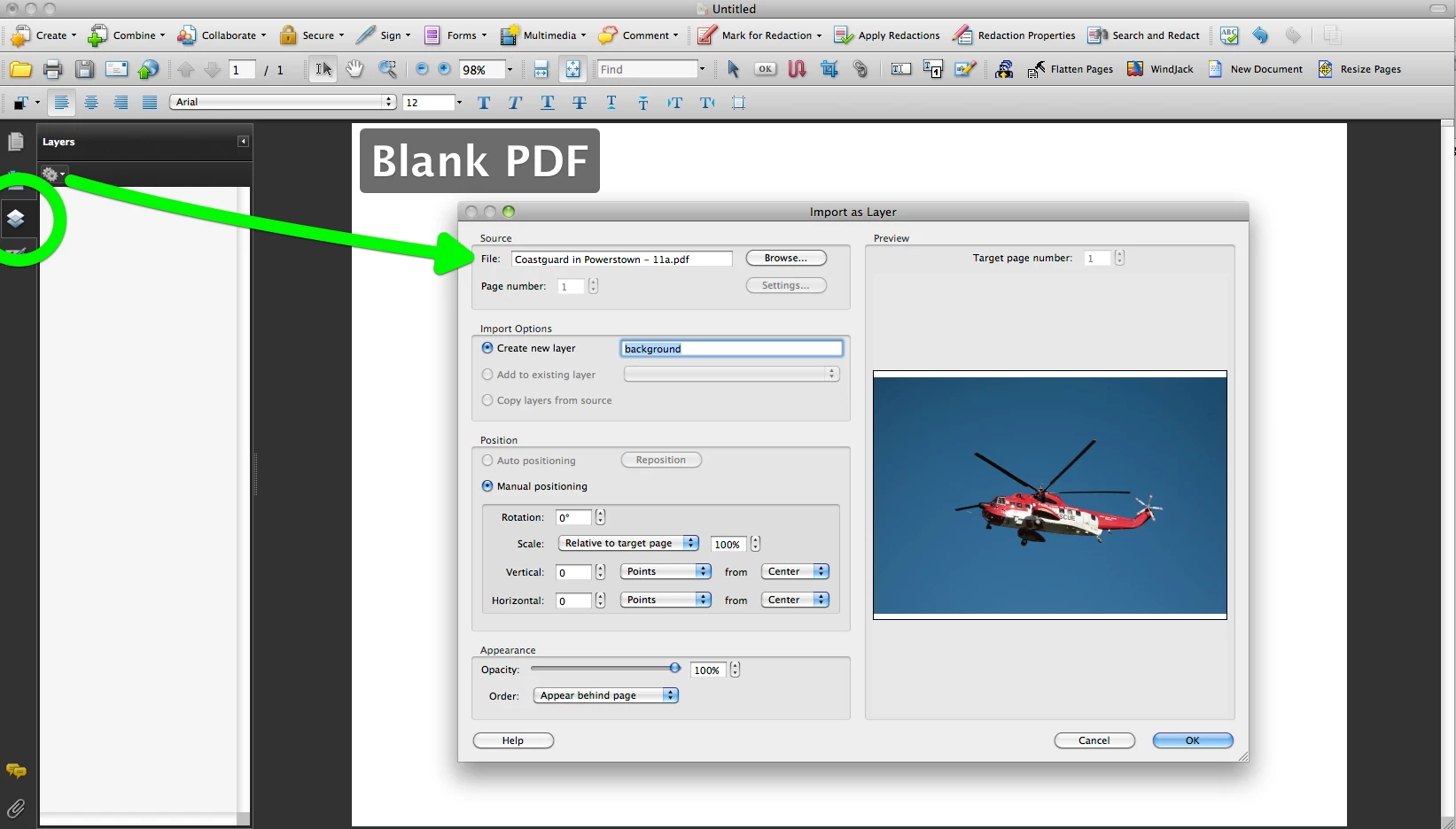
What I did was open Acrobat and create a blank PDF (setting the page size and orientation to what I want - in my case A4 and Landscape). In Acrobat 9 I can do this from the File menu. There are examples of javascript for adding new pages (windjack.com have a free sample).

Then in the View menu select Navigation Panels > Layers. Open the layers panel and from the top menu select Import as Layer.

Now you can browse to your original PDF and give the layer a name eg "background":

Once you have the layer in the blank PDF you can set the printing to none in the layer properties. It should look just like your original PDF, but the content is now in a layer that you can control.

Let me know how you get on,

Niall

PS another important setting is to have the layer behind the page, so that the new form objects will appear over the image. Also if you have multiple pages, you can import single page PDF and target each page in turn.

cammagAuthor
Level 2
March 24, 2010

OK, I am so close, but I can't seem to find where I can "import as layer" in the top menu. When I go to search help in Acrobat it

tells me that you cannot create layers in Acrobat? Now I am confused. I am using Acrobat Pro 8, is there an option here to "import

as layer" if so, what did you find it under. Can't seem to get past this step. Sorry for being so confused, but I would really like to try this method and see if I can make it work. I like that you can do everything right in Acrobat.

cammagAuthor
Level 2
March 24, 2010

I can see on your screen where you are going to import the layer, but in my program it doesn't show me that option. It doesn't show me that there is even a layer there, therefore I can go to the drop down to import. When I have a blank page, it doesn't show me any layer. I tried bringing in my pdf as well, and in the layers it still shows NO layer exists there? Maybe I can't do this in Acrobat 8 Pro, would it be only available in newer versions.

Niall_O_Donovan
Niall_O_DonovanAccepted solution
Level 10
March 24, 2010

Hi,

OK I am back at the desk.

I have checked the help files for Acrobat 8 Pro and Acrobat 9 Pro and it appears that the ability to "import as a layer" was added in version 9. Sorry.

You can check out the help file here: http://help.adobe.com/en_US/Acrobat/8.0/Professional/index.html and go to Editing PDFs > Layers.

If the original PDF was generated from InDesign you may still be able to get the layers into the PDF: Help file

"To retain layers when you convert InDesign CS or later documents to PDF, make sure that Compatibility is set to Acrobat 6 (PDF 1.5) and that Create Acrobat Layers is selected in the Export PDF dialog box"

The last thing I can suggest (and I believe you can do this in Acrobat 8) is to start off with the blank PDF and from the Forms menu add a button to the page.

Resize the button to the full page and then right click on the button and get its properties.

The screen shots should look similar to v8. I am just going to highlight some of the setting you should set for the background button.

In particular make sure that the button behaviour is set to NONE in the Options tab.

Hope that helps,

Niall

cammagAuthor
Level 2
March 24, 2010

OK, I was able to do a rough draft of it and it worked!!! I didn't do the button suggestion, I stuck to the layers suggestion and was able to get a layer from the original Indesign File with what you sent me here:

"To retain layers when you convert InDesign CS or later documents to PDF, make sure that Compatibility is set to Acrobat 6 (PDF 1.5) and that Create Acrobat Layers is selected in the Export PDF dialog box"

So at this point I will either ditch my original LiveCycle Form, which I was hoping I could get up and running since I spent so much time trying to learn that program, but if I works in Acrobat, then I will just redo all my 10 forms this way. I am so happy that I got the live fields to finally print without the background!

Thanks SO SO much for all your help!!!!!!

cammagAuthor
Level 2
March 24, 2010

So, now that I have the print live fields mastered, here is my next question.

I want to email a form I've created in LC to one of our clients, where they would fill in the live fields and then email it onto THEIR clients. Here is the problem. They only have Reader to fill in live fields and reemail to their clients, is this something you can do in Reader?

I can get to the point of emailing it out and someone filling it out, but then they can email it out or even save it. Is this correct?

Niall_O_Donovan
Level 10
March 24, 2010

Hi,

Glad you have the PDF working the way you want.

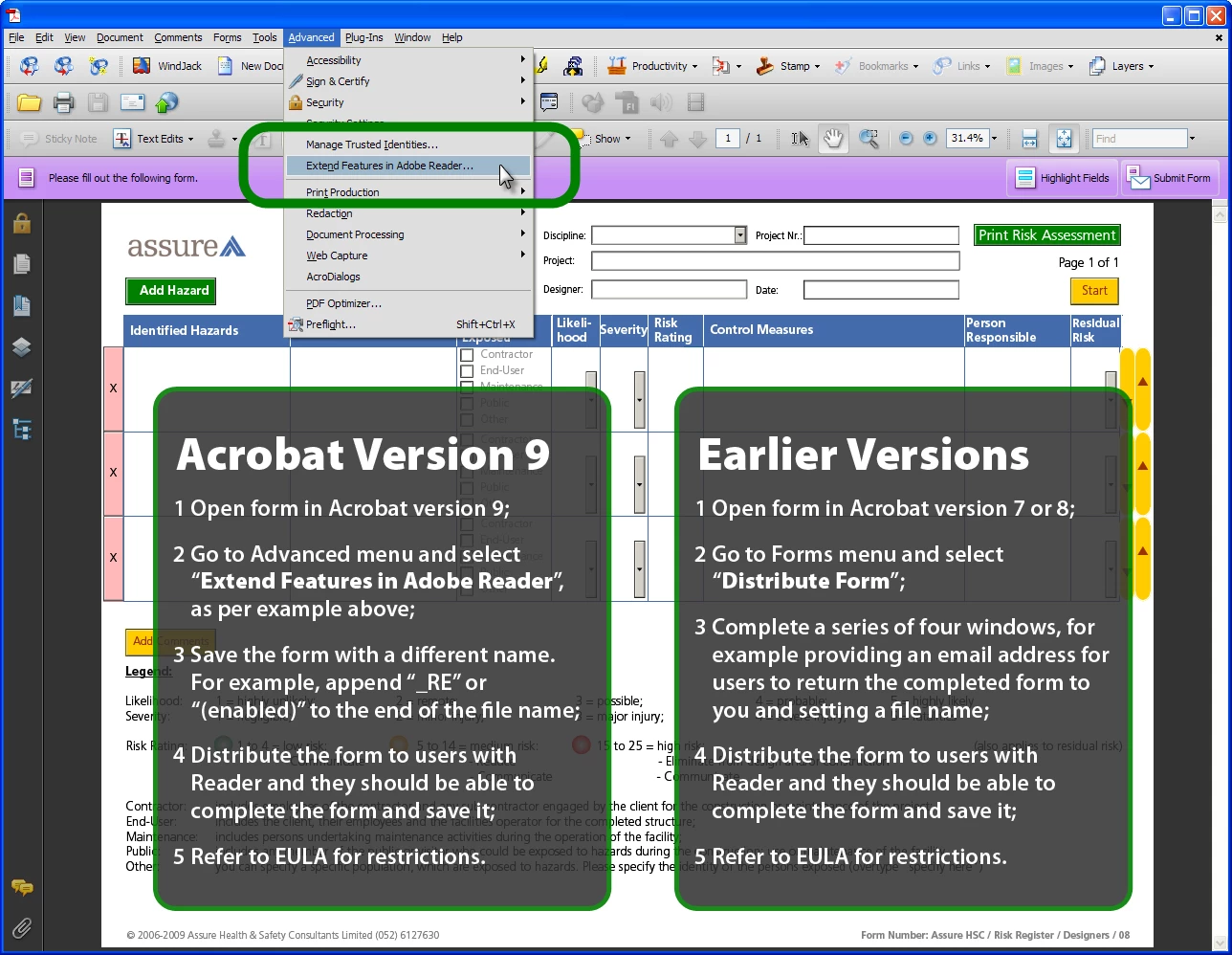
Here is a summary of deployment options when sending out a form to users with either Acrobat or Reader.

http://cookbooks.adobe.com/post_Using_LiveCycle_Forms_in_Acrobat_and_Reader-16518.html (it is at the end of that post).

The issue for users with Reader is whether the form is Reader Enabled or not. If it is not Reader Enabled then the users will not be able to save the data. If however it is Reader Enabled then they will be able to save data.

The next issue is how to apply the Reader rights to a form. This can be done one of two ways:

(1) Apply the rights through Acrobat (v8 Pro in your case). There are license restrictions - read EULA

or

(2) Apply the rights through LC Reader Extensions ES2, which is a server product and also costs per form enabled.

Here is a graphic:

You would be looking for "Distribute Form" from the Forms menu.

Good luck,

Niall

cammagAuthor
Level 2
March 25, 2010

Is there any way to make this form Reader Enabled in LC? Or how do you do this? I read through your content, I understand what you are telling me to an extent, but my issue is that I cannot provide a "submit email button" because I don't want the form emailed back to ME.

I'm going to try and explain it more. I work at a Head Office selling franchisees. I create a form for our franchisees. They receive it through email from me, fill out the form with their contact information, and then email it on to various clients that they have. (They don't need this form emailed back to them they just need to be able to fill it and sent it out). They just need to open it in Reader, fill it out and then email it to various businesses that they think they can get business from. These addresses will always change.

I was able to get the form made, email to someone with Reader, but when they open it up in Reader and fil out the form, they are not able to then EMAIL it out to anyone, or save for that matter (because it's Reader right). Is there any way around this?

Sorry that my questions are getting so complicated, but I have been struggling with this for weeks and am finally seeing some progress with the help you sent me, so I would really like to see this through!

Niall_O_Donovan
Level 10
March 25, 2010

Hi,

First off, you cannot apply Reader rights (enabling) in LC Designer - at all. LC Designer is just for developing the form, which will ultimately be opened by the user in Acrobat/Reader.

You can purchase an additional LiveCycle component called LC Reader Extensions ES2. This is a server component and is intended to make it more efficient to handle data from thousands of forms by automating the data handling. The purchase of LC Reader Extensions ES2 is a cost, but also there is a cost associated with each form that is Reader Enabled through LC Reader Extensions ES2. You would need to talk to an Adobe sales rep in your geographical location.

The only other way to apply the Reader rights is through Acrobat. From the deployment summary you will see that while some Reader features are turned on, others are turned off.

Right - in Acrobat v9 Standard, you can apply the Reader rights from the Advanced menu. This is a one step process that applies the rights without distributing the form.

In earlier versions of Acrobat (v8 and below) the ability to apply Reader rights was in the Professional version only.

Now this is not a problem to you because you have Acrobat v8 Professional. However in v8 the process of applying the Reader rights is tied into the distribute function. So you will need to provide an email address. While you do NOT have to have a submit by email button on the form itself; Acrobat will place a Submit Form button on the red Forms ribbon at the top (see screenshot in previous post).

Now, don't shoot the messenger - one option would be to upgrade from Acrobat v8 Pro to at least Acrobat v9 Standard (you can go Pro or Pro Extended is you want). This will give you the ability to apply Reader rights, without distributing the form.

Bear in mind that you will still be tied to the same restriction in sending out the Reader Enabled form to 500 persons or data processes. See EULA.

The other question is: do the users need to save the responses? Was part of the process just printing out the data on the pre-printed forms? Can you send out the form without Reader rights?

Probably not what you wanted to hear. Maybe someone else will have a workaround,

Niall