The "Collecting Data" message appears when there isn't a number to be shown. This could be because the audience has no data yet, or it could be that the reporting UI just hasn't updated since receiving the data.
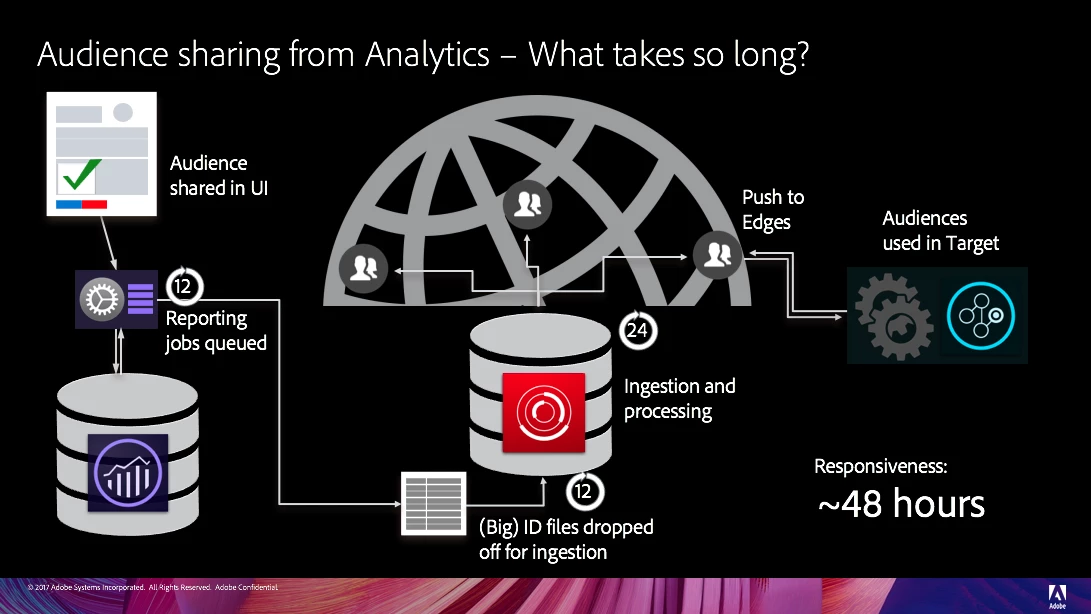
With Historical Audiences shared from Adobe Analytics, there will be a 24-48 hour delay from the initial creation until the first batch of IDs will reach the edge and become actionable.
Currently, the reporting interface in Audience Library only updates once a day (~ 7am PST). This means your Historical Audience will only show a change in size once per day.
Keep in mind, we're assuming that the segment has qualified visitors. If you share a segment with a size of zero, the audience will show "Collecting Data" until the first visitor has qualified for the segment and the 'mid' for that visitor has been pushed to the edge (24-48 hours later).
---
Important Timelines:
- ~ 3am/3pm PST (Every 12 hours) - Analytics begins the process of exporting the lists of MIDs contained within shared segments
- ~ 11am/11pm PST (Every 12 hours) - Experience Cloud begins data ingestion process
- ~ 7am PST (Once a day) - Audience Library reporting updates
---
Scenario 1 (best case):
Day 1
- ~ 10:00am PST - An Analytics segment is created and shared with the Experience Cloud.
- ~ 10:15am PST - The audience will show in the Audience Library interface with the "Collecting Data" message
- ~ 3:00pm PST - Analytics exports a list of 'mid' values that are contained in my segment
- ~ 11:00pm PST - Experience Cloud begins ingesting the list of 'mid' values
Day 2
- ~ 7:00am PST - Audience Library updates
Total: ~19 hours
Scenario 2 (typical)
Day 1
- ~ 4:00pm PST - An Analytics segment is created and shared with the Experience Cloud.
- ~ 4:15pm PST - The audience will show in the Audience Library interface with the "Collecting Data" message
Day 2
- ~ 3:00am PST - Analytics exports a list of 'mid' values that are contained in my segment
- ~ 11:00am PST - Experience Cloud begins ingesting the list of 'mid' values
Day 3
- ~ 7:00am PST - Audience Library updates
Total: ~ 36 hours
*Occasionally, if you have a very large segment, it may not finish exporting from Analytics in time for the first Experience Cloud ingestion pickup. If that is the case, it would be ingested in the next pickup. This is why we recommend waiting 72 hours before contacting Customer Care.
---
Troubleshooting: Historical Audiences
- Note the current Analytics segment size
- In a private/incognito browser window, run through the steps to qualify for the segment while verifying the Analytics beacons contain the required values. Also, ensure your Analytics beacon contains a 'mid' value (Marketing Cloud ID Service)
- Wait for the Analytics segment size to increase to ensure your visit in step 2 has been added to the segment. Depending on your report suite latency, this can take up to ~30 min.
- Ensure that 24-48 hours have passed since your visit in step 2
- Next, either wait until the reporting UI is updated the following morning or create a Target activity that is targeted at this Historical Audience and trigger that activity
- If the UI still shows "collecting data" or if the target activity isn't being triggered, contact Customer Care and explain the steps you've already taken to troubleshoot.