Unable to view the extensions when logged into experience.adobe.com | Community
Skip to main content
Level 2
February 23, 2024

Unable to view the extensions when logged into experience.adobe.com

  • February 23, 2024
  • 3 replies
  • 1240 views

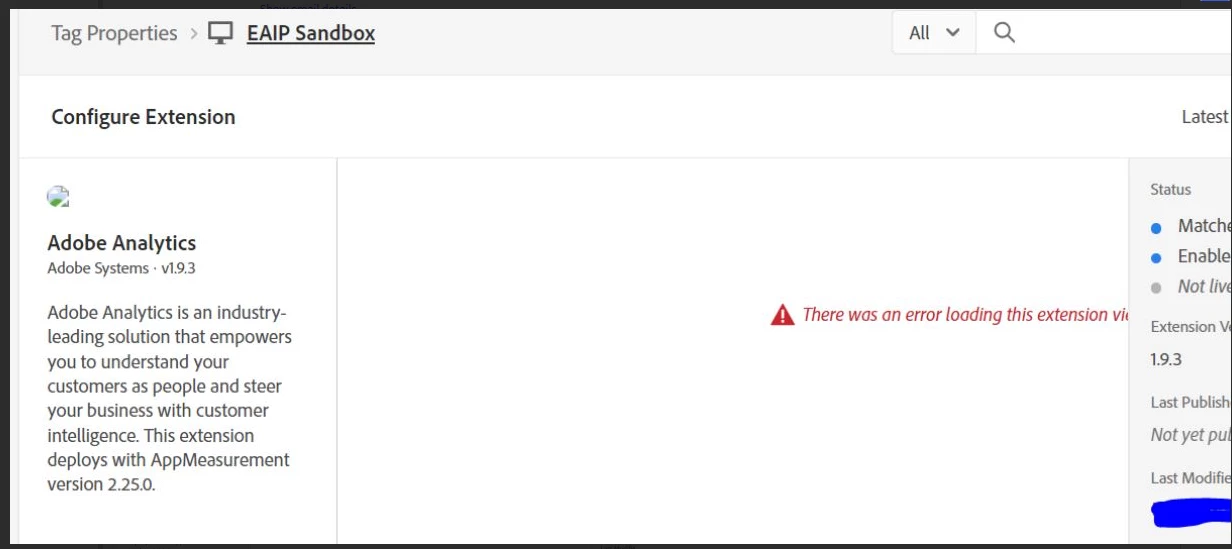
user is unable to view the extensions when logged into experience.adobe.com
allowed pop-up, still the same, reset IE, still same
shared my screen and tried, it worked
Recreated user windows profile, still the same
tried on an alternate machine, still the same.
Logged into a newly imaged machine wth my credentials, it worked
Logged out and had the user try, it worked.
This post is no longer active and is closed to new replies. Need help? Start a new post to ask your question.

3 replies

TarunKumar
Community Advisor
Community Advisor
February 23, 2024

Hi @manoranjanpa ,

Can you please check if network calls are being sent from your browser properly. Filter the Network console for "b/ss". All Adobe Analytics hits include "b/ss" in their URLs.

In case if you don't find these network calls, then browser is being prevented from sending the calls, possibly an browser setting or firewall in your office.


Thanks
Tarun

narendragandhi
Community Advisor
Community Advisor
February 23, 2024

Hi @manoranjanpa 


Since you mentioned IE as the browser, I wanted to check if you could try in other browsers such as Chrome as well?


As per the documentation, IE is not one of the supported browsers - https://experienceleague.adobe.com/docs/experience-platform/tags/extension-dev/browsers.html?lang=en


Thanks

Narendra

Level 2
February 23, 2024

Tried with Chrome and Edge browser and for both showing the same.

Raja_Reddy
Community Advisor
Community Advisor
February 24, 2024

Hi @manoranjanpa 

  1. Clear the browser cache and cookies: The user can try clearing the browser cache and cookies to see if that resolves the issue. This can be done by going to the browser settings and selecting the option to clear browsing data.

  2. Disable browser extensions: The user can try disabling any browser extensions that may be blocking the extensions from loading. This can be done by going to the browser settings and selecting the option to manage extensions.

  3. Check browser security settings: The user can check the browser security settings to ensure that they are not blocking the extensions from loading. This can be done by going to the browser settings and selecting the option to manage security settings.

  4. Try a different browser: The user can try logging in from a different browser to see if the issue is specific to the current browser.

kautuk_sahni
Community Manager
Community Manager
February 28, 2024

@manoranjanpa Did you find the suggestions from users helpful? Please let us know if more information is required. Otherwise, please mark the answer as correct for posterity. If you have found out solution yourself, please share it with the community.

Kautuk Sahni