Hi @jitesh07 ,
To replace an older package with a new package in AEM, you can follow these steps:
1. Create the New Package: Create a new package with the updated group and name, in this case, "aem_group" and "new-package.zip". Make sure the contents of the new package are the same as the older package.
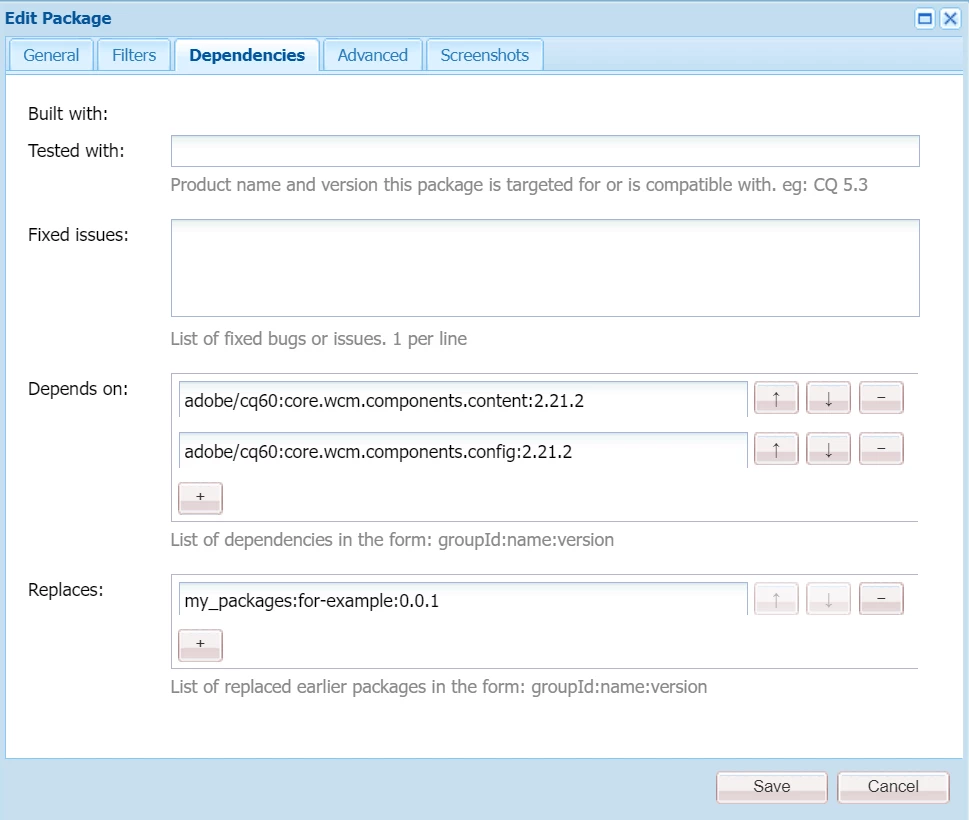
2. Update the Dependency: In the dependency tab of the new package, add the name of the older package ("for-example.zip") in the "Replace" field. This indicates that the new package should replace the older package during installation.
3. Install the New Package: Install the new package in AEM using the package manager. During installation, AEM will check the "Replace" field in the dependency and replace the older package with the new package.
To validate if the package has successfully replaced the older package, you can follow these steps:
1. Check Package Manager: After installing the new package, go to the Package Manager in AEM. Look for the older package ("for-example.zip") and verify that it is no longer listed. This indicates that the older package has been replaced.
2. Verify Package Contents: Open the new package ("new-package.zip") in the Package Manager and verify that the contents are the same as the older package. You can compare the files and folders within the package to ensure they match.
3. Test Functionality: Test the functionality of your application or website to ensure that it is working as expected with the new package. Verify that any changes or updates made in the new package are reflected correctly.
By following these steps and validating the package replacement, you can ensure that the new package has successfully replaced the older package in AEM.