no option to open the Classic View on a page in AEM 6.3 | Community
Skip to main content
Level 3
October 26, 2017
Solved

no option to open the Classic View on a page in AEM 6.3

  • October 26, 2017
  • 3 replies
  • 2087 views

Hi All,

We don't see an option  "Open in Classic UI" no more in drop-down; was this removed in AEM 6.3? If Yes, is there any workaround to show that option? Thanks
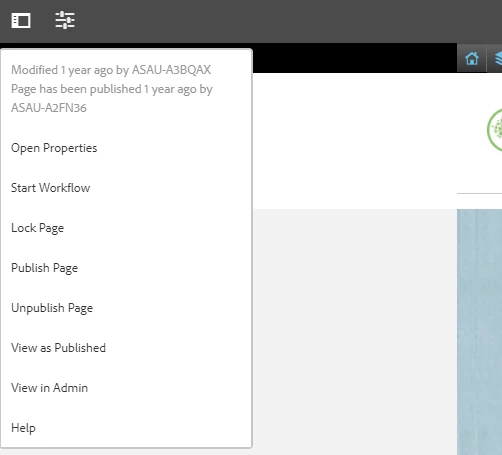
Regrads,
Aman

This post is no longer active and is closed to new replies. Need help? Start a new post to ask your question.
Best answer by Naresh_Katkam

Hi Agarwal,

It' Simple follow below steps.
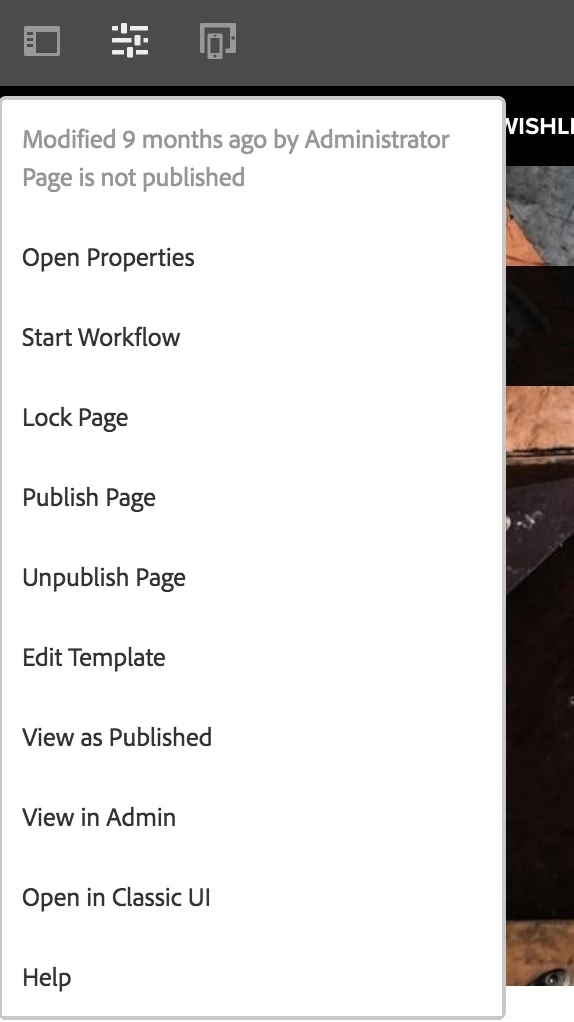
To re-enable the option Open in Classic UI in the Page Information menu, follow these steps.
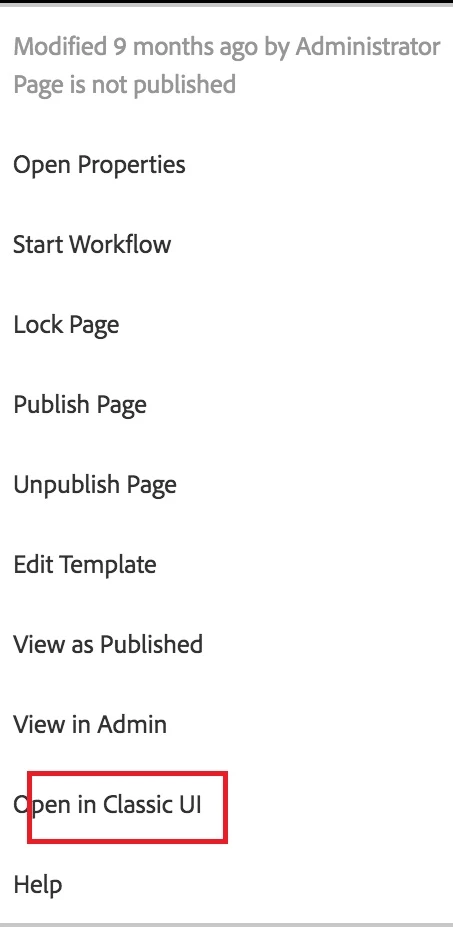
  1. Using CRXDE Lite, find the following node: /libs/wcm/core/content/editor/jcr:content/content/items/content/header/items/headerbar/items/pageinfopopover/items/list/items/classicuiFor examplehttp://localhost:4502/crx/de/index.jsp#/libs/wcm/core/content/editor/jcr%3Acontent/content/items/content/header/items/headerbar/items/pageinfopopover/items/list/items/classicui
  2. Using the Overlay Node option, create an overlay under /apps as follows:/apps/wcm/core/content/editor/jcr:content/content/items/content/header/items/headerbar/items/pageinfopopover/items/list/items/classicui
  3. Add the following multi-value text property to the overlaid node:sling:hideProperties = ["granite:hidden"]
  4. The Open in Classic UI option is again available in the Page Information menu when editing pages.

3 replies

smacdonald2008
Level 10
October 26, 2017

Correct - AEM Is moving away from Classic UI. Therefore the option was removed the drop-down.

Adobe recommends that you start using AEM Touch UI in 6.3.

It has improved a lot since it was 1st released back in 5.6.

If you really want to keep using it - modify editor.html in the URL to cf#.

Hope this helps....

Naresh_KatkamAccepted solution
Level 2
October 26, 2017

Hi Agarwal,

It' Simple follow below steps.

To re-enable the option Open in Classic UI in the Page Information menu, follow these steps.

  1. Using CRXDE Lite, find the following node: /libs/wcm/core/content/editor/jcr:content/content/items/content/header/items/headerbar/items/pageinfopopover/items/list/items/classicuiFor examplehttp://localhost:4502/crx/de/index.jsp#/libs/wcm/core/content/editor/jcr%3Acontent/content/items/content/header/items/headerbar/items/pageinfopopover/items/list/items/classicui
  2. Using the Overlay Node option, create an overlay under /apps as follows:/apps/wcm/core/content/editor/jcr:content/content/items/content/header/items/headerbar/items/pageinfopopover/items/list/items/classicui
  3. Add the following multi-value text property to the overlaid node:sling:hideProperties = ["granite:hidden"]
  4. The Open in Classic UI option is again available in the Page Information menu when editing pages.

smacdonald2008
Level 10
October 26, 2017

Nice detailed response.