How to set 2 images in Teaser | Community
Skip to main content
Level 3
May 21, 2021
Solved

How to set 2 images in Teaser

  • May 21, 2021
  • 1 reply
  • 6228 views

Hi Team,


I have created a component named teaser extending teaser from core component, however, I have added one extra node as logo which is image. I want to add two images in the teaser, one is logo and one is teaser background. However, When I drop the image asset only logo image is setting and , image under option image also set to same as logo image. Could you please help. How I can achieve this.


And How I can set the value of Image using Dialog box in HTL code.
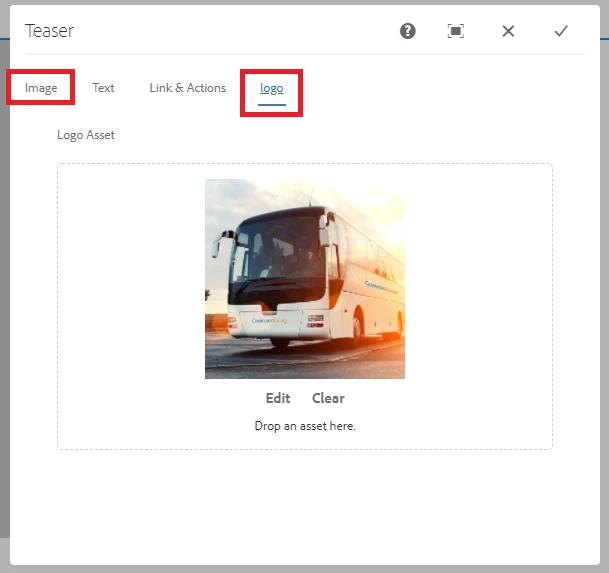
 

Thanks


This post is no longer active and is closed to new replies. Need help? Start a new post to ask your question.
Best answer by Asutosh_Jena_

Hi @heena91 


Same image is shown as both the places because the same property name is used for both the image fields.

As you are using fileupload resourcetype here please ensure to use a different parameter for "fileReferenceParameter" property so that you can set different image for each of the field.


Now as you mentioned you are extending the core component, you need to add the HTL from core component into your proxy component and read the dialog value in the proxy component and use it.


Thanks!

1 reply

Asutosh_Jena_
Community Advisor
Asutosh_Jena_Community AdvisorAccepted solution
Community Advisor
May 21, 2021

Hi @heena91 


Same image is shown as both the places because the same property name is used for both the image fields.

As you are using fileupload resourcetype here please ensure to use a different parameter for "fileReferenceParameter" property so that you can set different image for each of the field.


Now as you mentioned you are extending the core component, you need to add the HTL from core component into your proxy component and read the dialog value in the proxy component and use it.


Thanks!

Asutosh_Jena_
Community Advisor
Community Advisor
May 21, 2021

Hi @heena91 


While extending the component you need to use the sling:resourceSuperType property and point it to the core component path.

Add only the additional property in the proxy component such as the additional "logo" node.


Now if you want to make changes to any HTL script, copy only the required HTL file from core component into proxy component. No need to copy all the HTL scripts.

As required here all the images are loading from image.html so as you can see you need to copy only the image.html file from core to proxy component and make the required changes.

Please see the screenshot below:


Please try the above steps and let me know if this does not work.


Hope this helps!

Thanks