How To Restrict Access To Workflow Models For A User Or Group | Community
Skip to main content
Level 2
March 12, 2019
Solved

How To Restrict Access To Workflow Models For A User Or Group

  • March 12, 2019
  • 14 replies
  • 10475 views

In AEM 6.4, When a user is on a page, they can start a Workflow by going to Page Properties and selecting Start Workflow. Next a pop up is displayed which list the available workflows the user can start as shown below.
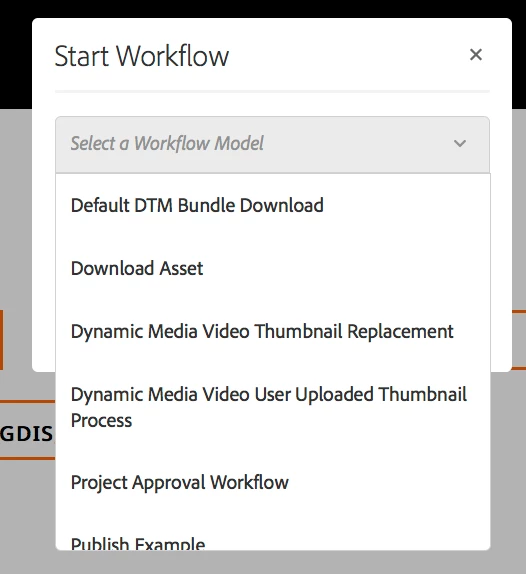
I would like to hide certain workflows in this list from certain users/groups. For instance, I want to show only the Download Asset and Project Approval Workflow for a group. Everything else should be hidden.

In the following article, How to hide workflow models in the start workflow list?

It states that I should be able to add the workflow:system tag to a workflow model to hide it. However, adding that tag did not work.

What is the recommended way of restricting the list of workflow models that appear when a user selects start workflow?

Best answer by Gaurav-Behl

I've verified that this link How to hide workflow models in the start workflow list?  still works for 6.4

1) Open workflow properties in Touch UI

2) Add the tag 'workflow:system' and remove other tags, if any.

3) Save the changes and close the properties dialog

4) Click on Sync button to propagate the changes to corresponding workflow model definition under /var/workflow/models/<name>/metaData node.

5) Validate that you can see "tags" property as "system" on the metaData node

6) That specific model with "system" tag would stop appearing in the dropdown on your content page.

14 replies

Gaurav-Behl
Gaurav-BehlAccepted solution
Level 10
March 13, 2019

I've verified that this link How to hide workflow models in the start workflow list?  still works for 6.4

1) Open workflow properties in Touch UI

2) Add the tag 'workflow:system' and remove other tags, if any.

3) Save the changes and close the properties dialog

4) Click on Sync button to propagate the changes to corresponding workflow model definition under /var/workflow/models/<name>/metaData node.

5) Validate that you can see "tags" property as "system" on the metaData node

6) That specific model with "system" tag would stop appearing in the dropdown on your content page.

Level 2
March 15, 2019

Adding the system tag hides the workflow model for all users.

Is there a way to only hide the workflow models for certain groups or a user?

arunpatidar
Community Advisor
Community Advisor
March 15, 2019
Arun Patidar
Gaurav-Behl
Level 10
March 15, 2019

"Adding the system tag hides the workflow model for all users."  -- this is correct

"Is there a way to only hide the workflow models for certain groups or a user?" -- Never tried that but, in theory, you could remove the read access to /var/workflow/models/<wf_name> and corresponding model paths in /conf or /lib for that specific user/group and it should stop populating in the drop-down. This should work.

Level 2
March 15, 2019

That was my approach initially but, when you go to /useradmin to set permission not all of the workflow models show up individually.

In the useradmin console when setting permissions, if you open the /var/workflow/models node you will not see all of the models that you see in crx/de under the /var/workflow/models. Essentially you cannot set permissions per workflow model.

Now my approach was to create a two sets of folders under the /var/workflow/models node. One for the restricted workflow models, /var/workflow/models/restricted, and another for the non-restricted workflow models /var/workflow/models/non-restricted. I would move the OOB workflow models to the restricted folder and deny read permissions. This works fine! But, the problem is when I update a workflow model and press Sync, it will create the updated workflow model under /var/workflow/models not the restricted or nonrestricted folder. I would also need to move the /conf or /lib configurations for the workflows to a new path. Next I have to consider these changes need to be propagated to multiple environments (Dev, QA, Prod). And of course there will be issues during upgrades.

The whole thing seemed really messy/buggy and I was looking for a more elegant solution.

arunpatidar
Community Advisor
Community Advisor
March 15, 2019

Hi,

Please check Adobe Experience Manager Help | Common Repository Restructuring in AEM 6.4

I believe workflows are getting read from conf and var

you can simply restrict those models.

Arun Patidar
Adobe Employee
August 18, 2020
Hello Arun, We have a requirement where specific custom workflows should be accessible to specific user groups. We tried following approach. But no luck
Gaurav-Behl
Level 10
March 15, 2019

If /useradmin doesn't work, then there is another tool for more granular permissions -- /crx/de

Create multiple groups and restrict the model paths for each group per your use case using this console. I would update this thread, if I get a better solution.

Level 2
March 22, 2019

I'm adding the workflow:system tag to hide the workflows, as recommended earlier. I can add the workflow:system tag for some of the models but not for all.

For some models the UI for adding tags is grayed out.

And if I try to add the tags property through crx/de I get an error.

How do I add the system tag for these workflows?

Gaurav-Behl
Level 10
March 22, 2019

You cannot add it via /crx/de unless you tweak permissions.

The tag must be there OOB either in /etc/tags or /content/cq:tags, pick it and apply from page properties/Touch UI editor

Level 2
March 22, 2019

I couldn't add the tag to the OOB workflows under /libs.

I got it to work by copying the model from /libs to /conf.

Thanks for your help.