How to disable/hide Quick publish option for PDF assets in asset manager | Community
Skip to main content
Anudeep_Kumar
Level 2
July 18, 2023
Solved

How to disable/hide Quick publish option for PDF assets in asset manager

  • July 18, 2023
  • 2 replies
  • 2589 views

Hi All,

I have a use case where we have to hide/disable the "Quick Publish" option from the console in asset manager. our use case is all the pdf assets has to go through the workflow approval process for publishing.

Thanks in advance.

Regards,
Anudeep

This post is no longer active and is closed to new replies. Need help? Start a new post to ask your question.
Best answer by ayushmishra07

Hi @ayushmishra07 ,
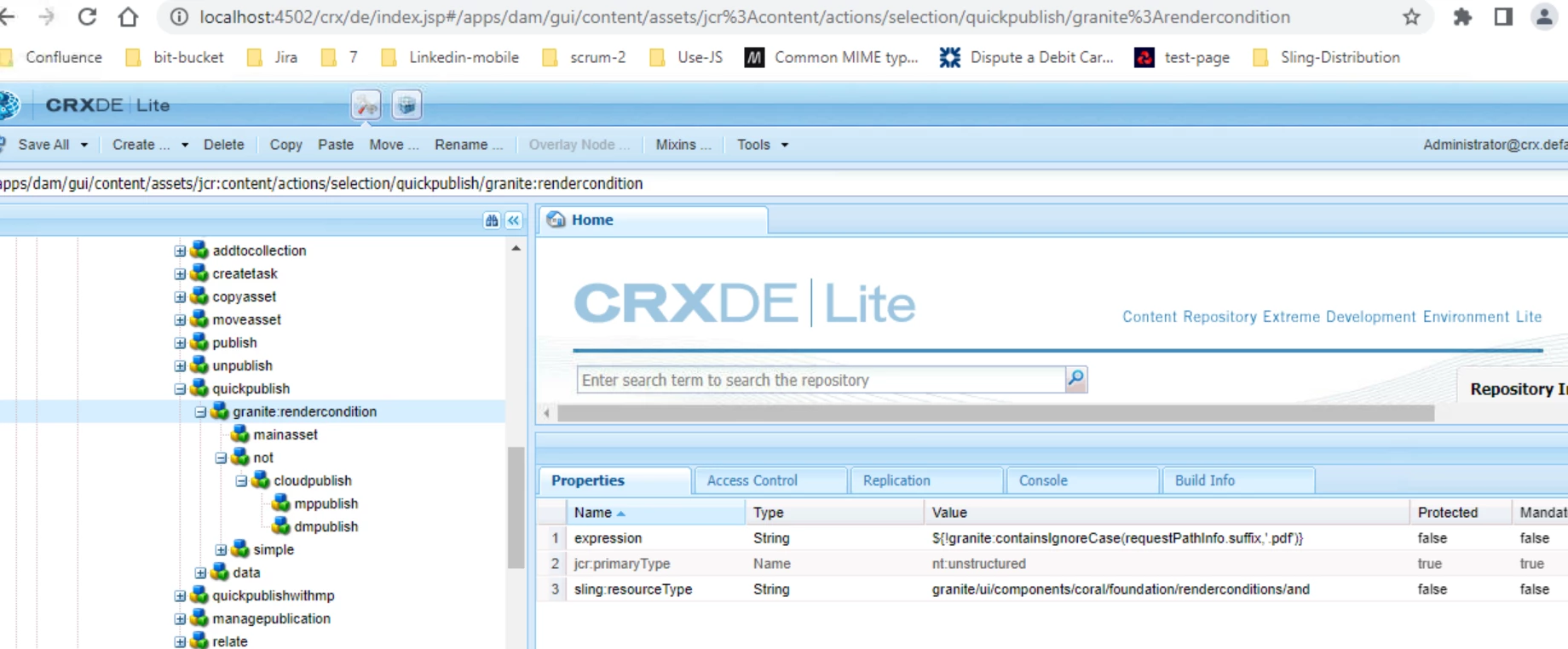
Thanks for the solution, I have tried overlaying the same from /libs but I could not be able to hide it. Please find the screenshot for the reference, let me know if I have missed anything

Hi @anudeep_kumar ,

You are adding the expression inside the render condition, you'll need to create a new node similar to other nodes like main asset and not and add these details over there. 
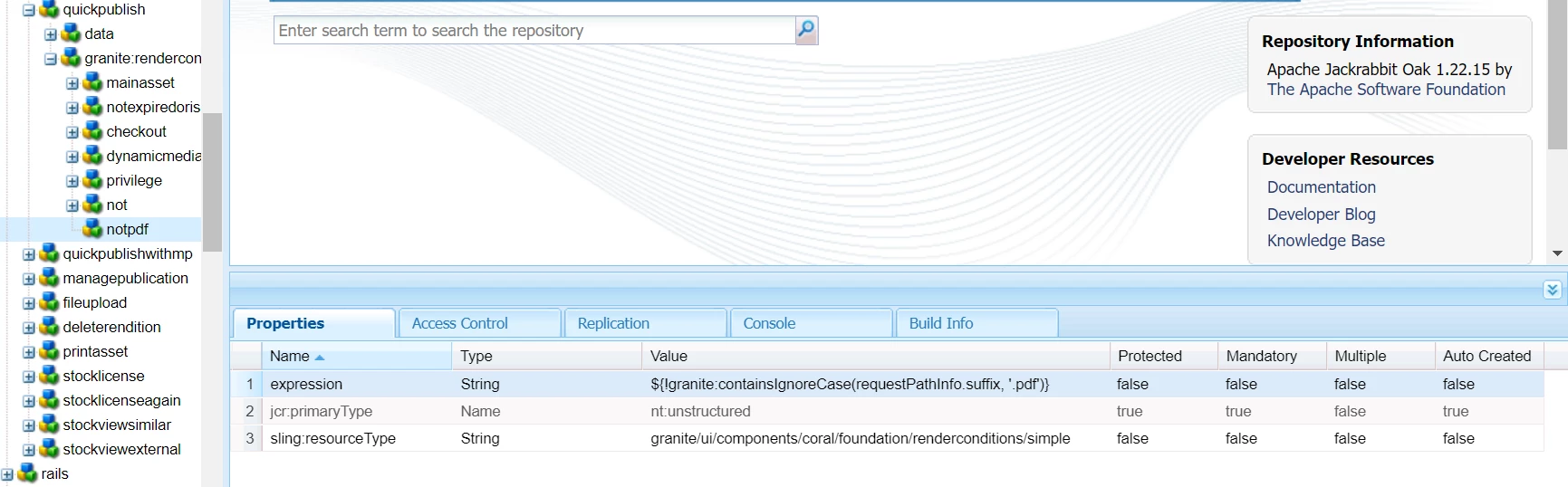

Validated this with PDF works well. 

PS :- You'll need to overlay the assetdetails component in place of asset component as this solution will work on the assetdetails page because that's where the url i.e requestPathInfo includes the file path. 

eg : URL of assetdetails : http://localhost:7502/assetdetails.html/content/dam/pwa/sample.pdf


If you want to achieve the functionality on assetdetails page as well as asset page, you can hide the quick publish feature completely from assets page by removing it from the overlaid component, that'll mean that user can publish an asset only from the assetdetails page and on the assetdetails page you can add this render condition to hide it, if your file is of PDF format.


2 replies

aanchal-sikka
Community Advisor
Community Advisor
July 18, 2023

Hello @anudeep_kumar 


It can be achieved via granite:renderCondition. If we validate the URL of the asset, that it should not end with ".pdf"


<granite:rendercondition jcr:primaryType="nt:unstructured" sling:resourceType="granite/ui/components/coral/foundation/renderconditions/simple" expression="${!granite:containsIgnoreCase(requestPathInfo.suffix, '.pdf')}"/>


Aanchal Sikka
ayushmishra07
Adobe Employee
Adobe Employee
July 18, 2023

Hi @anudeep_kumar ,

Adding to the solution.
The "Quick Publish" tab is present at two places : 
1 - at asset.html screen 

2 - at assetdetails.html 

In order to hide it from both the screens you'll need to overlay the following two nodes in your project : 

1 - /libs/dam/gui/content/assets/jcr:content/actions/selection/quickpublish

2 - /libs/dam/gui/content/assetdetails/jcr:content/actions/quickpublish 

You can do that by creating similar folder structures inside /apps/dam.

Then in the content.xml file of the quickpublish nodes you'll need to put the rendercondition as shared  already by @aanchal-sikka .

Hope it helps !

Thanks,
Ayush

ayushmishra07
Adobe Employee
ayushmishra07Adobe EmployeeAccepted solution
Adobe Employee
July 18, 2023

Hi @ayushmishra07 ,
Thanks for the solution, I have tried overlaying the same from /libs but I could not be able to hide it. Please find the screenshot for the reference, let me know if I have missed anything


Hi @anudeep_kumar ,

You are adding the expression inside the render condition, you'll need to create a new node similar to other nodes like main asset and not and add these details over there. 


Validated this with PDF works well. 

PS :- You'll need to overlay the assetdetails component in place of asset component as this solution will work on the assetdetails page because that's where the url i.e requestPathInfo includes the file path. 

eg : URL of assetdetails : http://localhost:7502/assetdetails.html/content/dam/pwa/sample.pdf


If you want to achieve the functionality on assetdetails page as well as asset page, you can hide the quick publish feature completely from assets page by removing it from the overlaid component, that'll mean that user can publish an asset only from the assetdetails page and on the assetdetails page you can add this render condition to hide it, if your file is of PDF format.

Mahedi_Sabuj
Community Advisor
Community Advisor
July 18, 2023

Hi @anudeep_kumar, You can hide "Quick Publish" using User Permission. To resolve the same issue, we created two types of user group; for example, AEM Demo Author and AEM Demo Approver.

AEM Demo Author
/content/dam/[project-name] - Read (X), Modify(X), Create (X), Delete(X)

AEM Demo Approver
/content/dam/[project-name] - Read (X), Modify(X), Create (X), Delete(X), Replicate (X)

Mahedi Sabuj