
How to create different thumbnail renditions for PDF in AEM DAM ? | Community
Skip to main content
Ankan_Ghosh
Level 3
February 17, 2025
Solved

How to create different thumbnail renditions for PDF in AEM DAM ?

  • February 17, 2025
  • 2 replies
  • 864 views

Whenever we upload a PDF document, usually a few thumbnail images are populated. How can I generate a custom rendition apart from the ones being created out of the box?
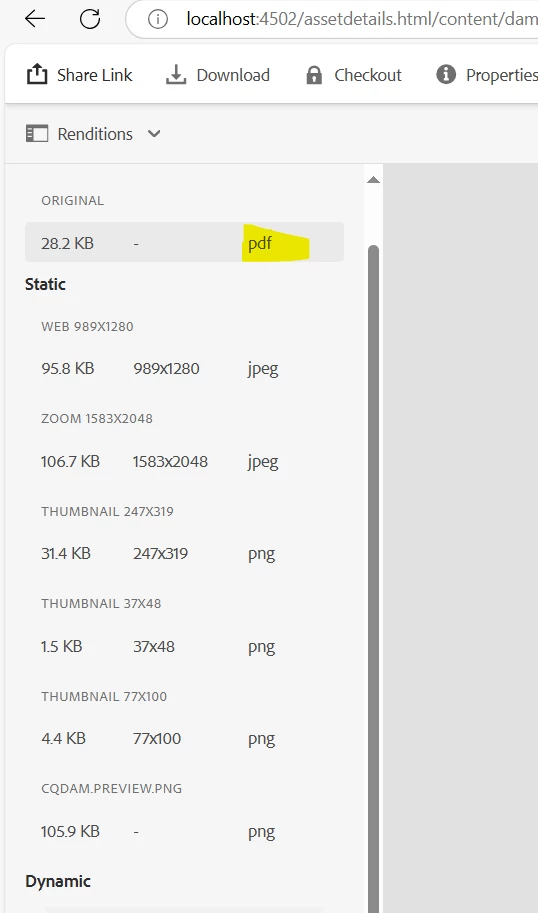
Let's assume I want to create a 400 X 400 WEBP thumbnail for all the PDFs uploaded. How can we do this? 


Best answer by chaudharynick

Hi @ankan_ghosh 

You can create custom Processing Profiles for Assets.


  1. Go to Tools > Assets > Processing Profiles from the AEM Assets main interface. Then, choose an existing profile to edit or create a new one by clicking the Create button.
  2. Add Rendition Settings
    Open the Renditions tab in the Processing Profile. Here, you can add new rendition configurations by clicking the Add button.
  3. Configure the Rendition
    For the new rendition, specify the width, height, quality, MIME type, and other settings as required. The Name field will be used as the name of the generated rendition.
  4. Save the Processing Profile
    Once you have configured your rendition, click Save to store your changes.
  5. Apply the Processing Profile
    Now, apply your processing profile to the desired folder. Go to Assets > Files, select the folder to which you want to apply the processing profile, and choose Properties > Processing Profiles.
  6. Upload an Asset
    Finally, upload an asset to the folder where you applied the processing profile. The custom renditions will be generated automatically.

2 replies

chaudharynick
chaudharynickAccepted solution
Level 4
February 17, 2025

Hi @ankan_ghosh 

You can create custom Processing Profiles for Assets.


  1. Go to Tools > Assets > Processing Profiles from the AEM Assets main interface. Then, choose an existing profile to edit or create a new one by clicking the Create button.
  2. Add Rendition Settings
    Open the Renditions tab in the Processing Profile. Here, you can add new rendition configurations by clicking the Add button.
  3. Configure the Rendition
    For the new rendition, specify the width, height, quality, MIME type, and other settings as required. The Name field will be used as the name of the generated rendition.
  4. Save the Processing Profile
    Once you have configured your rendition, click Save to store your changes.
  5. Apply the Processing Profile
    Now, apply your processing profile to the desired folder. Go to Assets > Files, select the folder to which you want to apply the processing profile, and choose Properties > Processing Profiles.
  6. Upload an Asset
    Finally, upload an asset to the folder where you applied the processing profile. The custom renditions will be generated automatically.
ayush-anand
Level 4
February 18, 2025

Hi @ankan_ghosh ,


Along with @chaudharynick 's input, here’s the documentation link for further information.
https://experienceleague.adobe.com/en/docs/experience-manager-learn/assets/configuring/processing-profiles


Regards

Ayush