Hi @aagarwal8192 ,
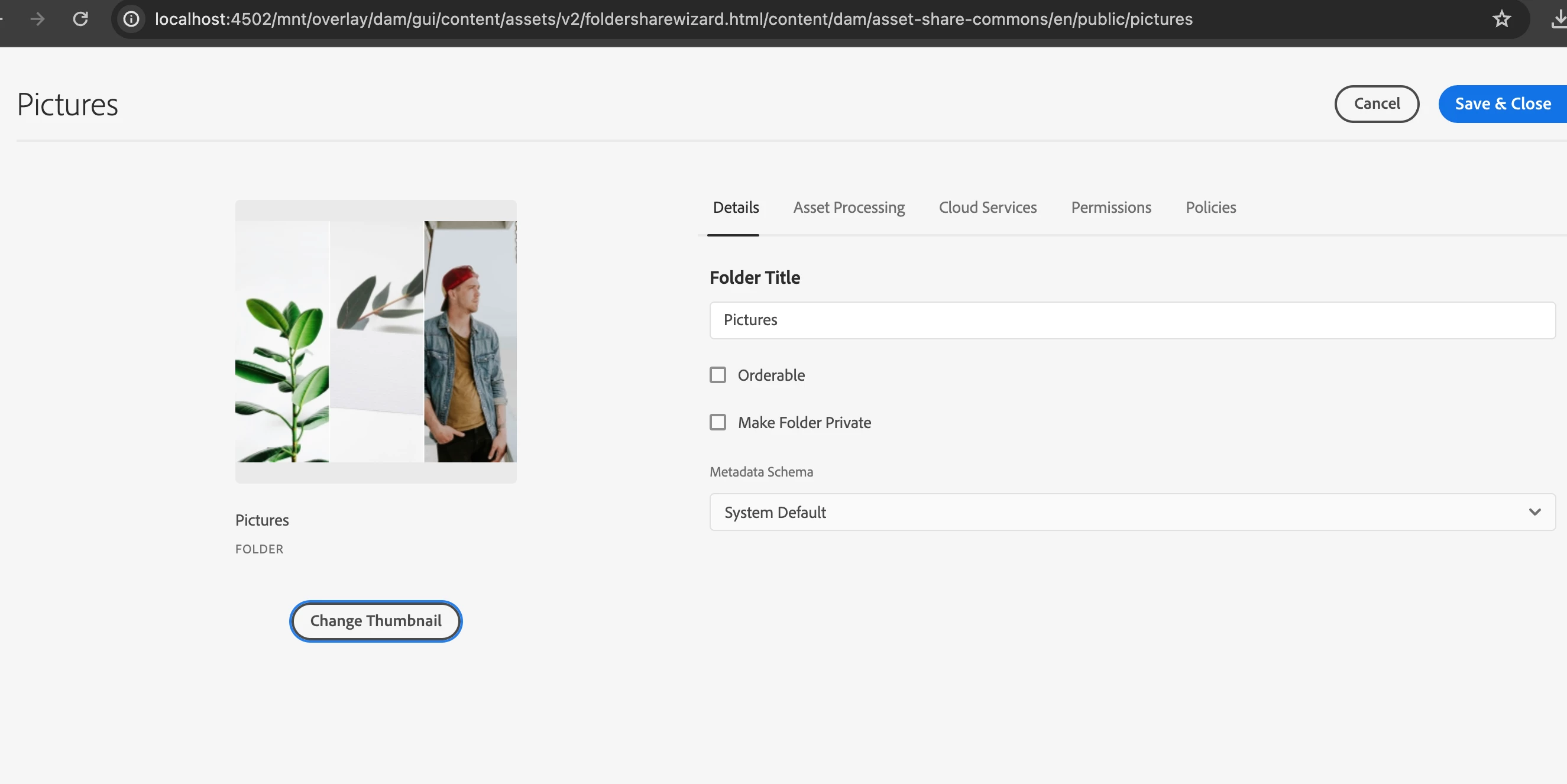
To customize the folder thumbnail functionality in AEM to select an image from DAM instead of a local upload, you can follow these general steps:
1. Create a custom component: Create a custom component that allows the user to select an image from DAM. You can use the Asset Finder component or create a custom component that uses the Asset Selector API to allow the user to select an image.
2. Store the binary file in the folder: Once the user selects an image, you can use the Sling POST Servlet to store the binary file in the folder. You can create a custom servlet that handles the POST request and saves the binary file to the /folderThumbnail node of the folder.
3. Update the folder thumbnail: After storing the binary file in the folder, you can update the folder thumbnail to use the new image. You can use the Asset Manager API to set the thumbnail property of the folder to the path of the new image.
Here's an example of how you can use the Sling POST Servlet to store the binary file in the folder:
```
@SlingServlet(
methods = { "POST" },
resourceTypes = { "sling/folder" },
selectors = { "thumbnail" },
extensions = { "jpg", "jpeg", "png", "gif" }
)
public class FolderThumbnailServlet extends SlingAllMethodsServlet {
@Override
protected void doPost(SlingHttpServletRequest request, SlingHttpServletResponse response) throws ServletException, IOException {
Resource folderResource = request.getResource();
Node folderNode = folderResource.adaptTo(Node.class);
Node thumbnailNode = JcrUtils.getNodeIfExists(folderNode, "folderThumbnail");
if (thumbnailNode == null) {
try {
thumbnailNode = folderNode.addNode("folderThumbnail", "nt:file");
Node contentNode = thumbnailNode.addNode("jcr:content", "nt:resource");
contentNode.setProperty("jcr:mimeType", "image/jpeg");
} catch (RepositoryException e) {
throw new ServletException("Failed to create folder thumbnail node", e);
}
}
InputStream inputStream = request.getInputStream();
Node contentNode = thumbnailNode.getNode("jcr:content");
Binary binary = contentNode.getSession().getValueFactory().createBinary(inputStream);
contentNode.setProperty("jcr:data", binary);
contentNode.setProperty("jcr:lastModified", Calendar.getInstance());
contentNode.getSession().save();
response.setStatus(HttpServletResponse.SC_OK);
}
}
```
In this example, we create a custom servlet that handles the POST request to store the binary file in the /folderThumbnail node of the folder. We check if the /folderThumbnail node exists, and if not, we create it. We then read the binary data from the request input stream and save it to the /folderThumbnail/jcr:content node as a binary property.
After storing the binary file in the folder, you can update the folder thumbnail to use the new image by setting the thumbnail property of the folder to the path of the new image. You can use the Asset Manager API to do this:
```
Resource folderResource = ...; // get the folder resource
String thumbnailPath = folderResource.getPath() + "/folderThumbnail/jcr:content";
AssetManager assetManager = folderResource.getResourceResolver().adaptTo(AssetManager.class);
assetManager.setThumbnail(folderResource.getPath(), thumbnailPath);
```
In this example, we get the folder resource and the path of the new thumbnail image. We then use the Asset Manager API to set the thumbnail property of the folder to the path of the new image.
Please note that this is just an example and may need to be customized to fit your specific requirements.