Customize Core Teaser Component to add two additional required image fields to author image for mobile and tablet | Community
Skip to main content
July 23, 2023
Solved

Customize Core Teaser Component to add two additional required image fields to author image for mobile and tablet

  • July 23, 2023
  • 3 replies
  • 4816 views

I have a requirement to customize the core teaser component to add two additional image fields for author to author image for mobile and tablet. How can I achieve this requirement. The teaser component has sling:resourceSuperType as core/wcm/components/teaser/v2/teaser.

This post is no longer active and is closed to new replies. Need help? Start a new post to ask your question.
Best answer by yuriy_shestakov

Hi @ksh_ingole7 ! Wow, do you really use JSP nowadays for your components? I don't think it is a best practice and the way Adobe recommends for extending Core components. We use JSP only for extending dialog Coral components' backend code. For anything else, all my peers stopped to use them once AEM 6.2 and the Core Components were presented back in 2017.


@sayali1 As for me, in your case the correct way of extending it would be updating the property imageDelegate in the parent .content.xml of your component from the default (core/wcm/components/image/v3/image) to another image component that will have the desired dialog & behavior you want. You can extend that new image component from the Core Image component (v3) or create a simplified new one.
Then, very likely, you will have to create the new Sling model for the new Teaser (extend from the v2/TeaserImpl using injection via resourceSuperType and a delegate pattern (@Delegate from Lombok the easiest way)) where you will cover the creating/using the image resource(s). Also, update the dialog for the new Image component + new Sling model for it to cover additional image source references in srcset (or in a new field) + rewrite its image.html to add media queries to the <img> tag or replace it with the <picture> tag with media queries and new sources.

After that, you can use this new image component everywhere on your project so all other images will have those new fields for mobile and tablet. We used this approach on many projects (only few of them were with Teaser components and imageDelegate though).
If you use Dynamic Media on your project, I anticipate there will be significantly more effort to reach what you want, but still achievable.

The Core components' code is written in a not very convenient way, not always with SOLID principles that hard to extend, and sometimes they have pesky out-of-the-box bugs that you are forced to deal with, but in general, they still can be extended, and used in production  😀 Also, they cover many other questions that may arise during the project lifetime that you don't aware of in the very beginning of a project 🙂

Don't forget to go through the AEM WKND tutorial and other resources like those ones provided by @shiv_prakash_patel if you are a novice in extending AEM components.


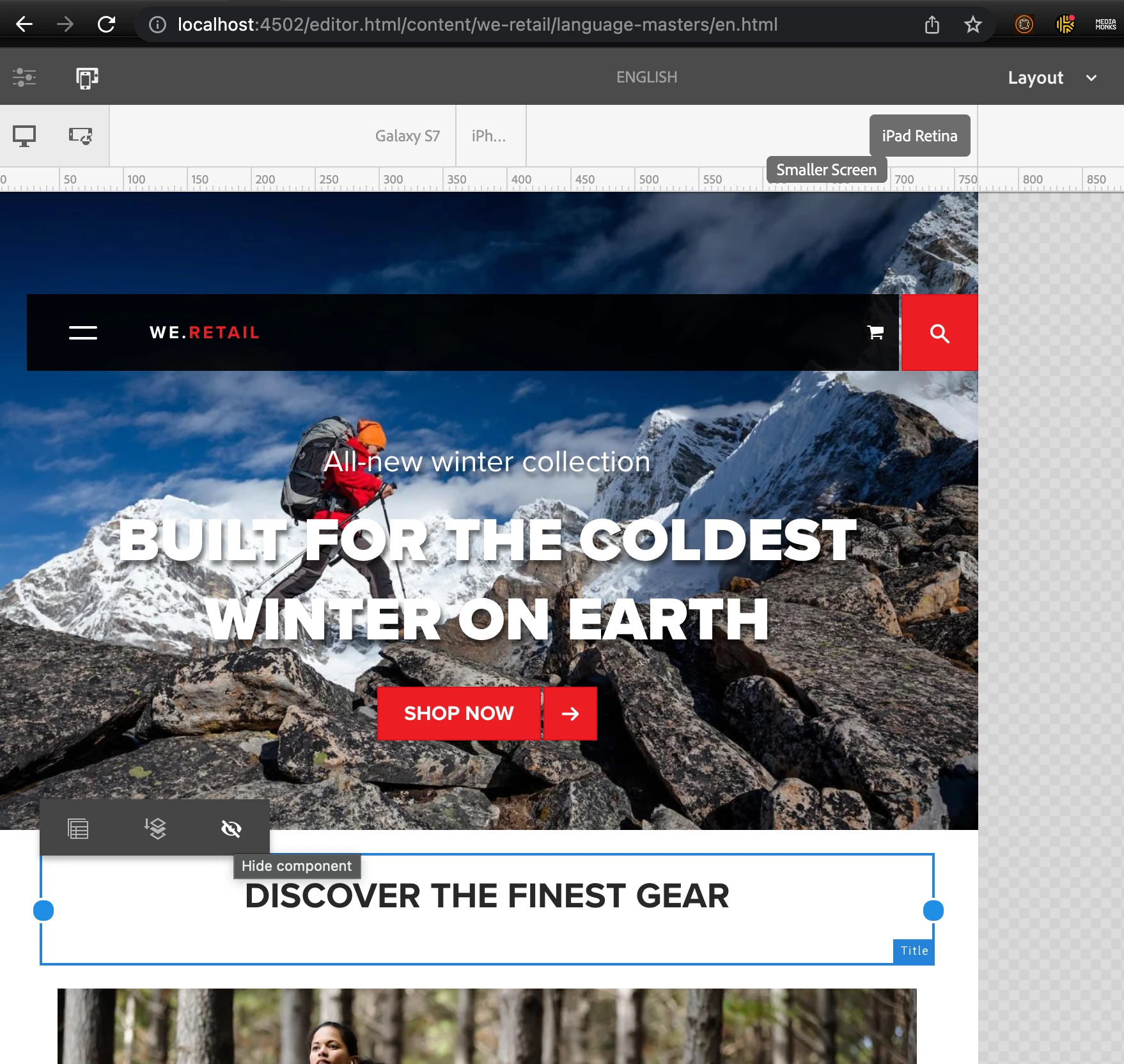
Update. Forgot to mention. The easiest way to author how it is necessary for you without even coding - placing three different versions of the Teaser component on a page with the default AEM Grid style, then using the default "Layout" page editing mode and the "Hide Component" button to hide teasers that should not be displayed for the selected screen width.
 

3 replies

Shiv_Prakash_Patel
Community Advisor
Community Advisor
July 24, 2023
ksh_ingole7
Community Advisor
Community Advisor
July 24, 2023

Hi @sayali1 


  1. Create a New Component: Create a new component that extends the core teaser component. This new component will allow you to add the two additional image fields. You can create this component in your project's folder structure.

     
  2. Create a Dialog: In the myteaser component's cq:dialog node, create two additional fields of type "Image" for mobile and tablet. These fields will allow authors to upload images for mobile and tablet view.

  3. Override the Core Component: In your myteaser component's JSP file (myteaser.jsp), you need to include the core teaser component's rendering while adding your customizations for the mobile and tablet images. You can achieve this by using the <cq:include> tag.

    Here's an example of how your myteaser.jsp file could look:

     
    <%@include file="/libs/foundation/global.jsp"%> <cq:include path="teaser" resourceType="core/wcm/components/teaser/v2/teaser"/> <%-- Add your custom mobile and tablet image rendering here --%> <div class="mobile-image"> <cq:include path="mobileImage" resourceType="foundation/components/image"/> </div> <div class="tablet-image"> <cq:include path="tabletImage" resourceType="foundation/components/image"/> </div>


    In this example, we're using <cq:include> to include the core teaser component's rendering first and then adding the custom mobile and tablet image fields.

Thanks

yuriy_shestakov
yuriy_shestakovAccepted solution
July 24, 2023

Hi @ksh_ingole7 ! Wow, do you really use JSP nowadays for your components? I don't think it is a best practice and the way Adobe recommends for extending Core components. We use JSP only for extending dialog Coral components' backend code. For anything else, all my peers stopped to use them once AEM 6.2 and the Core Components were presented back in 2017.


@sayali1 As for me, in your case the correct way of extending it would be updating the property imageDelegate in the parent .content.xml of your component from the default (core/wcm/components/image/v3/image) to another image component that will have the desired dialog & behavior you want. You can extend that new image component from the Core Image component (v3) or create a simplified new one.
Then, very likely, you will have to create the new Sling model for the new Teaser (extend from the v2/TeaserImpl using injection via resourceSuperType and a delegate pattern (@Delegate from Lombok the easiest way)) where you will cover the creating/using the image resource(s). Also, update the dialog for the new Image component + new Sling model for it to cover additional image source references in srcset (or in a new field) + rewrite its image.html to add media queries to the <img> tag or replace it with the <picture> tag with media queries and new sources.

After that, you can use this new image component everywhere on your project so all other images will have those new fields for mobile and tablet. We used this approach on many projects (only few of them were with Teaser components and imageDelegate though).
If you use Dynamic Media on your project, I anticipate there will be significantly more effort to reach what you want, but still achievable.

The Core components' code is written in a not very convenient way, not always with SOLID principles that hard to extend, and sometimes they have pesky out-of-the-box bugs that you are forced to deal with, but in general, they still can be extended, and used in production  😀 Also, they cover many other questions that may arise during the project lifetime that you don't aware of in the very beginning of a project 🙂

Don't forget to go through the AEM WKND tutorial and other resources like those ones provided by @shiv_prakash_patel if you are a novice in extending AEM components.


Update. Forgot to mention. The easiest way to author how it is necessary for you without even coding - placing three different versions of the Teaser component on a page with the default AEM Grid style, then using the default "Layout" page editing mode and the "Hide Component" button to hide teasers that should not be displayed for the selected screen width.


Sayali1Author
July 25, 2023

Hi @yuriy_shestakov @shiv_prakash_patel    I have created a image component which refers to the core image component and made the required dialog changes to the myproject/Image component. I have given imageDelegate property in my apps/new/teaser pointing to apps/myproject/Image component so that the apps/new/teaser component can get the apps/myproject/Image dialog structure which I need to author the three images. I wanted the paths of the three images authored to be displayed in HTL using sling model . But not able to figure out how can I read the image src path of the three images  in my model class which implements com.adobe.cq.wcm.core.components.models.Teaser. I have added adapters ={Teaser.class, Image.class} in my model. 

Manu_Mathew_
Community Advisor
Community Advisor
July 24, 2023

@sayali1 core components are version-able i.e. when a new version of AEM comes, it will not affect your current functionality. And if you want to use the latest features available in the new version, just change the reference version of core components in your custom component.

You could create a proxy component and customize it as per your need. Modify the dialog and other files accordingly to your need.


https://experienceleague.adobe.com/docs/experience-manager-core-components/using/developing/customizing.html?lang=en