Could not establish Connection | Community
Skip to main content
March 20, 2022
Solved

Could not establish Connection

  • March 20, 2022
  • 1 reply
  • 1391 views

When attempting to debug I get the following error:

could not establish debug connection to localhost : 10123
Failed to connect to remote VM. Connection refused.
Connection refused: connect


I use the following command to start the instance:  java -Xms2048m -Xmx2024m -agentlib:jdwp=transport=dt_socket,address=10123,server=y,suspend=n -jar aem-author-p4502.jar

My debug port is 10123 and I have "resolve sources when connecting"  unchecked.  

The server is up an running.   Other folks have pointed to articles on this page, but they appear to not be here.


Please help


Thanks,

Glenn


This post is no longer active and is closed to new replies. Need help? Start a new post to ask your question.
Best answer by DEBAL_DAS

I am using below steps to debug -


Go to bin folder in crx-quickstart and change the line 25 in start.bat by adding the highlighted part here (address port number can be any number of your choice)

if not defined CQ_JVM_OPTS set CQ_JVM_OPTS=-Xmx1024m -XX:MaxPermSize=256M -Djava.awt.headless=true -Xrunjdwp:transport=dt_socket,server=y,suspend=n,address=10123

Change line no. 44 by adding this

set CQ_RUNMODE=%CQ_RUNMODE%,crx3,crx3tar,debug

Save the file.

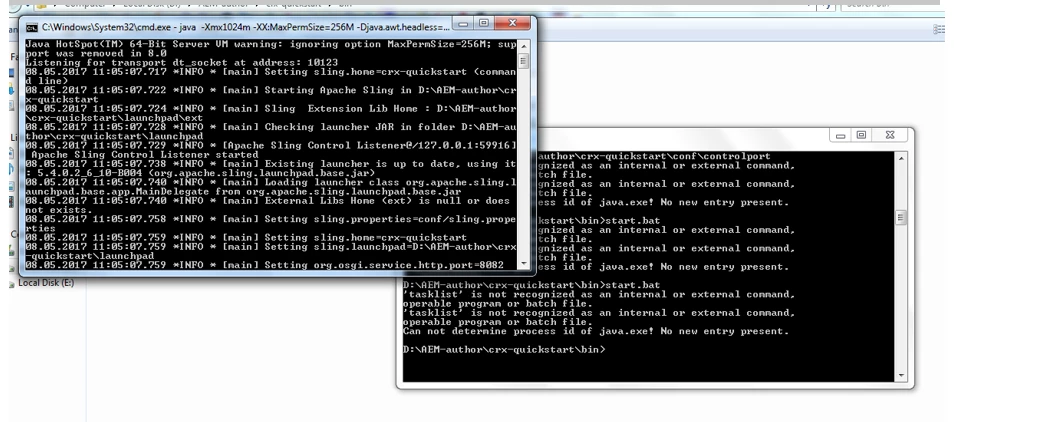
Once saved open the command prompt, go to \crx-quickstart\bin and type “start.bat”, once it’s done you’ll see another window of cmd being opened and the server will start in debug mode as seen below
 

Check if the server is started or not by opening localhost:4502 in the browser

Setting up the debug config in eclipse

Go to Run -> Debug Configurations -> Remote Java Application

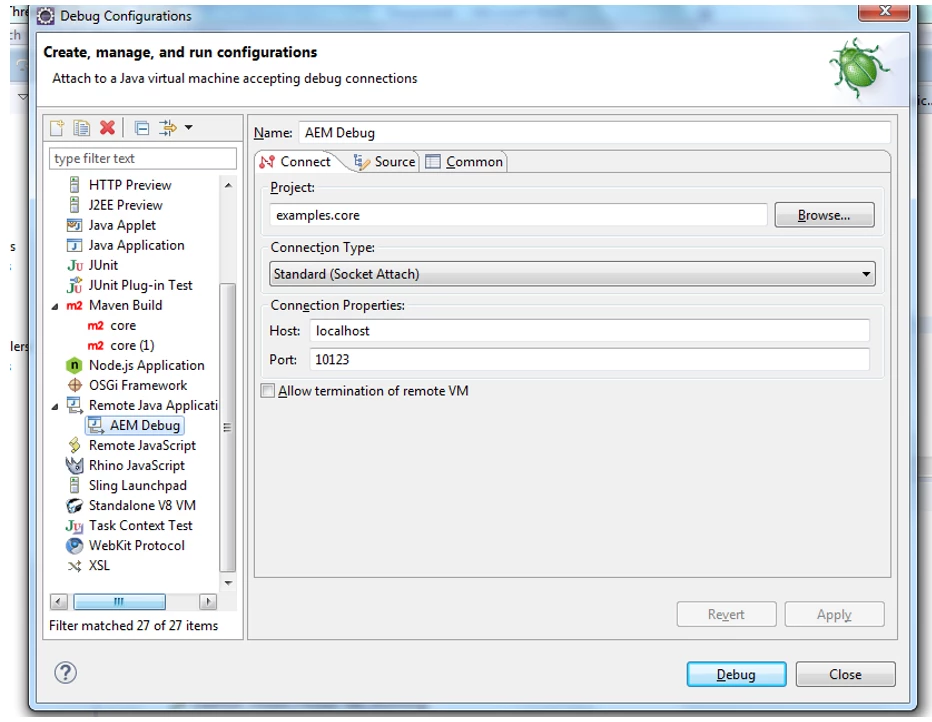
Set up a new configuration like seen below by selecting the project (mostly it’ll be core) and click Debug
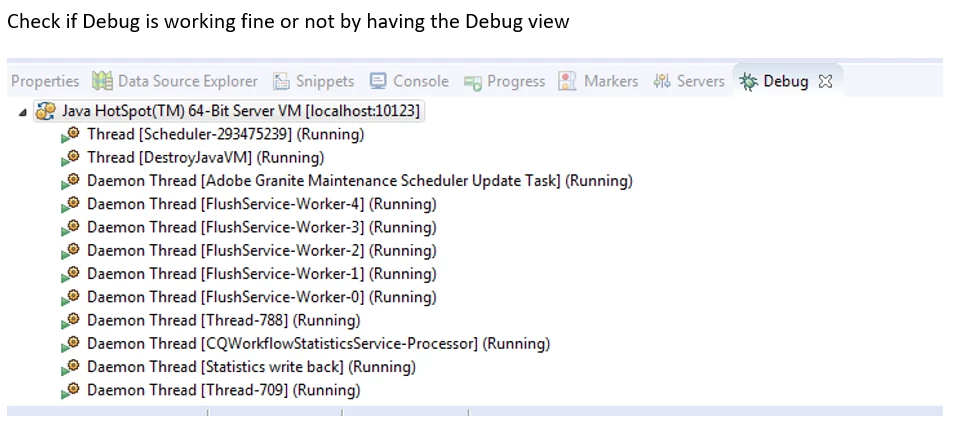
 

Eclipse by default will suspend execution on uncaught exceptions which will debug the code which we haven’t even selected. This will waste our time. So please do this to avoid it

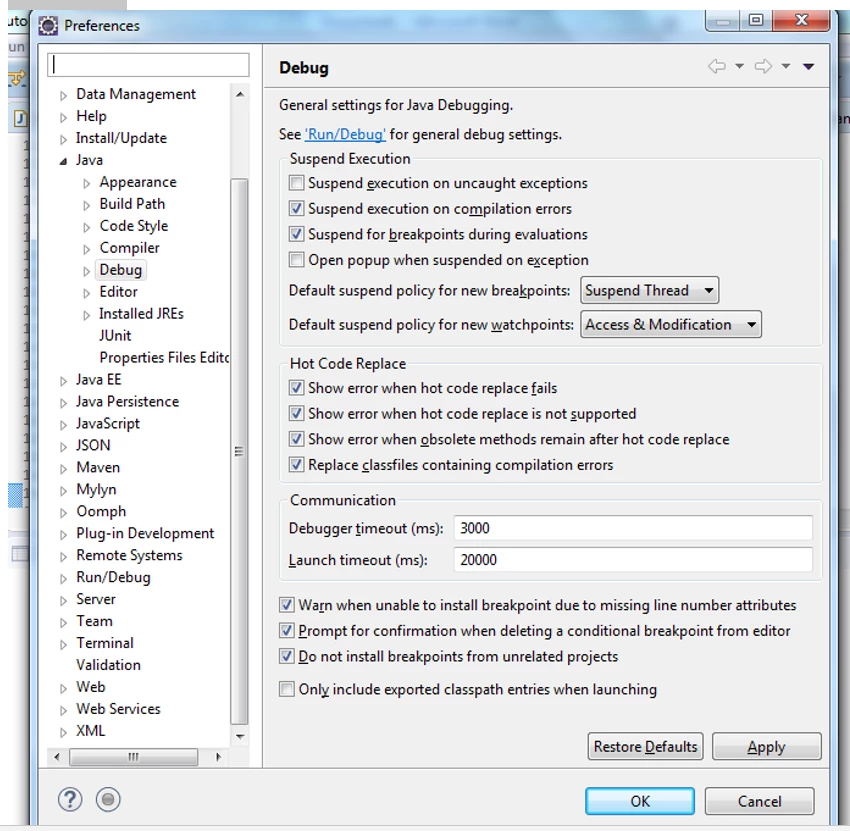
Go to Windows - > Preferences -> Java -> Debug and uncheck “Suspend execution on uncaught exceptions”
Set debug points in your code and explore! Try this and let me know whether it helps or not.

1 reply

DEBAL_DAS
DEBAL_DASAccepted solution
March 20, 2022

I am using below steps to debug -


Go to bin folder in crx-quickstart and change the line 25 in start.bat by adding the highlighted part here (address port number can be any number of your choice)

if not defined CQ_JVM_OPTS set CQ_JVM_OPTS=-Xmx1024m -XX:MaxPermSize=256M -Djava.awt.headless=true -Xrunjdwp:transport=dt_socket,server=y,suspend=n,address=10123

Change line no. 44 by adding this

set CQ_RUNMODE=%CQ_RUNMODE%,crx3,crx3tar,debug

Save the file.

Once saved open the command prompt, go to \crx-quickstart\bin and type “start.bat”, once it’s done you’ll see another window of cmd being opened and the server will start in debug mode as seen below


Check if the server is started or not by opening localhost:4502 in the browser

Setting up the debug config in eclipse

Go to Run -> Debug Configurations -> Remote Java Application

Set up a new configuration like seen below by selecting the project (mostly it’ll be core) and click Debug


Eclipse by default will suspend execution on uncaught exceptions which will debug the code which we haven’t even selected. This will waste our time. So please do this to avoid it

Go to Windows - > Preferences -> Java -> Debug and uncheck “Suspend execution on uncaught exceptions”

Set debug points in your code and explore! Try this and let me know whether it helps or not.

milind_bachani
Adobe Employee
Adobe Employee
March 21, 2022

@geverett , the above mentioned solution by @debal_das is appropriate and should work, however make sure :

  •  The port you are using is free to use (avoid :80 / :8080) for debug since they are generally occupied ports.

Thanks.