Hi @chitranshs90502!
In general, there are two approaches to the outlined requirement.
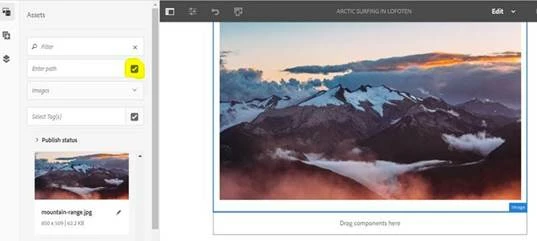
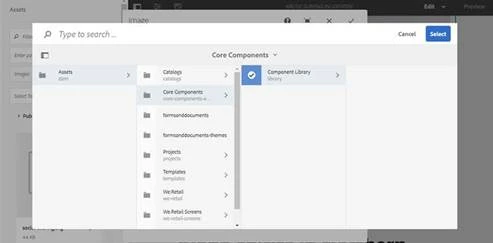
- Using the AEM Asset Selector (formerly know as Asset Picker)
- Integrating the two AEM installations via the Connected Assets feature
Option 1 is a low-effort, loosely coupled approach. You just call the according UI from your Sites instance and get metadata of the selected asset(s) back, incl. the assets URL and use that information in your Sites instance.
Option 2 is a more sophisticated integration. Please refer to the following documentation links for more detailed information:
I understand that you want to connect
- AEM Assets on-premise - that's where your assets are stored
- AEM Sites AMS - that's where you want to use/consume the assets
Unfortunately, this specific setup is not supported according to the supported deployment matrix (see 2nd link).
So it seems that option 1 - AEM Asset Selector - is the way to go for you.
Update:
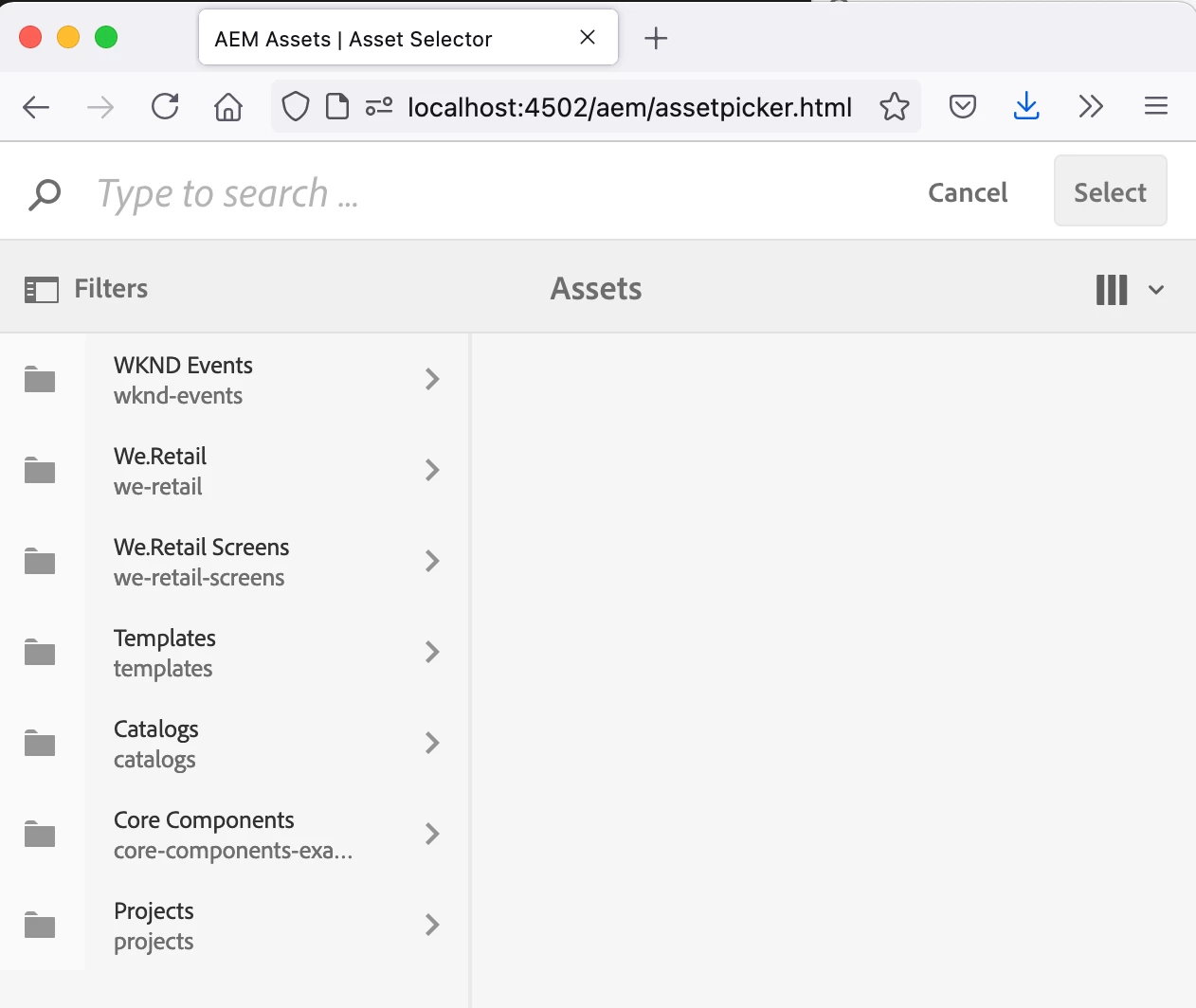
For Asset Selector, you can just call the AEM Assets instance at the following URL: /aem/assetpicker.html
This will bring up the Asset Selector UI. You can also provide parameters to control the dialog (see documentation).
To retrieve the selection (and their according metadata), you need to register a listener for the HTML5 Window.postMessage method.
So the general integration approach for Asset Selector would be to integrate it e. g. using an iFrame to any consuming system. For that iFrame, you load the Asset Selector UI directly from the AEM Assets instance. Additionally, you need to register a listener that receives any Window.postMessage messages for the iFrame. The listener should then take care to receive and process the information from the posted message.
To get a feeling on how things work you may want to try it:
window.addEventListener('message',function(event) {console.log('message received: ' + event.data,event);},false);

- Use the UI to select an asset and click the "Select" button on the top right
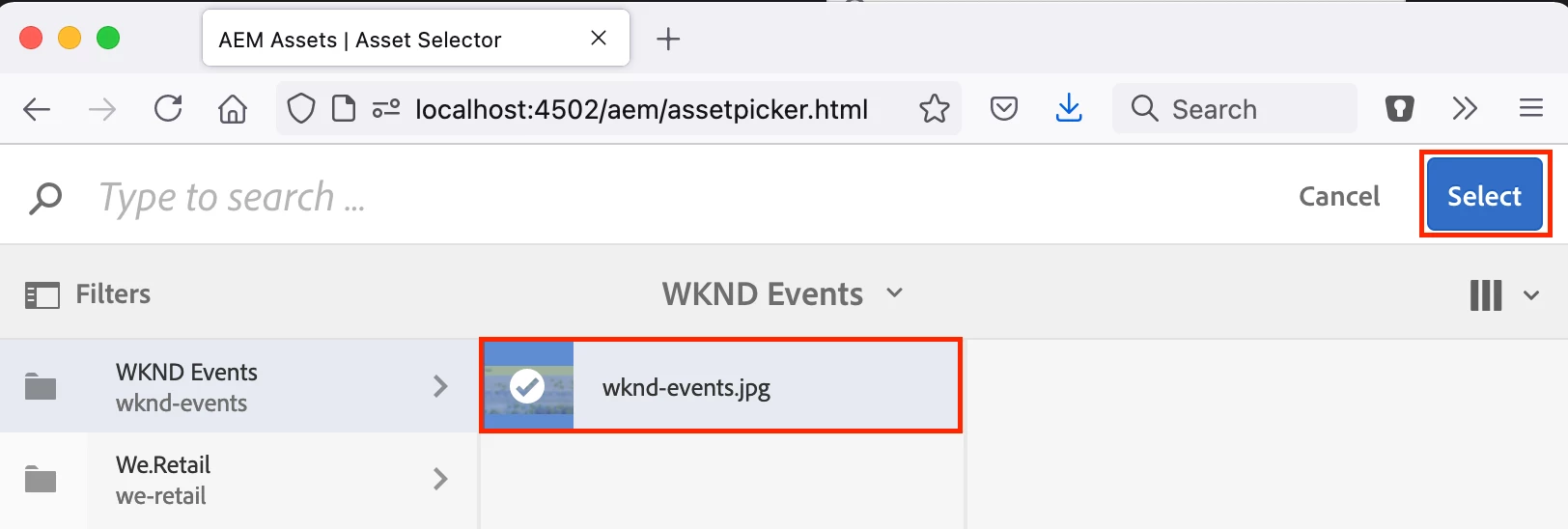
- The received message will be logged to your browsers developer console:
message received: {"data":[{"path":"/content/dam/wknd-events/wknd-events.jpg","url":"http://localhost:4502/content/dam/wknd-events/wknd-events.jpg","type":"image/jpeg","title":"wknd-events.jpg","size":"96.1 KB","img":"http://localhost:4502/content/dam/wknd-events/wknd-events.jp…nt/renditions/cq5dam.thumbnail.48.48.png?ch_ck=1551357940000"}],"config":{"action":"done"}}
message { target: Window, isTrusted: true, data: "{\"data\":[{\"path\":\"/content/dam/wknd-events/wknd-events.jpg\",\"url\":\"http://localhost:4502/content/dam/wknd-events/wknd-events.jpg\",\"type\":\"image/jpeg\",\"title\":\"wknd-events.jpg\",\"size\":\"96.1 KB\",\"img\":\"http://localhost:4502/content/dam/wknd-events/wknd-events.jp…nt/renditions/cq5dam.thumbnail.48.48.png?ch_ck=1551357940000\"}],\"config\":{\"action\":\"done\"}}", origin: "http://localhost:4502", lastEventId: "", source: Window, ports: Restricted, srcElement: Window, currentTarget: Window, eventPhase: 2, … }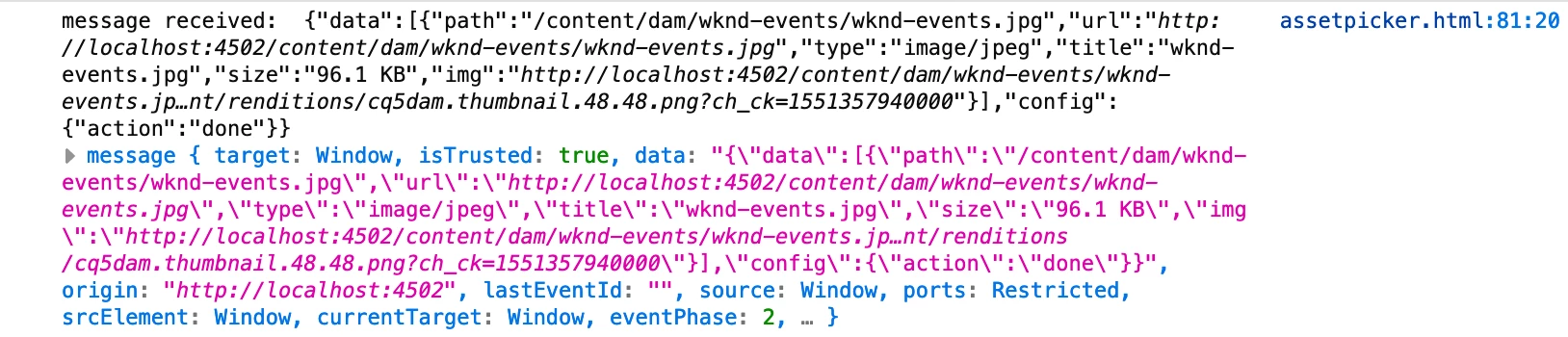
You will need to make sure that your AEM Assets instance is properly configured to return a fully qualified URL that is publicly available.
Your AEM Sites instance can then use the provided URL to reference the asset, e. g. in an image component or similar.
Hope that helps.