Allowed Components no longer showing in layour container | Community
Skip to main content
Level 2
February 2, 2022
Solved

Allowed Components no longer showing in layour container

  • February 2, 2022
  • 1 reply
  • 1705 views

Hello

Yesterday, I received some really helpful advice around components and whether they're shareable across more than one site. Today, I wanted to follow the steps I'd been shown yesterday, but the components within the layout container are no longer visible, and when selecting the layout container I no longer see the 'policies' button. I may have inadvertantly pressed/delted something, but I can't for the life of me work out what.


Any help will be apppreciated. Thanks
This post is no longer active and is closed to new replies. Need help? Start a new post to ask your question.
Best answer by Anish-Sinha

hi @simirving ,
You are trying to check at the wrong place. Please follow the below steps:

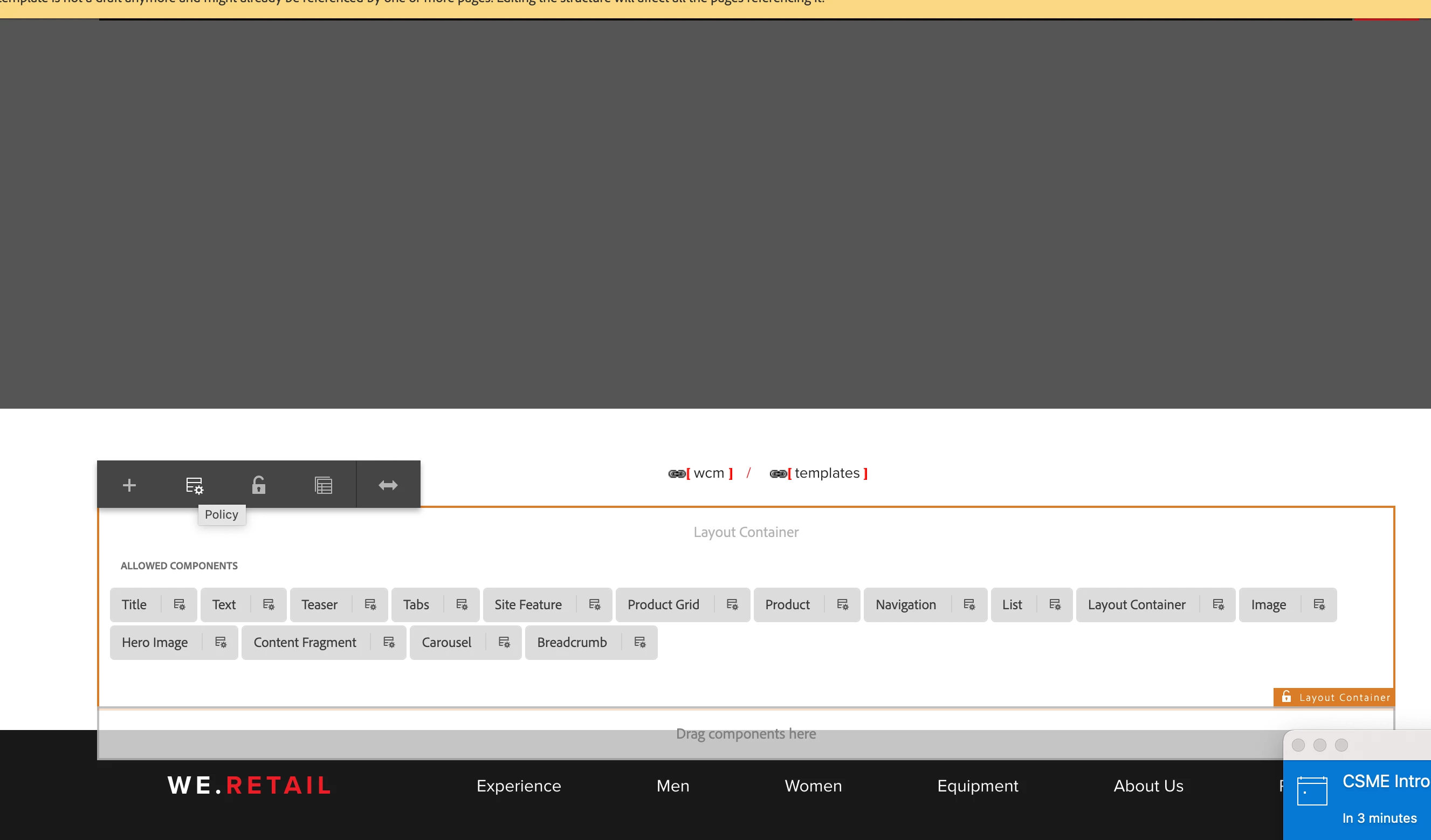
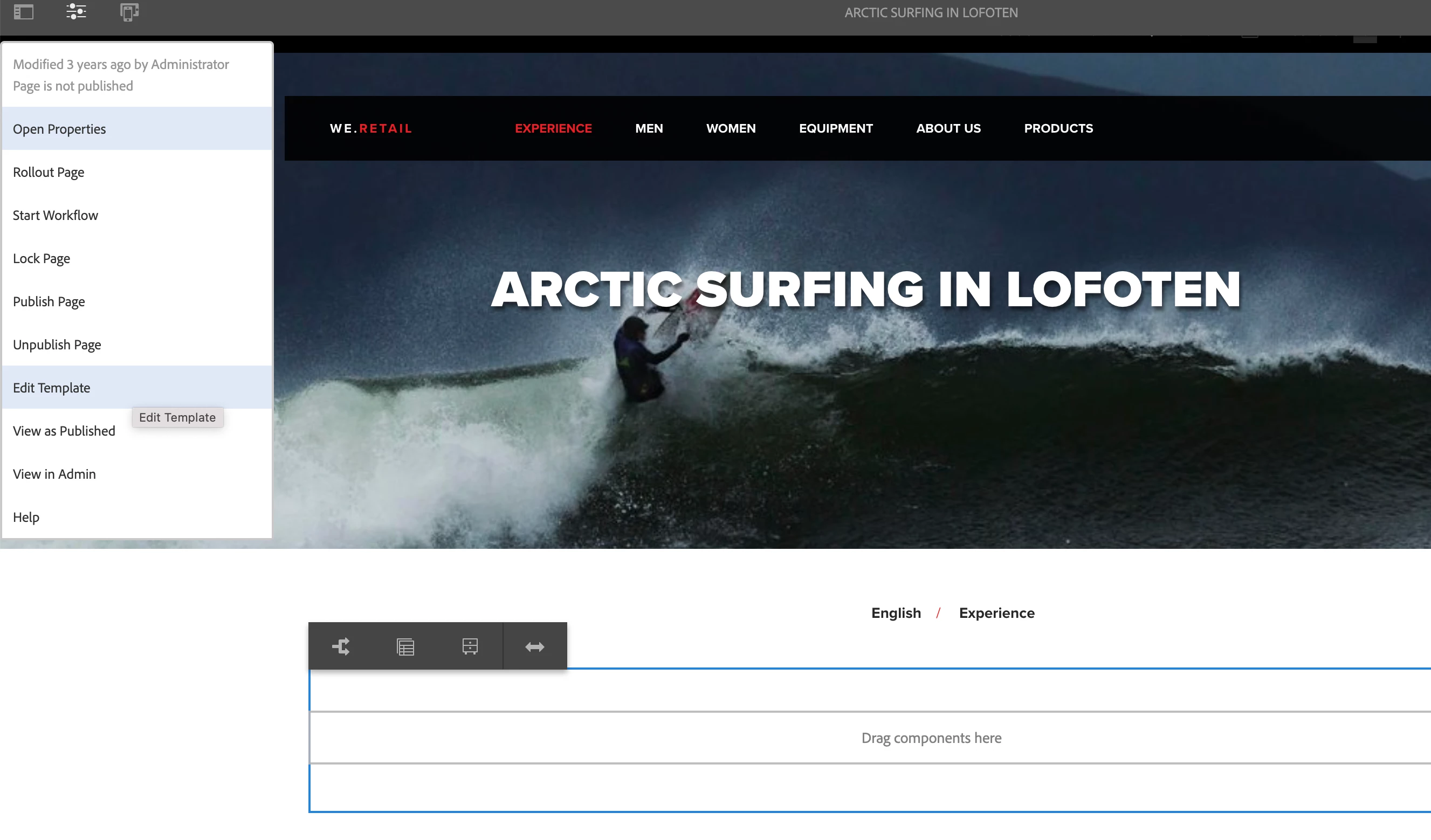
1. On the page, click on the three lines shown in the image and click on edit template from the dropdown.

2. New tab will open, there select the parsys and click on the policy icon as shown in the image. 

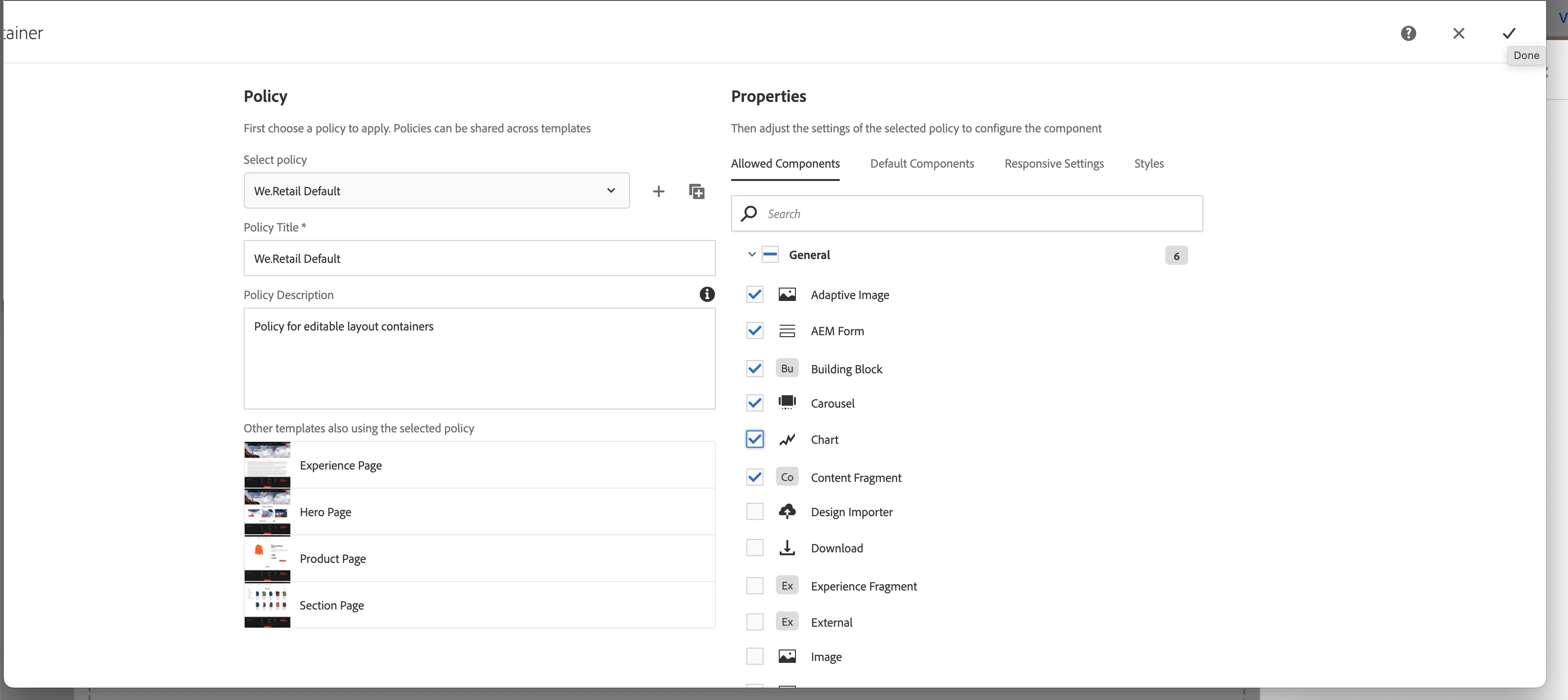
3. When new page loads, select the components you need to allow and click ok.

4. Now go back to your page, refresh it and double click on layout container. You will see the list of allowed components.

1 reply

Anish-Sinha
Adobe Employee
Anish-SinhaAdobe EmployeeAccepted solution
Adobe Employee
February 2, 2022

hi @simirving ,
You are trying to check at the wrong place. Please follow the below steps:

1. On the page, click on the three lines shown in the image and click on edit template from the dropdown.

2. New tab will open, there select the parsys and click on the policy icon as shown in the image. 

3. When new page loads, select the components you need to allow and click ok.

4. Now go back to your page, refresh it and double click on layout container. You will see the list of allowed components.

simirvingAuthor
Level 2
February 3, 2022

Thanks for coming back to me on this @anish-sinha It is appreciated.
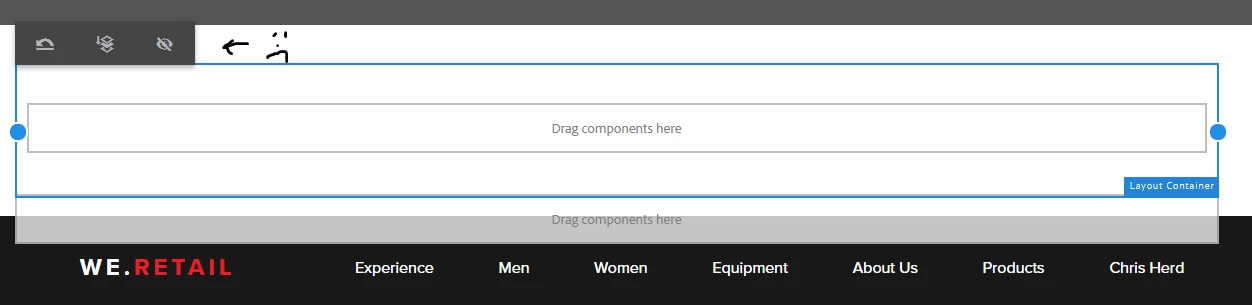
Step 1 in your instructions is straight forward. But at step 2 I come undone, because the 'Policy' icon no longer shows. After selecting 'edit template' from the 3 lines in the screen's top-left corner, then highlighting a layout container, this is what I see:


simirvingAuthor
Level 2
February 4, 2022

Please make sure u are selected edit mode on the top right (dropdown)


Hi @mani_kumar_ thanks for coming back to me.

When clicking the 'Edit' option on the screen's top-right corner, I'm presented with these options:

I click on 'edit', scroll down to a layout container, where I'd expect to see default Components, but instead I'm presented with this:


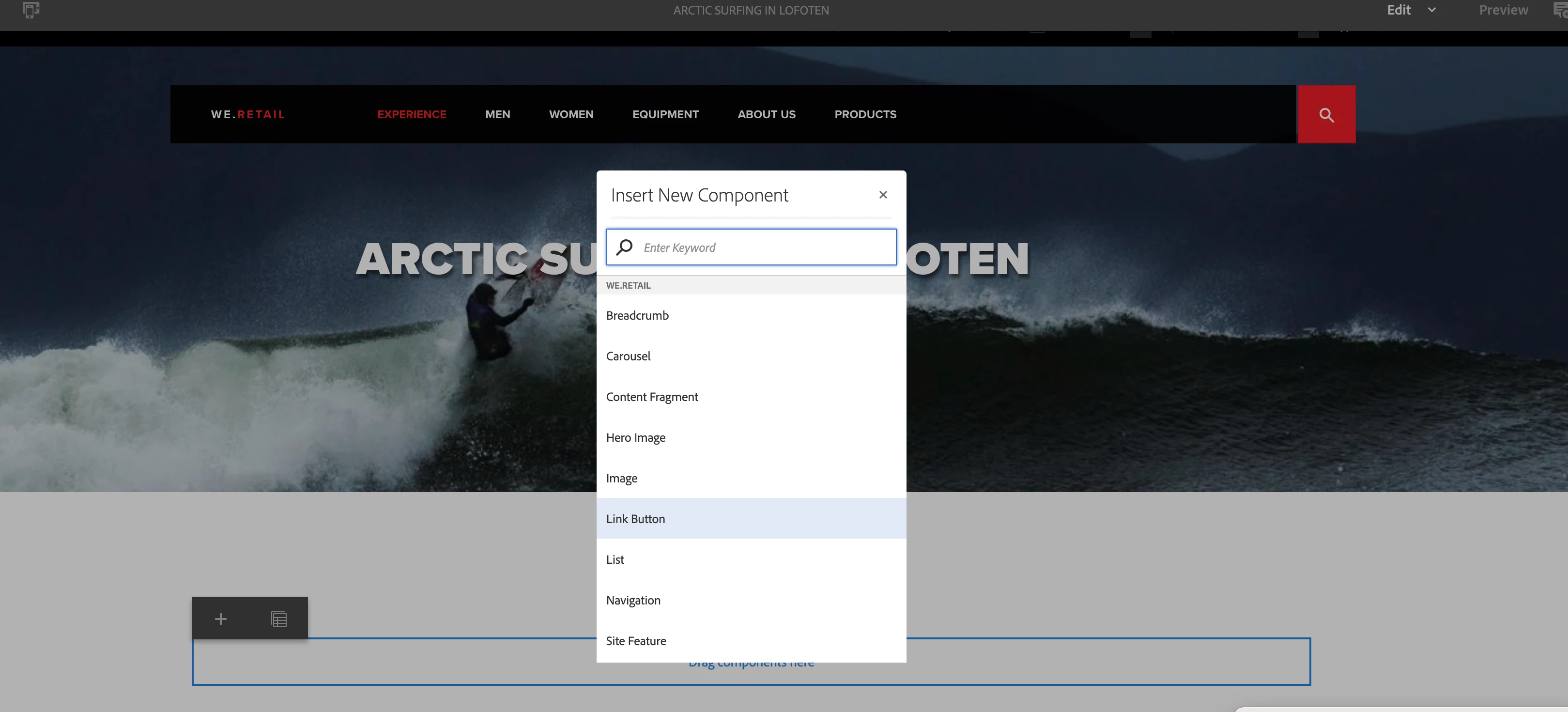
Earlier in the week, where the '+' symbol currently sits, I was presented with 5 icons, one of which was 'Policies'. I'm now wondering where this has gone and if I can ever get it back? Clicking on '+' today brings up a menu of Components I used to see in the Layout Container, but I want to add to these Components, but now I can't.


The other steps I've tried are to click the three lines in the top-left of the page, and selecting 'edit template', I'm then presented with the following in the top-right corner, but there's no option to 'edit' in the top-right hand corner. 


I feel like I'm going around in circles 🙂