AEM search function 6.5 | Community
Skip to main content
key-key
Level 4
June 19, 2020
Solved

AEM search function 6.5

  • June 19, 2020
  • 3 replies
  • 2897 views

Hi


In 6.5 tagged an asset and then i tried to go to the sites console and search for particular term.  I presume this omnisearch from sites console should automatically also bring up tagged assets as well as pages? 


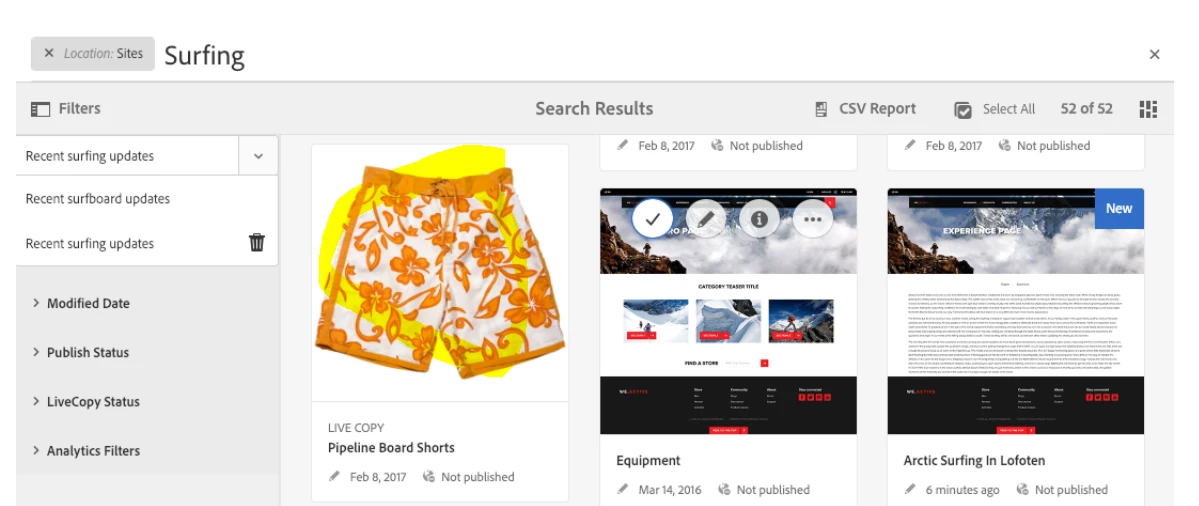
Right now only bringing up pages and no tagged assets.  Is there some extra development we need to do?   At the bottom of this document https://docs.adobe.com/help/en/experience-manager-65/authoring/essentials/search.html   there is a pipeline board shorts assets that came up . so i wondered why ours isnt bringing up the assets as well. 


This post is no longer active and is closed to new replies. Need help? Start a new post to ask your question.
Best answer by Nupur_Jain

Hi @key-key 


Let me first clarify things about the screenshot you have attached. In the screenshot, the "Pipeline Board shorts" card you see is not an asset but a live copy which is also a page.


If you just want to search by term, and search all assets and pages, you can try this.

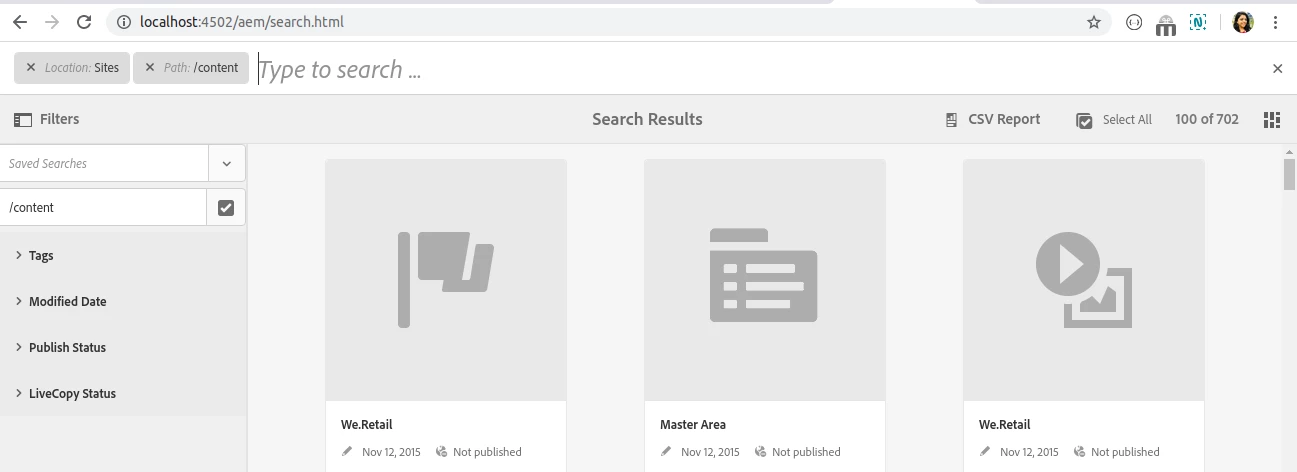
1. Go to sites and select filters, it will open up the search bar like this:

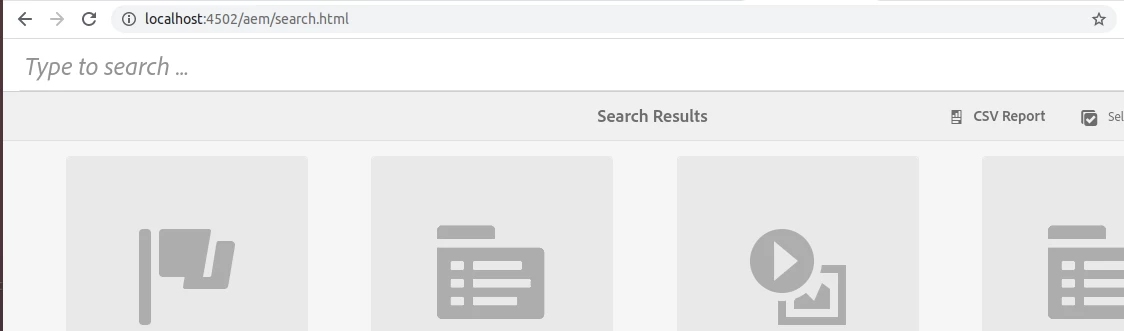
2. Now remove "Location:Sites" filter from search bar, the screen will appear like this:

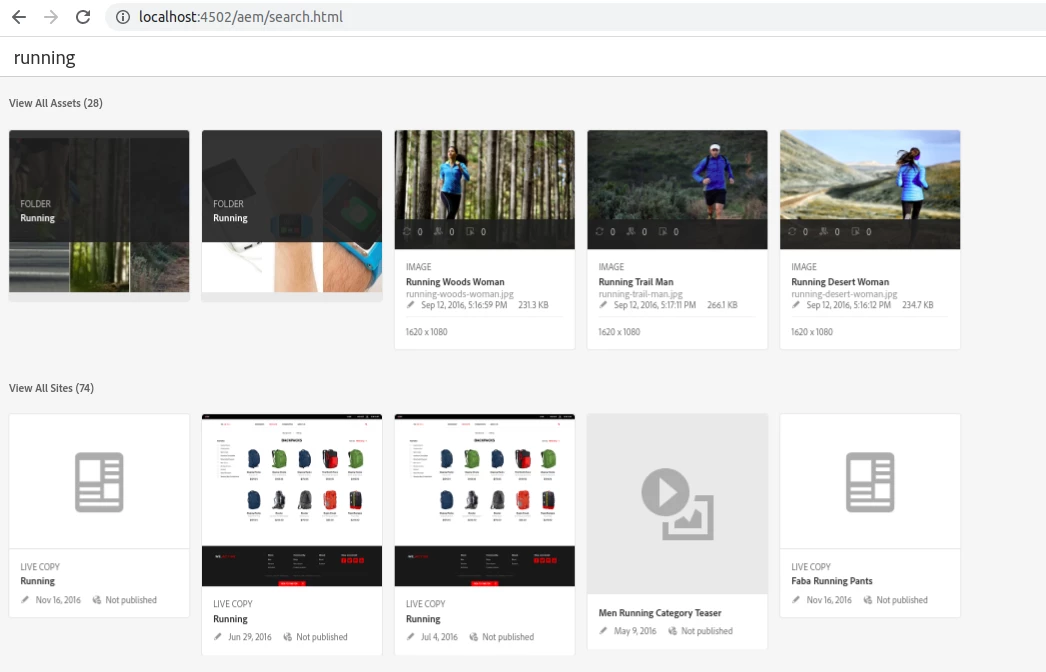
3. Now whatever search you will enter here will bring you both assets and pages


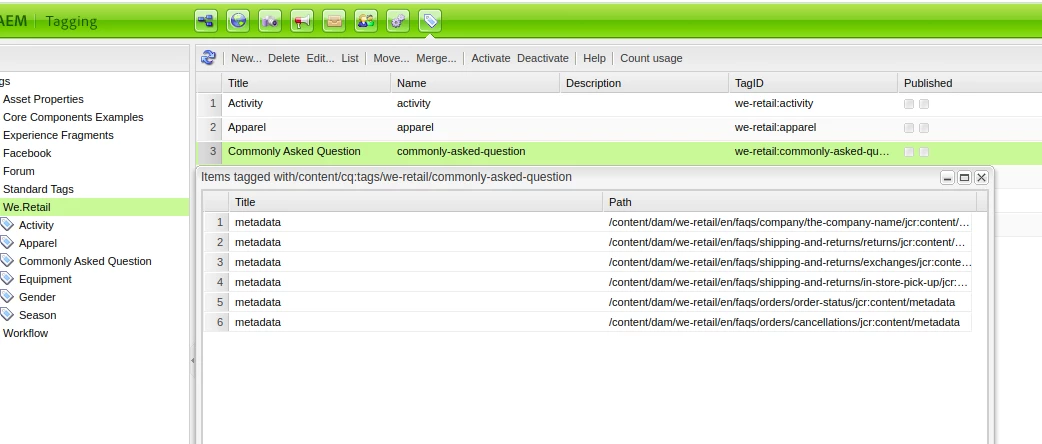
You can get list of assets and pages tagged with a particular tag with classic way:

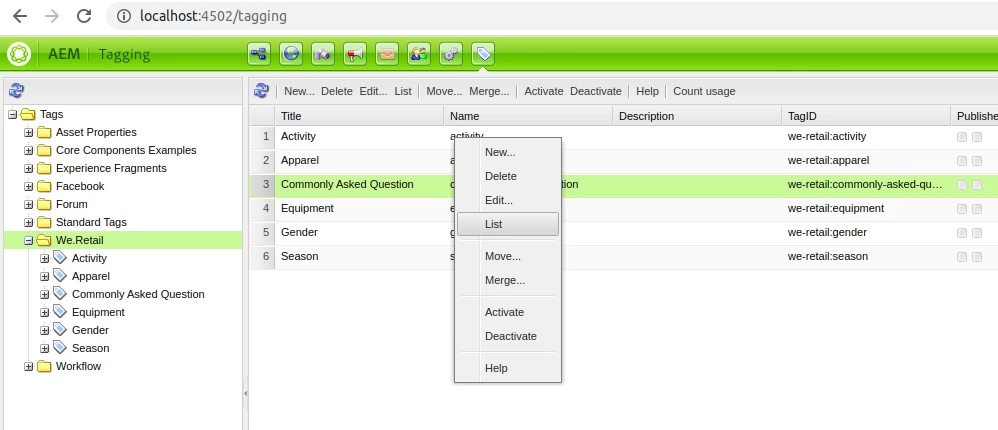
1. Go to http://localhost:4502/tagging

2. Go to the tag and right click on it

3. Select list option nd it will show you all the pages/assets tagged with this particular tag.


Thanks,

Nupur

3 replies

Varun_Shakya
Community Advisor
Community Advisor
June 19, 2020

Remove the filter "Location:sites" you will be able to see the dam assets as well


Nupur_Jain
Adobe Employee
Nupur_JainAdobe EmployeeAccepted solution
Adobe Employee
June 19, 2020

Hi @key-key 


Let me first clarify things about the screenshot you have attached. In the screenshot, the "Pipeline Board shorts" card you see is not an asset but a live copy which is also a page.


If you just want to search by term, and search all assets and pages, you can try this.

1. Go to sites and select filters, it will open up the search bar like this:

2. Now remove "Location:Sites" filter from search bar, the screen will appear like this:

3. Now whatever search you will enter here will bring you both assets and pages


You can get list of assets and pages tagged with a particular tag with classic way:

1. Go to http://localhost:4502/tagging

2. Go to the tag and right click on it

3. Select list option nd it will show you all the pages/assets tagged with this particular tag.


Thanks,

Nupur

kautuk_sahni
Community Manager
Community Manager
June 26, 2020
wonderful reply.
Kautuk Sahni
vanegi
Adobe Employee
Adobe Employee
June 20, 2020

As per the screenshot highlighted above, this "pipeline board shorts" is not an asset but a page which is stored in crxde as cq:page type. To get the asset in your search result, you need to search for assets using the Omnisearch field at the top of the Experience Manager web interface. Go to Assets > Files in Experience Manager, click search icon in top bar, enter search keyword, and press return. Alternatively, use the keyword shortcut / (forward slash) to open the Omnisearch field. Location:Assets is pre-selected to limit the searches to DAM assets. Experience Manager provides suggestions as your start typing a search keyword.


Use the Filters panel to narrow your search by filtering search results based on the various options (predicates), such as, file type, file size, last modified date, status of asset, insights data, and Adobe Stock licensing. See [0] for more details.