What's the best way to use filter in (FreeForm) for more than one selection/options? | Community
Skip to main content
Level 2
July 6, 2017
Solved

What's the best way to use filter in (FreeForm) for more than one selection/options?

  • July 6, 2017
  • 4 replies
  • 3091 views

What's the best way you would suggest if I use a dimension "Page" and would like to filter data against some specific pages not the one only as it is right now in a "Filter" option?

This post is no longer active and is closed to new replies. Need help? Start a new post to ask your question.
Best answer by EricMatisoff

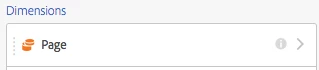
Another option is to manually drag/drop the pages from the left-panel into your table. Like this:

Click the > arrow
Find the Pages you want to analyze:
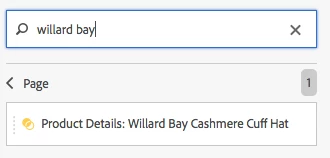
Drag the first one into your table. After you find the next Page, drag the value onto the column header of your table:

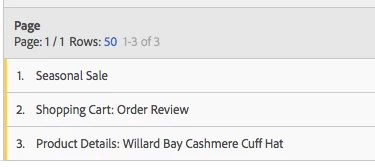
This way, I'm able to focus on only the 3 Pages I want to analyze in my table, without having to worry about applying filters:
If you're curious about dimension item searching, here's a video to help you along your way:

Improvements to Dimension Item Search in Analysis Workspace - YouTube

4 replies

Hyder_Ziaee
Adobe Employee
Adobe Employee
July 7, 2017

Hi Waheed,

Can you elaborate your question. It is not clear what you are looking for?

Level 2
July 7, 2017

Yes sure. In FreeForm table if I drag a dimension "Page" (there are more than thousands pages) against metric "Visits" but I want to see data against some specific pages (lets say 10 pages out of 1000). Right now there display a "Filter" icon (option) where we drag dimension in FreeForm table. That filter option doesn't meet my requirement. For example if my page name is "abc:individual:category 349:" and I use this filter it would display every page who contain this name but not only a single or multiple pages I want to see in the results like this one only "abc:individual:category 349:" or the ones I want to see. Otherwise I have to find each page manually and select them each by pressing CTRL+ Left Click.

EricMatisoff
Adobe Employee
EricMatisoffAdobe EmployeeAccepted solution
Adobe Employee
July 10, 2017

Another option is to manually drag/drop the pages from the left-panel into your table. Like this:

Click the > arrow

Find the Pages you want to analyze:

Drag the first one into your table. After you find the next Page, drag the value onto the column header of your table:

This way, I'm able to focus on only the 3 Pages I want to analyze in my table, without having to worry about applying filters:

If you're curious about dimension item searching, here's a video to help you along your way:

Improvements to Dimension Item Search in Analysis Workspace - YouTube

Level 2
July 20, 2017

@@ericmatisoff​ that's really helpful. It made my work so easy. ​