usage of Path views | Community
Skip to main content
March 27, 2024
Solved

usage of Path views

  • March 27, 2024
  • 2 replies
  • 1658 views

describe the path views in page flow analysis ?

This post is no longer active and is closed to new replies. Need help? Start a new post to ask your question.
Best answer by RobertBlakeley

In viewing a path report you will see the metric called a "Path View". It counts the number of times a particular path happened. 

 A path view, in reality, is simply a report table with a segment  and a metric applied. Here is the table header underlying a flow from entered on the WebMD home page.
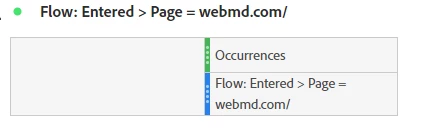
 

As you can see, Path Views are Occurrence  based. However, if you are pathing evars, the evar persistence is removed.

Steps to see this for yourself:

  1. In the flow visualization, right click a node.
  2. Select "Trend". This will create a trend visualization.
  3. In the trend visualization, click the gear icon > Data Source > check the Show Data Source box. This will reveal the table with the segment and metric.
  4. You can see how segment is build by clicking the "i" in the segment name.


2 replies

pradnya_balvir
Community Advisor
Community Advisor
March 27, 2024

Path views means instances.


Instances shows the number of times a given variable was defined in any image request, including PageView and Non-PageView Server Calls

RobertBlakeley
Community Advisor
RobertBlakeleyCommunity AdvisorAccepted solution
Community Advisor
March 27, 2024

In viewing a path report you will see the metric called a "Path View". It counts the number of times a particular path happened. 

 A path view, in reality, is simply a report table with a segment  and a metric applied. Here is the table header underlying a flow from entered on the WebMD home page.


As you can see, Path Views are Occurrence  based. However, if you are pathing evars, the evar persistence is removed.

Steps to see this for yourself:

  1. In the flow visualization, right click a node.
  2. Select "Trend". This will create a trend visualization.
  3. In the trend visualization, click the gear icon > Data Source > check the Show Data Source box. This will reveal the table with the segment and metric.
  4. You can see how segment is build by clicking the "i" in the segment name.