LinkedIn conversion pixel not working | Community
Skip to main content
May 25, 2023
Solved

LinkedIn conversion pixel not working

  • May 25, 2023
  • 2 replies
  • 3014 views

Dear All,

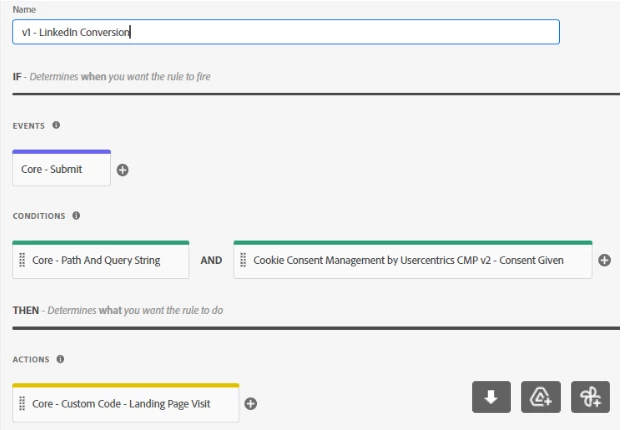
LinkedIn Event Snippet that we prepared here:


(LinkedIn Conversion - Form Submit Event Snippet)

When someone submits one of the forms:

Track action events like button click, the code below needs to be installed to load when that button is clicked. View the help guide to learn how to use event snippet.

window.lintrk('track', { conversion_id: 12273165 });

This post is no longer active and is closed to new replies. Need help? Start a new post to ask your question.
Best answer by kamlesh-maddheshiya

Hi @priyankagupta20 ,

It seems there is something in the website that is blocking our code which you don't have control of(that code used to block third-party scripts). To confirm the same, you have to disable this for now.

Please paste the same code under the Action “Adobe Analytics – Set Variables à Custom code”,
it would works.
If not possible then I would recommend below 2 steps.
   1. For page load rules, try changing the event for the rule to page top or page bottom.
   2. For submit or clicks, try using the Adobe Analytics extension's Set Variables and add the desired custom code there.

2 replies

Jennifer_Dungan
Community Advisor and Adobe Champion
May 25, 2023

Are you adding LinkedIn PV code on all pages, then triggering this conversion? Or are you only tracking the conversion, and therefore have to initialize the LinkedIn Pixel during the click event??


In my code, on my page load, I use the following:

_linkedin_partner_id = _satellite.getVar('LinkedInPixelID'); window._linkedin_data_partner_ids = window._linkedin_data_partner_ids || []; window._linkedin_data_partner_ids.push(_linkedin_partner_id); (function(l) { if (!l){window.lintrk = function(a,b){window.lintrk.q.push([a,b])}; window.lintrk.q=[]} var s = document.getElementsByTagName("script")[0]; var b = document.createElement("script"); b.type = "text/javascript";b.async = true; b.src="https://snap.licdn.com/li.lms-analytics/insight.min.js"; s.parentNode.insertBefore(b, s);})(window.lintrk);


This initializes the code and tracks the page view events.


Then, on my conversion, when I trigger

window.lintrk('track', { conversion_id: 1234567});


The lintrk object is there and ready to process the conversion.
June 23, 2023

Thank you so much @jennifer_dungan . I tried it but it did not work.

Jennifer_Dungan
Community Advisor and Adobe Champion
June 23, 2023

Would you be willing to share a link to your site and where the pixels should be triggered so that we can see if there are any errors that would help us see the problem? Even sharing a link in Private Message if you don't want the link available publicly.

kamlesh-maddheshiya
Community Advisor
kamlesh-maddheshiyaCommunity AdvisorAccepted solution
Community Advisor
June 23, 2023

Hi @priyankagupta20 ,

It seems there is something in the website that is blocking our code which you don't have control of(that code used to block third-party scripts). To confirm the same, you have to disable this for now.

Please paste the same code under the Action “Adobe Analytics – Set Variables à Custom code”,
it would works.
If not possible then I would recommend below 2 steps.
   1. For page load rules, try changing the event for the rule to page top or page bottom.
   2. For submit or clicks, try using the Adobe Analytics extension's Set Variables and add the desired custom code there.