How to find which adobe launch rule fires the specific event? | Community
Skip to main content
Level 5
November 26, 2022
Solved

How to find which adobe launch rule fires the specific event?

  • November 26, 2022
  • 2 replies
  • 2439 views

How to find which adobe launch rule fires the specific event?


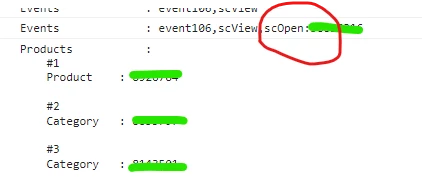
For example in this screenshot I can see scOpen fires but how to find which rule in adobe launch fires it. omnibug shows just the variables which gets fired.


This post is no longer active and is closed to new replies. Need help? Start a new post to ask your question.
Best answer by Jennifer_Dungan

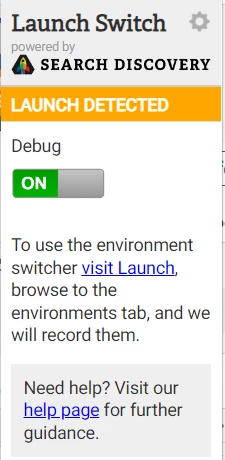
The plugin Launch Switch (even without switching the environment) has a "debug" mode that will add logs into your console about the rules being fired.


https://chrome.google.com/webstore/detail/launch-and-dtm-switch/nlgdemkdapolikbjimjajpmonpbpmipk


It will have general info about your plugins, starting with "[Adobe Analytics]" or "[Experience Cloud ID Service]" and what settings they are applying.


And information about your Rules such as:
Rule "rule a" fired.
or
Condition "rule b" was not met.


Or you like some people have suggested, you can add a console.log("something") into your rules' custom code area... but I don't like to leave stuff like that in production (our developers don't like it much either), so you have to remember to remove it all later.


The plugin makes it easy, turn on Debug, then you are the only one who can see the logs.
 

2 replies

Jennifer_Dungan
Community Advisor and Adobe Champion
Jennifer_DunganCommunity Advisor and Adobe ChampionAccepted solution
Community Advisor and Adobe Champion
November 26, 2022

The plugin Launch Switch (even without switching the environment) has a "debug" mode that will add logs into your console about the rules being fired.


https://chrome.google.com/webstore/detail/launch-and-dtm-switch/nlgdemkdapolikbjimjajpmonpbpmipk


It will have general info about your plugins, starting with "[Adobe Analytics]" or "[Experience Cloud ID Service]" and what settings they are applying.


And information about your Rules such as:
Rule "rule a" fired.
or
Condition "rule b" was not met.


Or you like some people have suggested, you can add a console.log("something") into your rules' custom code area... but I don't like to leave stuff like that in production (our developers don't like it much either), so you have to remember to remove it all later.


The plugin makes it easy, turn on Debug, then you are the only one who can see the logs.
 

marnier
November 28, 2022

Try Tagtician - it is an Adobe Launch/DTM debugger. Export and view entire TMS libraries in a simple, consolidated view.  It can download your library in a .csv format.


https://chrome.google.com/webstore/detail/tagtician-adobe-launch-dt/hiaoiehpkillodoeillmodjcadmfmcbg?hl=en