Drop off Rate & Completion Rate | Community
Skip to main content
September 23, 2022
Solved

Drop off Rate & Completion Rate

  • September 23, 2022
  • 1 reply
  • 2341 views

Hello Adobe Members,


Hope someone can help. I am building an Adobe Dashboard and am trying to calculate the drop off rate and completion rate for two specific elements in my customer journey. 


The Scenario:

I have a view of how many people started my journey (by selecting a specific button) and how many people who started that journey exited the journey (by clicking on a specific button) and I am now trying to calculate the drop off rate, e.g. percentage of users who entered the journey at point A and then exited before the final step and the completion rate, e.g. percentage of users that started at point A and completed at the final step of the journey.


Can you please help me understand which metrics to use or how to do this? Step by step instructions would be great as I am a  beginner using Adobe Analytics. 


Thanks.
This post is no longer active and is closed to new replies. Need help? Start a new post to ask your question.
Best answer by Jennifer_Dungan

Have you tried using a Fallout Visualization?


You can pull each step of your journey into this visualization, and it will perform the calculations for you... it will also ensure that the previous steps were taken in the order you specified...


So in order for there to be values in Step 3, Step 2 must have occurred before it, and Step 1 before that...


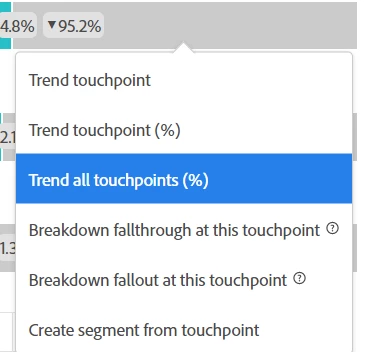
You can also create complex "order or operations" segments to replicate these steps to build in a table.. or you can cheat... Use the fallout to create the basic flow, the right click on the visuals and create a trend of the flow... (this will pull up a graph of the selected step or all steps depending on your choice).


(Note, to get the raw visitors, you have to do these steps one at a time using "Trend Touchpoint" - without the %, and if you use "Create segment from touchpoint" that will create a permanent public segment in your components list which you may not want)


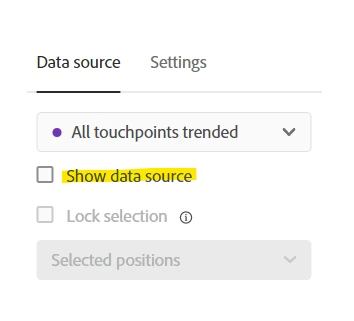
From the graph, click on the coloured do to bring up the Data Source options and choose "Show Data Source", and choose "Show data source"


This will then show you a freeform table with all the pre-built segments/calculated metrics, but these segments/calculated metrics won't be in your components list; you can use them as AdHoc items in your report.

1 reply

Jennifer_Dungan
Community Advisor and Adobe Champion
Jennifer_DunganCommunity Advisor and Adobe ChampionAccepted solution
Community Advisor and Adobe Champion
September 23, 2022

Have you tried using a Fallout Visualization?


You can pull each step of your journey into this visualization, and it will perform the calculations for you... it will also ensure that the previous steps were taken in the order you specified...


So in order for there to be values in Step 3, Step 2 must have occurred before it, and Step 1 before that...


You can also create complex "order or operations" segments to replicate these steps to build in a table.. or you can cheat... Use the fallout to create the basic flow, the right click on the visuals and create a trend of the flow... (this will pull up a graph of the selected step or all steps depending on your choice).


(Note, to get the raw visitors, you have to do these steps one at a time using "Trend Touchpoint" - without the %, and if you use "Create segment from touchpoint" that will create a permanent public segment in your components list which you may not want)


From the graph, click on the coloured do to bring up the Data Source options and choose "Show Data Source", and choose "Show data source"


This will then show you a freeform table with all the pre-built segments/calculated metrics, but these segments/calculated metrics won't be in your components list; you can use them as AdHoc items in your report.

Jennifer_Dungan
Community Advisor and Adobe Champion
September 23, 2022

You can look at these items to see how they are built, and use that to learn how to build your own from scratch. 🙂