CTR on Banner | Community
Skip to main content
July 22, 2024
Solved

CTR on Banner

  • July 22, 2024
  • 2 replies
  • 1012 views

Hi, I'm trying to build a calculated metric for the CTR of banners present in the client's home page.

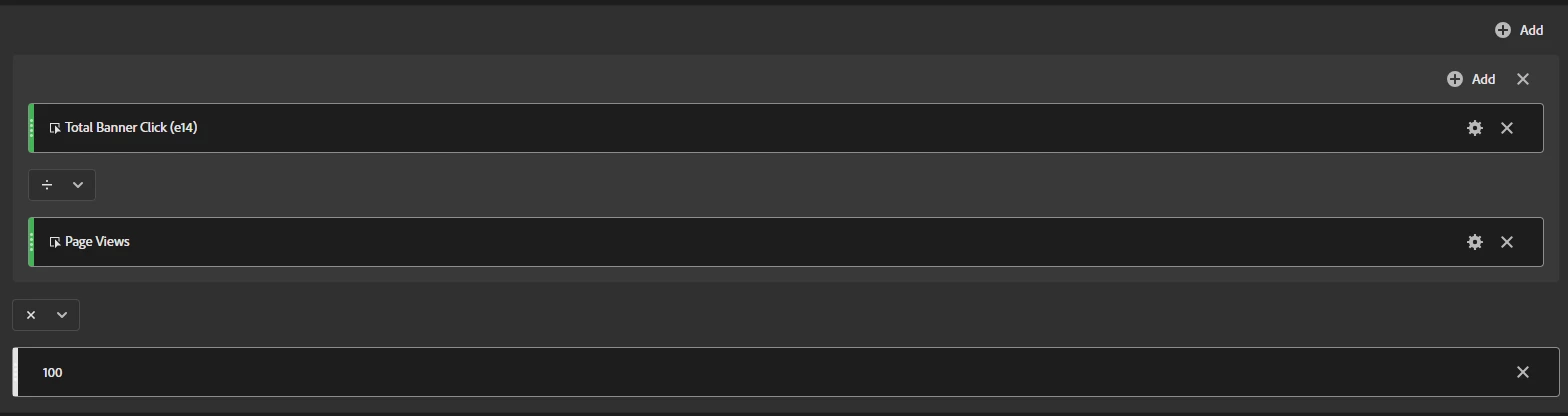
Separately, the CTR for Banner 1, for example, would be 6% (e14 / page views * 100). But upon using the calculated metric, the values nor the percentages make sense.


Would you guys have any thoughts about how can I create this metric?


Thank you in advance!

This post is no longer active and is closed to new replies. Need help? Start a new post to ask your question.
Best answer by Jennifer_Dungan

Hi, this is actually a very simple fix 🙂


So there's 2 things here...


You don't actually have to multiply by 100... just change your calculated metric's format to percent:
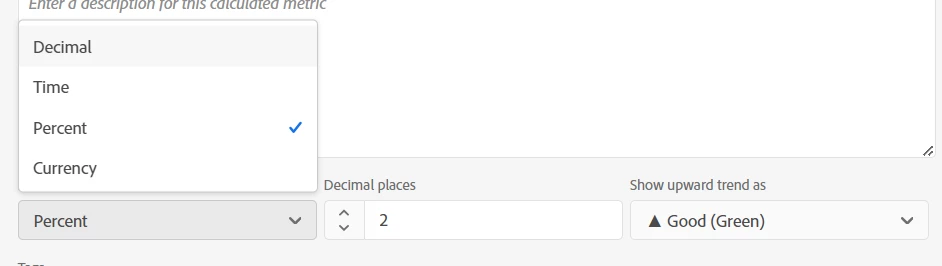


This will do that part of the math for you.


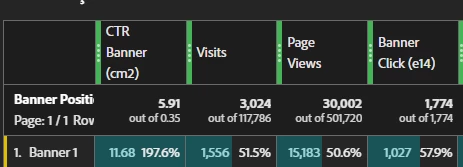
Second, the reason your numbers are looking odd is because your calculation is the decimal portion of cell, the percentage that is showing isn't your calculation at this point, it's the percent calculation of your row value against the total...


So looking at your total "5.91" (is the average percent for all your rows, displayed as a decimal), and your row 1 value "11.68" (is the percent displayed as a decimal) followed by % against the total calculation... 11.68 is 197.6% of 5.91.


Changing your values format to percent has multiple benefits:

  1. It will do the multiply by 100 for you
  2. It will actually display your results as percentages (i.e. 5.91% or 11.68%, etc.)
  3. You will no longer see the percent calculation against your total... "percent" metrics show only the percent (not the number) and that percent is now your expected calculation.
2 replies

bjoern__koth
Community Advisor and Adobe Champion
July 22, 2024

Have you tried setting the unit of the calculated metric to percent and ditch the x 100?

Cheers from Switzerland!
Jennifer_Dungan
Community Advisor and Adobe Champion
Jennifer_DunganCommunity Advisor and Adobe ChampionAccepted solution
Community Advisor and Adobe Champion
July 22, 2024

Hi, this is actually a very simple fix 🙂


So there's 2 things here...


You don't actually have to multiply by 100... just change your calculated metric's format to percent:


This will do that part of the math for you.


Second, the reason your numbers are looking odd is because your calculation is the decimal portion of cell, the percentage that is showing isn't your calculation at this point, it's the percent calculation of your row value against the total...


So looking at your total "5.91" (is the average percent for all your rows, displayed as a decimal), and your row 1 value "11.68" (is the percent displayed as a decimal) followed by % against the total calculation... 11.68 is 197.6% of 5.91.


Changing your values format to percent has multiple benefits:

  1. It will do the multiply by 100 for you
  2. It will actually display your results as percentages (i.e. 5.91% or 11.68%, etc.)
  3. You will no longer see the percent calculation against your total... "percent" metrics show only the percent (not the number) and that percent is now your expected calculation.
July 22, 2024

Thank you Jennifer.

Jennifer_Dungan
Community Advisor and Adobe Champion
July 22, 2024

You're very welcome 🙂