Editing Landing Page content in ACS | Community
Skip to main content
Level 4
July 19, 2017
Solved

Editing Landing Page content in ACS

  • July 19, 2017
  • 3 replies
  • 3330 views

Hi,

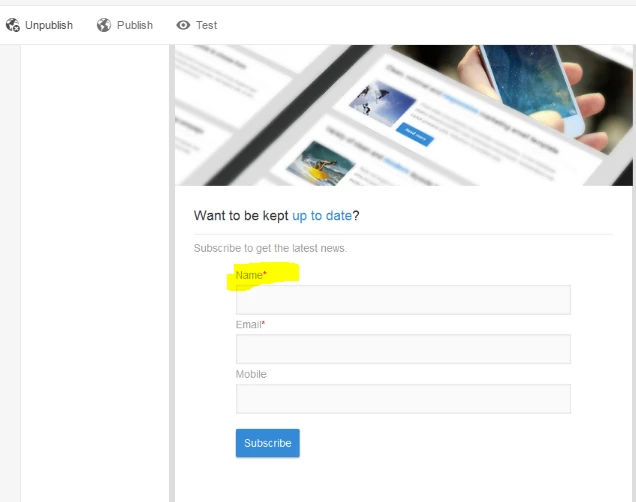
I am working on landing pages in Adobe Campaign Standard. I created a landing page and published it. I want to know how to change the form based content in it. ( add more form fields)

I can see the source using show source but how do i add new fields ? The following code is for name field .

div><label class="stacked required" id="HtmlPage_htmlPage.name">Name</label>

<input class="stacked nl-dce-done" type="text" id="name" name="name" data-nl-ismandatory="true"

data-nl-checkboxbehavior="subscription" data-nl-bindto="xpath" data-nl-xpath="/context/profile/firstName"

data-nl-label="First name" data-nl-type="string" /></div>

How to know the id of other fields say for example address or age etc?
Regards

Senthil

This post is no longer active and is closed to new replies. Need help? Start a new post to ask your question.
Best answer by florentlb

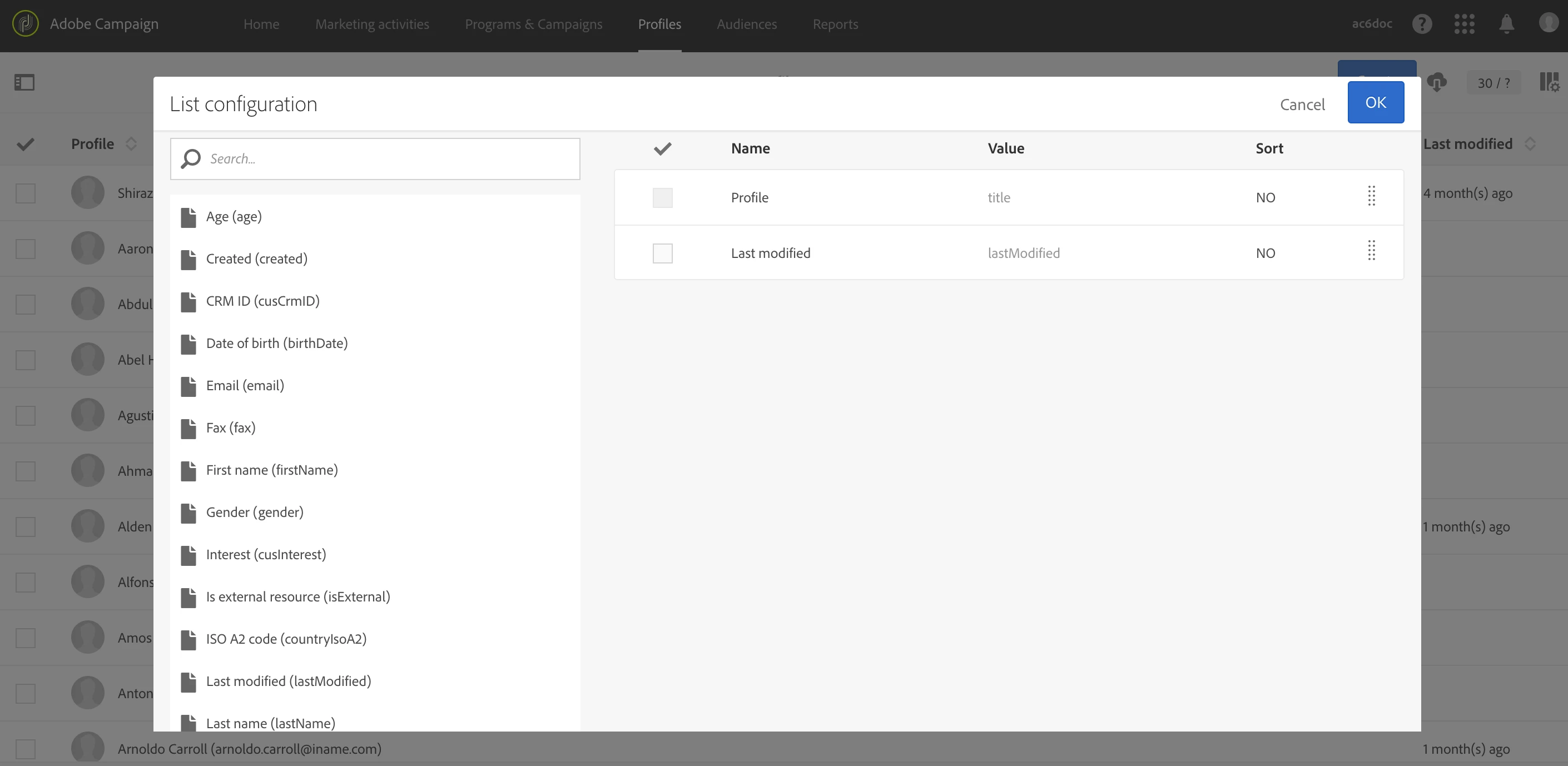
You can see technical names of each field for example from the "list configuration" of the Profiles menu (value between brackets):

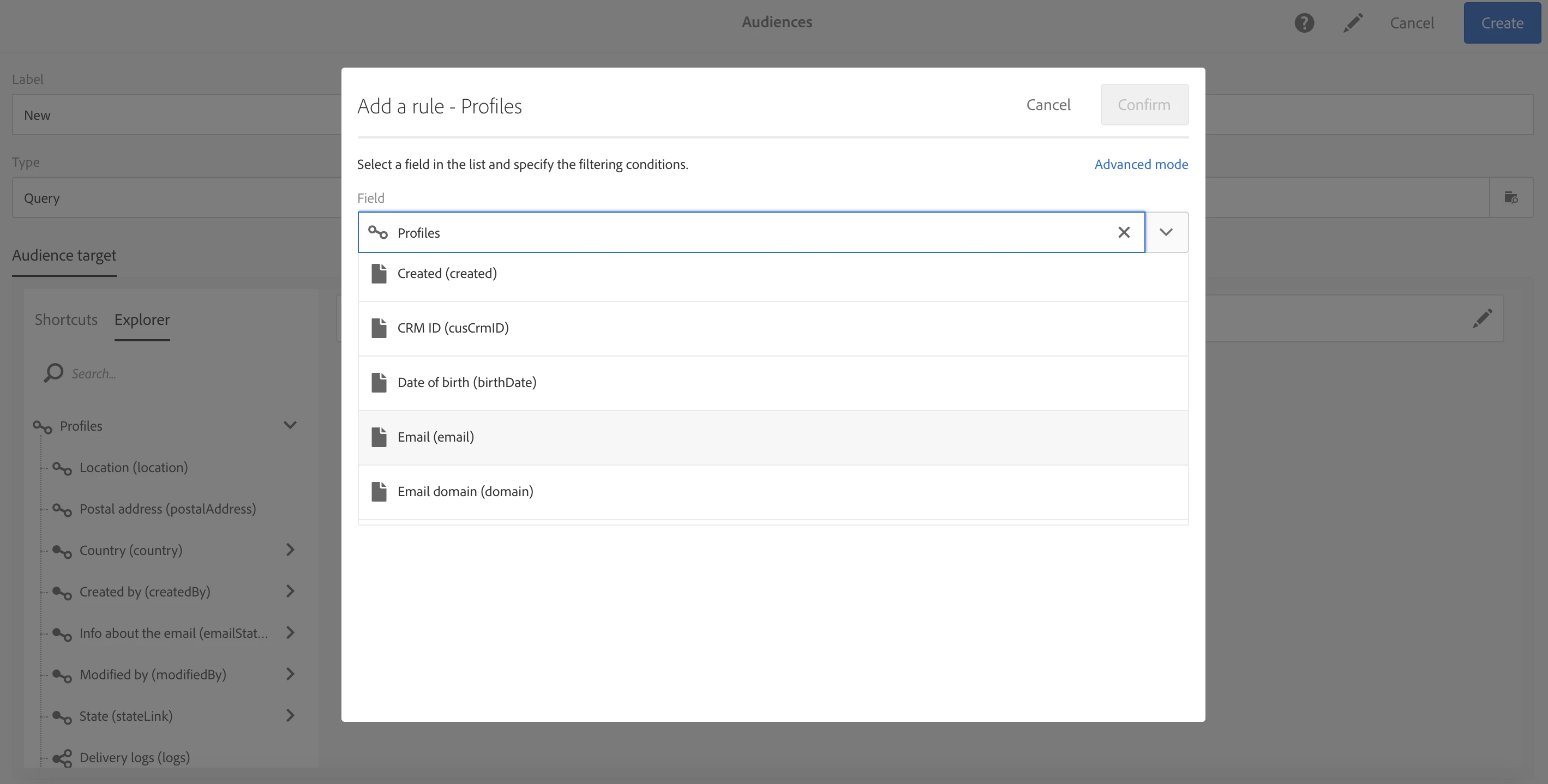
Or from the query editor:

As an example starting from the code you provided we could do this:

<div><label class="stacked required" id="HtmlPage_htmlPage.name">THE LABEL YOU WANT TO APPEAR</label>

<input class="stacked nl-dce-done" type="text" id="ID OF YOUR CHOICE (must be unique)" name="LABEL OF YOUR CHOICE" data-nl-ismandatory="true"

data-nl-checkboxbehavior="subscription" data-nl-bindto="xpath" data-nl-xpath="/context/profile/IDENTIFIER OF THE FIELD"

data-nl-label="LABEL OF YOUR CHOICE" data-nl-type="DATA TYPE OF THE FIELD" /></div>

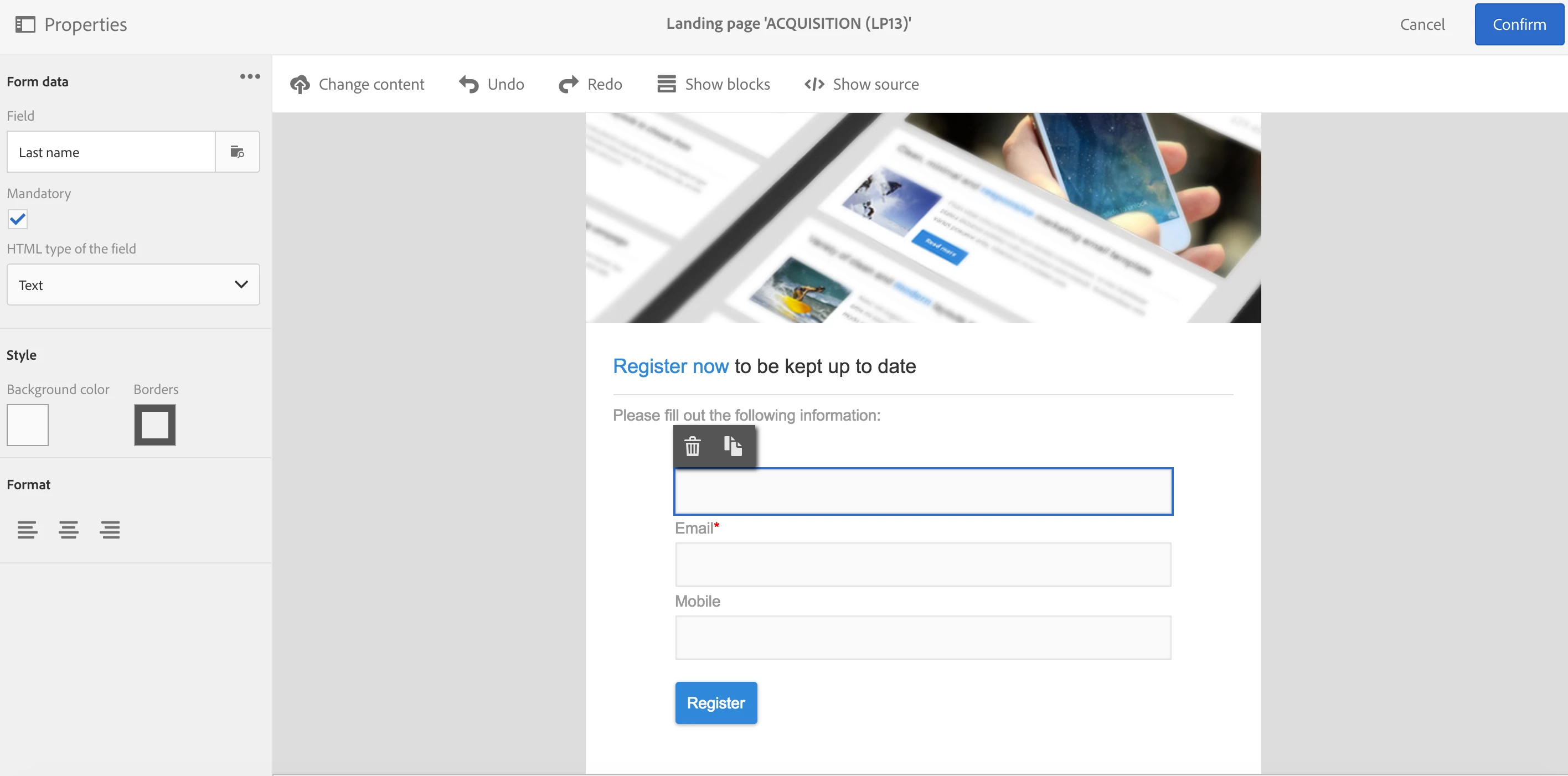
If you want to avoid having to change manually all of these values in the code, you can first modify the field from the WYSIWYG view using the options on the left, and then copy paste it from the show source view:

Hope this helps,

Florent

3 replies

florentlb
Level 10
July 20, 2017

Hi Senthil,

Adding new fields can be done through the "Show source" option, directly in HTML. You can see an example of code here in the Editing a landing page section: Creating a landing page

In the different paths of the code, to map to a database field, please use the identifier of the field. Like firstName, lastName, email, etc.

Let me know if you need more information.

Florent

Senthil24Author
Level 4
July 20, 2017

Thanks for replying Florent .

From where can I view the schema/data model of profile(ACS)? So that I know which name is to be used in the xpath.

And what about the id used in the label?

florentlb
florentlbAccepted solution
Level 10
July 20, 2017

You can see technical names of each field for example from the "list configuration" of the Profiles menu (value between brackets):

Or from the query editor:

As an example starting from the code you provided we could do this:

<div><label class="stacked required" id="HtmlPage_htmlPage.name">THE LABEL YOU WANT TO APPEAR</label>

<input class="stacked nl-dce-done" type="text" id="ID OF YOUR CHOICE (must be unique)" name="LABEL OF YOUR CHOICE" data-nl-ismandatory="true"

data-nl-checkboxbehavior="subscription" data-nl-bindto="xpath" data-nl-xpath="/context/profile/IDENTIFIER OF THE FIELD"

data-nl-label="LABEL OF YOUR CHOICE" data-nl-type="DATA TYPE OF THE FIELD" /></div>

If you want to avoid having to change manually all of these values in the code, you can first modify the field from the WYSIWYG view using the options on the left, and then copy paste it from the show source view:

Hope this helps,

Florent