Update list Expiry in advanced tab (list creation) | Community
Skip to main content
January 25, 2023
Solved

Update list Expiry in advanced tab (list creation)

  • January 25, 2023
  • 5 replies
  • 1275 views

Is there a way to update list Expiry when doing list update activity? Something like below:
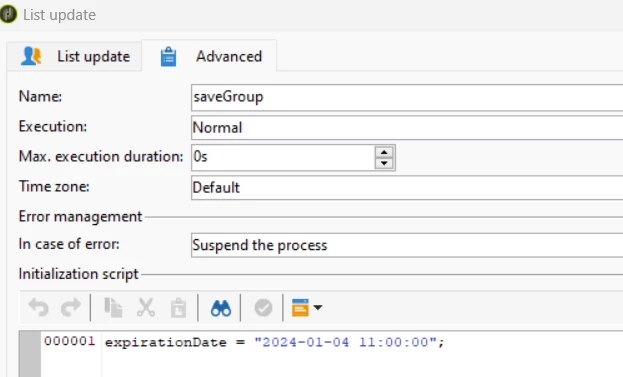
This post is no longer active and is closed to new replies. Need help? Start a new post to ask your question.
Best answer by ParthaSarathy

Hi @michael299 ,

You can set expiry date by using Update data activity next to List Update.

Please refer this Solved thread to know about the set up.

5 replies

ParthaSarathy
Community Advisor
ParthaSarathyCommunity AdvisorAccepted solution
Community Advisor
January 25, 2023

Hi @michael299 ,

You can set expiry date by using Update data activity next to List Update.

Please refer this Solved thread to know about the set up.

~  ParthaSarathy S~  Click here to join ADOBE CAMPAIGN USER GROUP for Quarterly In-person | Hybrid | Virtual Meetups
akshaaga
Adobe Employee
Adobe Employee
January 25, 2023

Hi @michael299 ,

This is a manual property which you have to set this for each list.

If you are looking if this can be dynamically set up via the expiry date from the workflow as part of the list update, you can try to query the list after it’s creation and set the expiry date then.

Amine_Abedour
Community Advisor
Community Advisor
January 26, 2023

Hello @michael299,


You have to put a JS activitie after the list update activitie and use this code :

var groupId = vars.groupId var datePlusThreeMonths = new Date(); datePlusThreeMonths.setMonth(datePlusThreeMonths.getMonth() + 3); datePlusThreeMonths = formatDate(datePlusThreeMonths,'%4Y-%2M-%2D'); var xmlqueryX = new XML (<group xtkschema="nms:group" _key="@id" _operation="update" expirationDate={datePlusThreeMonths} id={groupId}/>); xtk.session.Write(xmlqueryX);


Br,

Amine

Amine ABEDOUR
Ganesh5067
Level 2
January 27, 2023

1. You can store it in an instance variable first in JS Script or In the Advanced Tab of any activity

2. Set the label using the instance variable.

3. Set the expiration date using an Update Data activity

4.You can call the declared instance variable in Update Data activity

Sukrity_Wadhwa
Community Manager
Community Manager
February 9, 2023

Hi @michael299,

Were you able to resolve this query with the help of the given solutions or do you still need more help here? Do let us know. In case the given solutions were helpful, then kindly choose the one that helped you the most as the 'Correct Reply'.
Thanks!

Sukrity Wadhwa