Adobe Campaign Classic - Folder Structure Creation Using Database Script | Community
Skip to main content
Adobe Employee
June 29, 2019
Solved

Adobe Campaign Classic - Folder Structure Creation Using Database Script

  • June 29, 2019
  • 12 replies
  • 10654 views

Hi Experts,

There is a requirement from one of the client in Hybrid (on-prem) where any new user will be onboarded,the Admin will run a "Database Script" to create folder structure. Fo example, input parameter of the "DB script" can be a name of a Bank or any Organization_Name. The sub-folder structure will be fixed for all other users. Please see the below example and it would be great if any one can help me with the "Database Script".

  • Wells Fargo -- > (This name will change everytime and it will be taken as param for example to create the folder structure)
    • Administration
      • Access Management
        • Operators
        • Operator Group
        • Named Rights
      • Configuration
    • Campaign Management
      • Deliveries
      • Typology Management
        • Typologies
        • Typology Rules
      • Campaigns
      • Campaign Workflow
    • Profiles and Target
      • Seed Addresses
      • Recipients
      • Lists
    • Resources
      • Campaign Templates
      • XSL Stylesheets
      • Files Resources
      • Web Apps
      • Delivery Templates

Thanks and regards,

Kaustav

This post is no longer active and is closed to new replies. Need help? Start a new post to ask your question.
Best answer by Florian_Courgey

Hi,

You can use this code:

var rootLabel = 'Wells Fargo';

var prefix = 'wellsFargo';

var root = NLWS.xtkFolder.create({x:{model: 'xtkFolder', label: rootLabel, name: prefix+'Root', 'parent-id': 162522790}});

root.save();

logInfo('Root id', root.id);

// Admin

var admin = NLWS.xtkFolder.create({x:{model: 'xtkFolder', label: 'Administration', name: prefix+'Administration', 'parent-id': root.id}});

admin.save();

// Campaign

var campaign = NLWS.xtkFolder.create({x:{model: 'xtkFolder', label: 'Campaign Management', name: prefix+'CampaignMgt', 'parent-id': root.id}});

campaign.save();

(NLWS.xtkFolder.create({x:{model: 'nmsDelivery', label: 'Deliveries', name: prefix+'Deliveries', 'parent-id': campaign.id}})).save();

var typo = NLWS.xtkFolder.create({x:{model: 'xtkFolder', label: 'Typology Management', name: prefix+'TypologyMgt', 'parent-id': campaign.id}});

typo.save();

(NLWS.xtkFolder.create({x:{model: 'nmsTypology', label: 'Typology', name: prefix+'Typology', 'parent-id': typo.id}})).save();

(NLWS.xtkFolder.create({x:{model: 'nmsTypologyRule', label: 'Typology Rules', name: prefix+'TypologyRules', 'parent-id': typo.id}})).save();

// Profiles

var profiles = NLWS.xtkFolder.create({x:{model: 'xtkFolder', label: 'Profiles and Targets', name: prefix+'Profiles', 'parent-id': root.id}});

profiles.save();

(NLWS.xtkFolder.create({x:{model: 'nmsRecipient', label: 'Recipients', name: prefix+'Recipients', 'parent-id': profiles.id}})).save();

(NLWS.xtkFolder.create({x:{model: 'nmsSeedList', label: 'Seed addresses', name: prefix+'Seeds', 'parent-id': profiles.id}})).save();

(NLWS.xtkFolder.create({x:{model: 'nmsGroup', label: 'Lists', name: prefix+'Lists', 'parent-id': profiles.id}})).save();

// Resources

var res = NLWS.xtkFolder.create({x:{model: 'xtkFolder', label: 'Resources', name: prefix+'Resources', 'parent-id': root.id}});

res.save();

(NLWS.xtkFolder.create({x:{model: 'xtkXslt', label: 'XSL Stylesheets', name: prefix+'Xsl', 'parent-id': res.id}})).save();

Replace XXX with the id of your desired parent folder. It's an int and it can be found in the folder advanced properties.

To dynamically generate the following structure:
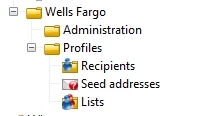
Note: the "model" key in the JSON is used to automatically set all the default parameters. You may find the values for model in \datakit\nms\eng\package\folder.xml and core.xml (look for <entities schema="xtk:folder"> node)

Note 2: the "save()" method is intelligent, it will update the folders if they already exist, no need to delete them

Note 3: some schemas don't have a folder-id, such as XSL stylesheets, so every brand will be able to see other brands XSL. You may have to hardcode a filter in the advanced parameters > restriction.

Kind regards

12 replies

ghoshdasAdobe EmployeeAuthor
Adobe Employee
July 10, 2019

Hi Floriancourgey,

Also find below the access rights for the folders.

Operator Groups

<<Folder Name>> as Input in the script(For e.g. – Wells Fargo)

Admin

Marketing Admin

Campaign Manager

Comments

Sub-Folders Tree Structure

Administration

Access Management

Operators

CRUD

CRU

R

Operators Groups

CRUD

CRU

R

Named rights

CRUD

CRU

R

Configuration

CRUD

CRU

R

Campaign Management

Deliveries

CRUD

CRU

CR

Typology Management

Typologies

CRUD

CRU

R

Typology rules

CRUD

CRU

R

Campaigns

Campaign WF

CRUD

CRU

CR

Profiles and Targets

Seed addresses

CRUD

CRU

R

Recipients

CRUD

CRU

R

Lists

CRUD

CRU

R

Resources

Campaign templates

CRUD

CRU

CR

XSL style sheets

CRUD

CRU

CR

File resources

CRUD

CRU

CR

Web apps

CRUD

CRU

CR

Delivery templates

CRUD

CRU

CR

ghoshdasAdobe EmployeeAuthor
Adobe Employee
July 10, 2019

Hi Floriancourgey,

I have modified the Jaavscript to create the appropriate folder. The only thing I am stuck is to add "Access Rights/Permissions" to the folders baed on the Operator Groups.

Please refer the table mentioned above.

Regards,

Kaustav