Add a custom input field to the SMS delivery to store URL of an image | Community
Skip to main content
This post is no longer active and is closed to new replies. Need help? Start a new post to ask your question.
Best answer by SushantTrimukheD

Hi @krishnakumard1,

Adding a custom input field to an SMS delivery to store an image URL involves extending the schema, modifying the input form, and ensuring the field is available in the delivery configuration.

1. Extend the Delivery Schema

The SMS delivery configuration is tied to the nms:delivery schema in Adobe Campaign Classic. To add a custom field for storing an image URL, you need to extend this schema.

  • Navigate to Schema Management: Go to Administration > Configuration > Data Schemas in the Adobe Campaign Classic console.
  • Create an Extension: Find the nms:delivery schema, and create an extension by right-clicking and selecting "New > Schema > Extension of an existing schema."
  • Add the Custom Field: In the schema editor, add a new attribute for the image URL. For example:
<element name="delivery"> <element name="customFields" label="Custom Fields"> <attribute name="imageUrl" type="string" length="255" label="Image URL" desc="URL of the image for SMS delivery"/> </element> </element>​


  • Save and Update the Database: Save the schema and update the database structure (Tools > Advanced > Update database structure) to apply the changes.

This adds a field called imageUrl under a customFields node in the nms:delivery schema.

2. Modify the SMS Delivery Input Form

Next, you need to update the input form for SMS deliveries to display this new field in the user interface.

  • Locate the Delivery Form: Go to Administration > Configuration > Input Forms and find the nms:delivery form (or create a custom version if needed).
  • Edit the Form: Add an input field for the imageUrl. For example:
<container type="frame" label="Custom SMS Options"> <input xpath="customFields/@imageUrl" label="Image URL" placeholder="Enter the image URL here"/> </container>​


    • Place this within an appropriate section of the form, such as under the SMS content or advanced parameters section.
  • Save the Form: Save your changes to make the field visible when configuring an SMS delivery.


Ref: https://experienceleague.adobe.com/en/docs/campaign/campaign-v8/config/implement/customize
https://experienceleague.adobe.com/en/docs/campaign-classic/using/designing-content/web-forms/adding-fields-to-a-web-form
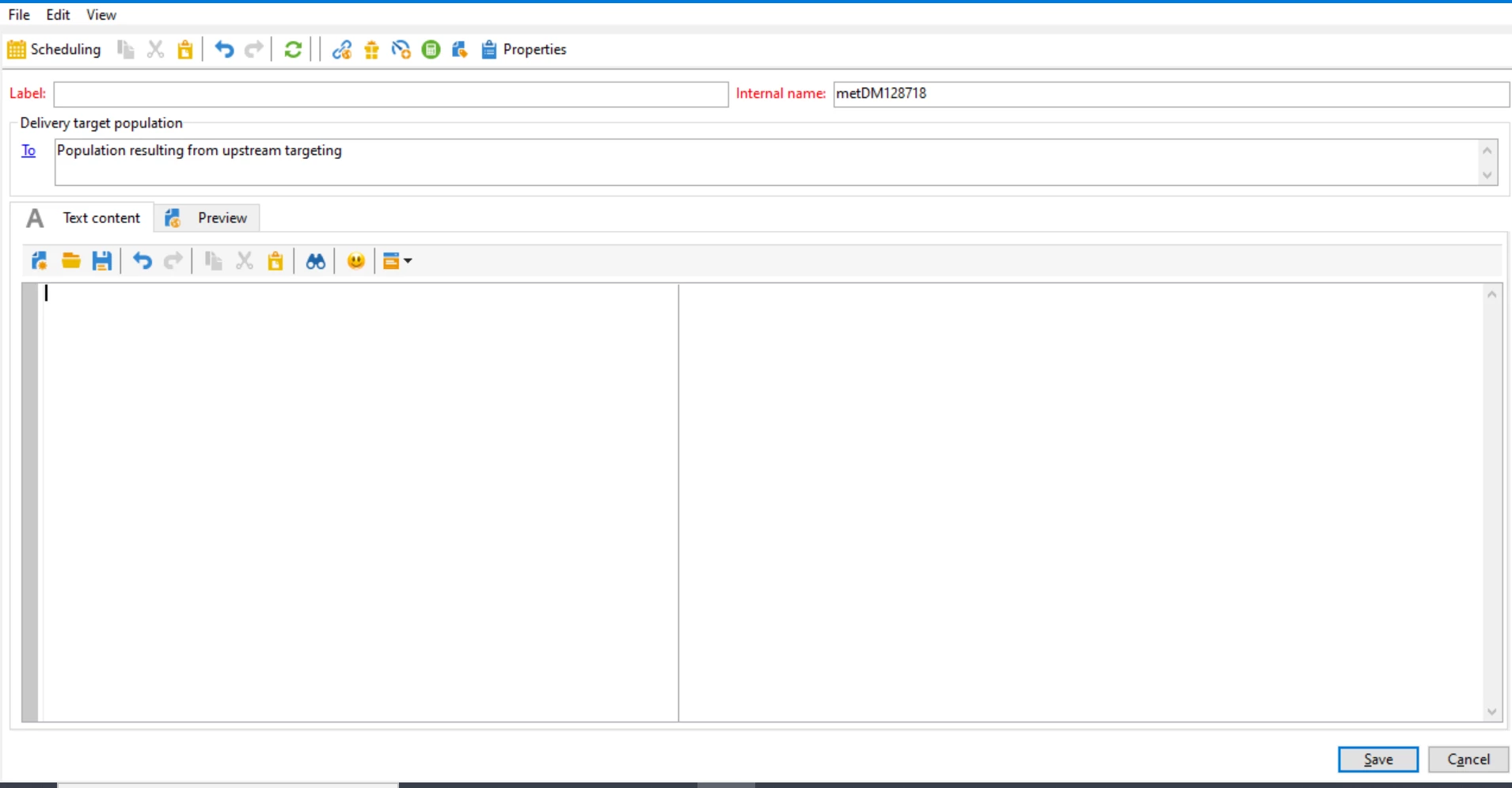

1 reply

SushantTrimukheD
SushantTrimukheDAccepted solution
Level 4
March 26, 2025

Hi @krishnakumard1,

Adding a custom input field to an SMS delivery to store an image URL involves extending the schema, modifying the input form, and ensuring the field is available in the delivery configuration.

1. Extend the Delivery Schema

The SMS delivery configuration is tied to the nms:delivery schema in Adobe Campaign Classic. To add a custom field for storing an image URL, you need to extend this schema.

  • Navigate to Schema Management: Go to Administration > Configuration > Data Schemas in the Adobe Campaign Classic console.
  • Create an Extension: Find the nms:delivery schema, and create an extension by right-clicking and selecting "New > Schema > Extension of an existing schema."
  • Add the Custom Field: In the schema editor, add a new attribute for the image URL. For example:
<element name="delivery"> <element name="customFields" label="Custom Fields"> <attribute name="imageUrl" type="string" length="255" label="Image URL" desc="URL of the image for SMS delivery"/> </element> </element>​


  • Save and Update the Database: Save the schema and update the database structure (Tools > Advanced > Update database structure) to apply the changes.

This adds a field called imageUrl under a customFields node in the nms:delivery schema.

2. Modify the SMS Delivery Input Form

Next, you need to update the input form for SMS deliveries to display this new field in the user interface.

  • Locate the Delivery Form: Go to Administration > Configuration > Input Forms and find the nms:delivery form (or create a custom version if needed).
  • Edit the Form: Add an input field for the imageUrl. For example:
<container type="frame" label="Custom SMS Options"> <input xpath="customFields/@imageUrl" label="Image URL" placeholder="Enter the image URL here"/> </container>​


    • Place this within an appropriate section of the form, such as under the SMS content or advanced parameters section.
  • Save the Form: Save your changes to make the field visible when configuring an SMS delivery.


Ref: https://experienceleague.adobe.com/en/docs/campaign/campaign-v8/config/implement/customize
https://experienceleague.adobe.com/en/docs/campaign-classic/using/designing-content/web-forms/adding-fields-to-a-web-form

New Member
May 12, 2025

Hi  SushantTrimukheD,


Thanks for taking time to respond. I have followed the steps you mentioned and able to implement the changes successfully.


Thanks again!