


Workfront Fusion Custom UI extensions
Workfront Fusion Custom UI extensions
Overview
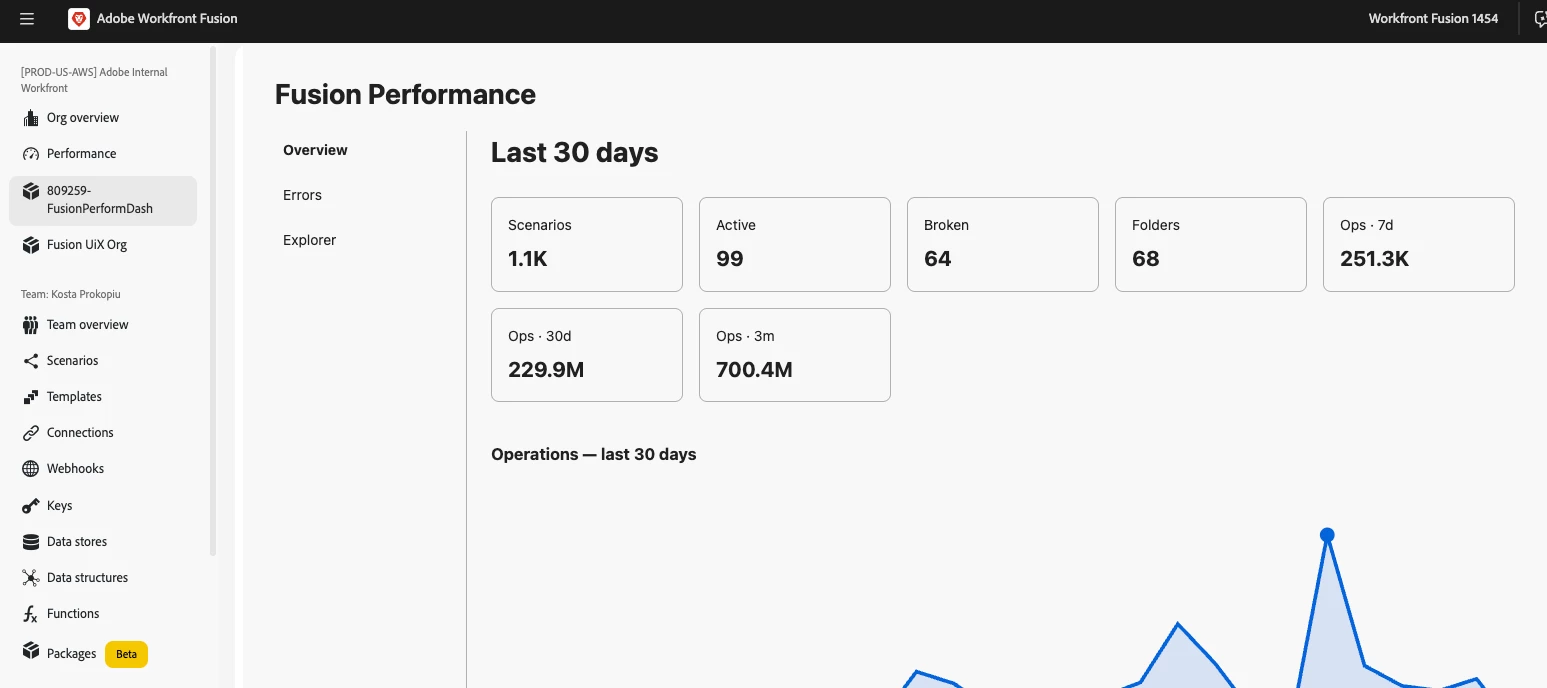
Fusion can display your own web UI inside its interface. Build a small web app (a guest extension), publish it via Adobe App Builder, and Fusion will show a new menu item in its navigation that opens your UI in the main canvas. The guest automatically receives context such as the signed‑in user, organization, team, and other metadata so your extension can adapt to the current environment.
The technology underneath
Your guest is built with two Adobe technologies:
- Adobe App Builder — Free hosting and tooling for small web apps and serverless actions. App Builder hosts your static UI on Adobe’s CDN and provides the aio CLI to create, build, and publish the app.
- Adobe UI Extensibility SDK (UIX) — The libraries that let host and guest talk. Use
@adobe/uix-guestin your guest; Fusion uses@adobe/uix-hoston its side.
Extension points
An extension point is a named slot in Fusion where a guest may appear. Extension point names use the format: service/name/version.
Fusion currently offers these extension points:
| Extension point | Where it appears | When to use it |
|---|---|---|
fusion/nav-organization/1 | Under the Organization section of the left navigation | Your tool is about the whole organization |
fusion/nav-team/1 | Under the Team section of the left navigation (when a team is selected) | Your tool is about a specific team |
An extension can implement one or both points; Fusion adds a navigation menu item with the extension title for the chosen slot(s). Clicking the button opens your UI in the main content area.
How to get started
- Install the App Builder CLI (aio) and create a new App Builder app using the UIX guest template.
- Implement your UI and install
@adobe/uix-guest. Initialize the UIX guest client to receive context and messages from Fusion. - Test locally with the aio dev workflow and verify the guest receives expected context (user, org, team).
- Build and publish the app to App Builder (the app is hosted on Adobe’s CDN).
- Register the extension in Fusion: provide the extension metadata, choose the extension point(s), and supply the hosted URL for your guest.
- Verify the extension appears in Fusion navigation and validate behavior in target organizations/teams.
Behavior and tips
- Use the UIX guest API to request context, listen for navigation events, and send messages back to the host as needed.
- Keep payloads and interactions minimal: rely on the host for authentication and context; perform sensitive server‑side work in actions hosted on App Builder when needed.
- Test your extension across environments (dev, staging, prod). Use descriptive extension names and notes so admins can identify the intended environment and purpose.
- Review permissions and security: App Builder hosts your assets on Adobe’s CDN; design auth and server interactions to validate user identity and scope where required.
Where to find documentation
For detailed step‑by‑step guidance, code samples, and publishing instructions, see the Experience League documentation:
Custom UI extensions: readme on Experience League
Need help or want to give feedback?
If you have questions, run into issues, or want to suggest improvements (for example, additional extension points, deeper host APIs, or streamlined publishing), post a comment on the Experience League article, start a thread in the Experience League Community, or contact Adobe Support through the Admin Console Support portal. Your feedback helps us prioritize enhancements.