


View changes between scenario versions
Product update:
View and compare scenario versions
This post introduces a new Review changes experience that makes it easy to see exactly what changed between two versions of a scenario so you can confidently restore older versions when needed.
Overview
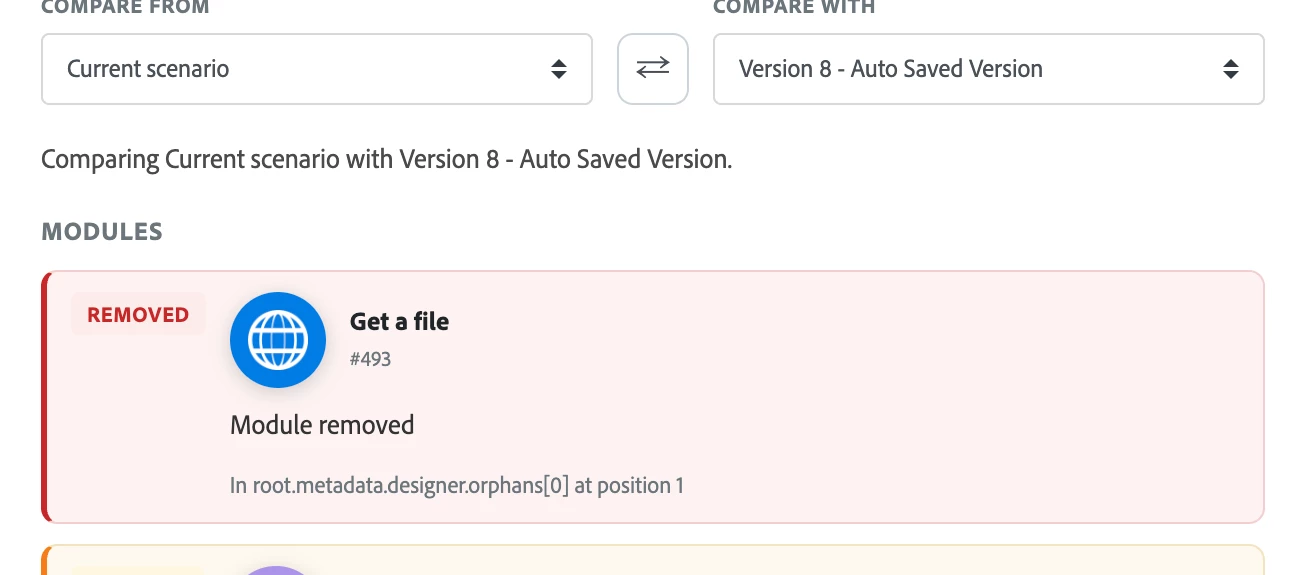
You can now open a side-by-side comparison of any two versions of the same scenario to view detailed differences before you restore a version. The Review changes view highlights additions, removals, and edits (colored green and red) and groups changes by logical sections (Scenario, Scenario settings, Modules, Flows, Router routes, Error handlers, and Orphan groups). Restoring a version creates a new version, so all restores are reversible.
How to compare scenario versions
- Click Scenarios in the left panel and open the scenario you want to inspect.
- Click the More icon at the bottom of the screen, then choose Previous Versions.
- From the list of previous versions, click View changes for the version you want to compare.
- The Review changes panel opens and shows a side-by-side comparison: the current scenario on the left and the selected version on the right.
Understand the comparison view
The Review changes panel visually indicates what would happen if you restored the right-hand version:
- Red (left): Items present in the left (current) version that would be removed if you restored the right-hand version.
- Green (right): Items present in the right-hand version that would be added if you restored it.
- If a value changed between versions, you’ll see the old value in red on the left and the new value in green on the right.
Change groups
Changes are grouped into these sections to help you quickly locate relevant differences:
- Scenario: Name, description, and type.
- Scenario settings: Schedule and processing options.
- Modules: Modules added, removed, moved, or reconfigured.
- Flows: Branches added, removed, or reordered.
- Router routes: Routes and their contents.
- Error handlers: Error-handling branches.
- Orphan groups: Disconnected modules on the canvas.
Restore behavior
To revert to the version shown on the right, click Revert to selected version. Restoring saves the restored scenario as a new version so the change itself can be undone later. If you want to restore the version currently shown on the left, click the ⇄ swap button to put it on the right, then click Revert to selected version.
When there are no differences
If the two selected versions are identical, the Review changes view displays No differences found.
More information and support
For step-by-step guidance, see: View and manage scenario versions on Experience League.
If you have questions or feedback, post a comment below or contact Adobe Support via the Admin Console Support portal.